Modules & Options
7 - 6 PC Camera Module (Windows 8)
7
Taking Pictures/Capturing Video
1. Run the Camera app from the Metro UI by clicking/tapping on the Camera app
icon .
2. Click/tap to select the timer if you require a countdown before capture.
3. Click/tap to select either photo or video modes.
4. Click/tap in the main window to take a picture or start video capture (if video
capture begins a timer will appear in the bottom right corner of the screen).
5. To stop video capture click/tap the main window again.
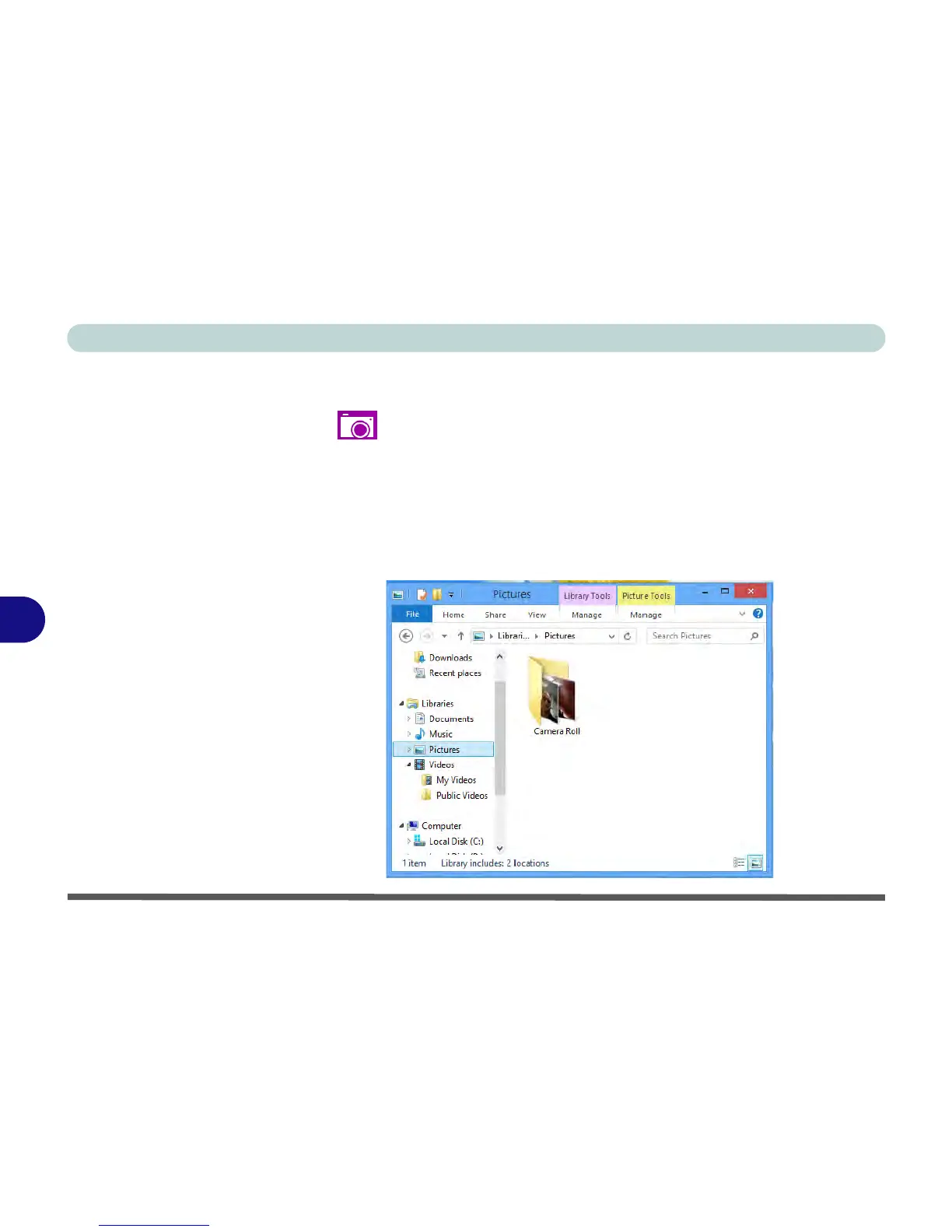
6. Captured photos and videos will be saved to a Camera Roll folder within the
Picture folder in Libraries.



 To Next Page