Modules & Options
PC Camera Module (Windows 8) 7 - 7
7
7. A scroll arrow will appear on the left side of the screen after any pictures/videos
have been captured.
8. Click/tap the arrows (on either side of the screen) to browse through the captured
photos/video, and back to the Camera app.
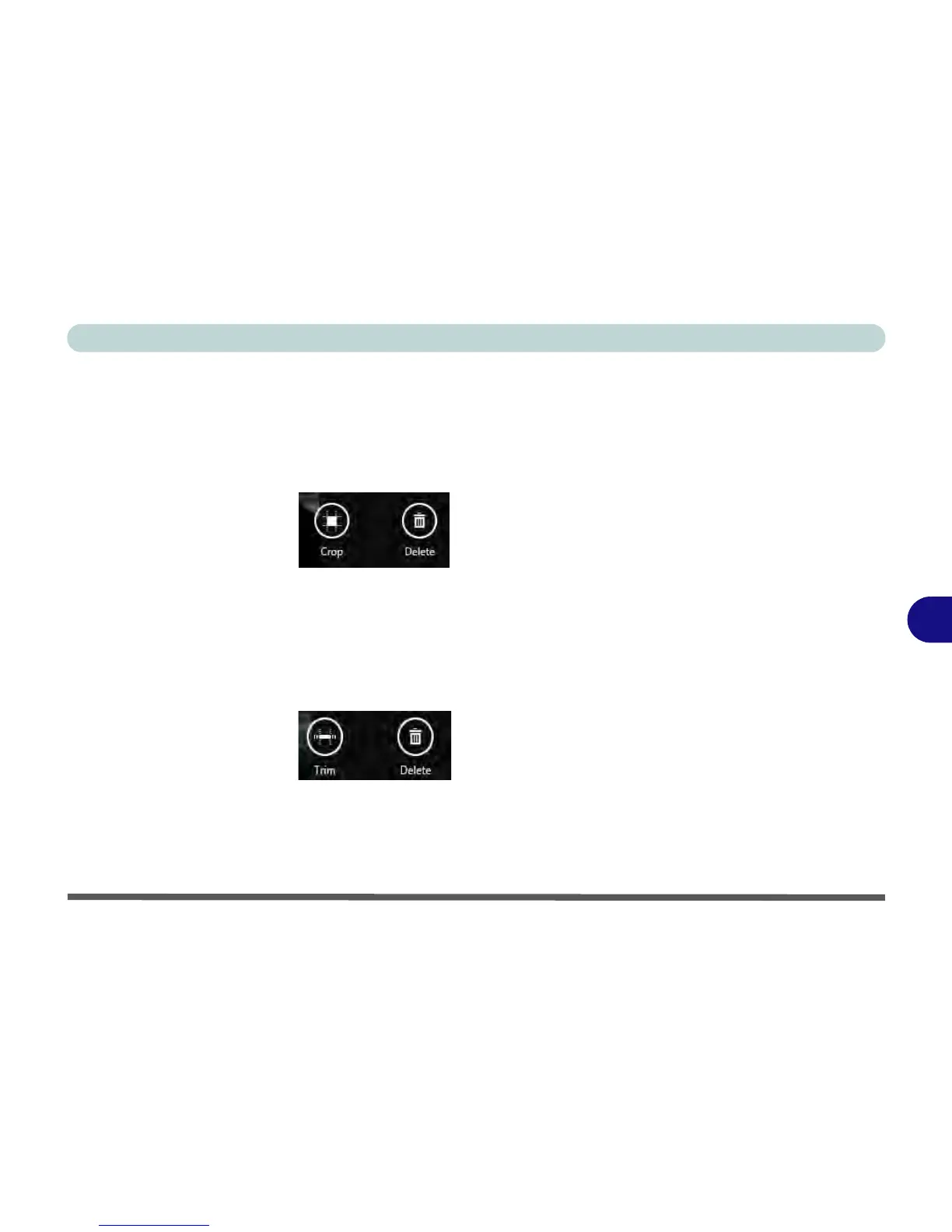
9. Clicking/tapping on a captured photo will bring up an app bar with Crop and
Delete buttons.
10. Use the handles to Crop any captured picture, and click/tap OK to save the
changes made.
11. Click/tap Delete to delete any captured photo (note that no prompt will appear to
confirm the delete).
12. Right-click (tap, hold and release) any captured video to bring up app bar with
Trim and Delete buttons.
13. Use the buttons at either end of the slider to adjust the video length and click/tap
OK to save the changes made.



 To Next Page