D - 6 Video Features
Windows 7
Windows 7
Video Features
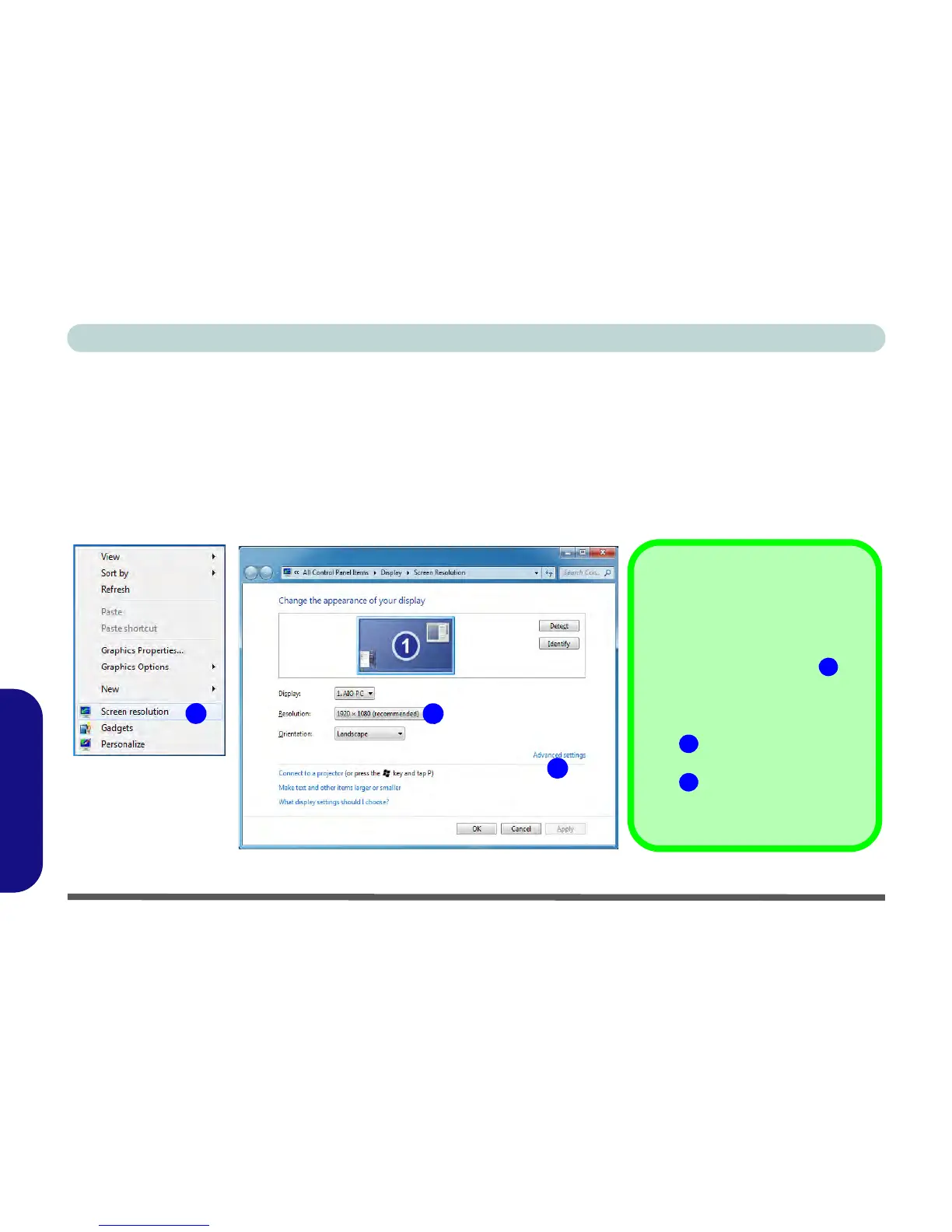
You can configure display options from the Display (Control Panel) and Screen Resolution in Windows. For
more detailed video information see Appendix B.
To access Display (Control Panel) and Screen Resolution in Windows:
1. Click/tap Start and click/tap Control Panel.
2. Click/tap Display (icon) - In the Appearance and Personalization category.
3. Click/tap Adjust Screen Resolution/Adjust resolution.
Figure D - 3 - Screen Resolution
1
3
2
Right-Click Desktop
1. You can right-click the
desktop and select
Screen resolution
(Figure D - 3).
2. Use the dropbox to select
the screen Resolution
(Figure D - 3).
3. Click Advanced settings
(Figure D - 3) to bring
up the Advanced
properties tabs.



 To Next Page