D - 4 On Screen Display Indicators/Buttons
Windows 7
Windows 7
On Screen Display Indicators/Buttons
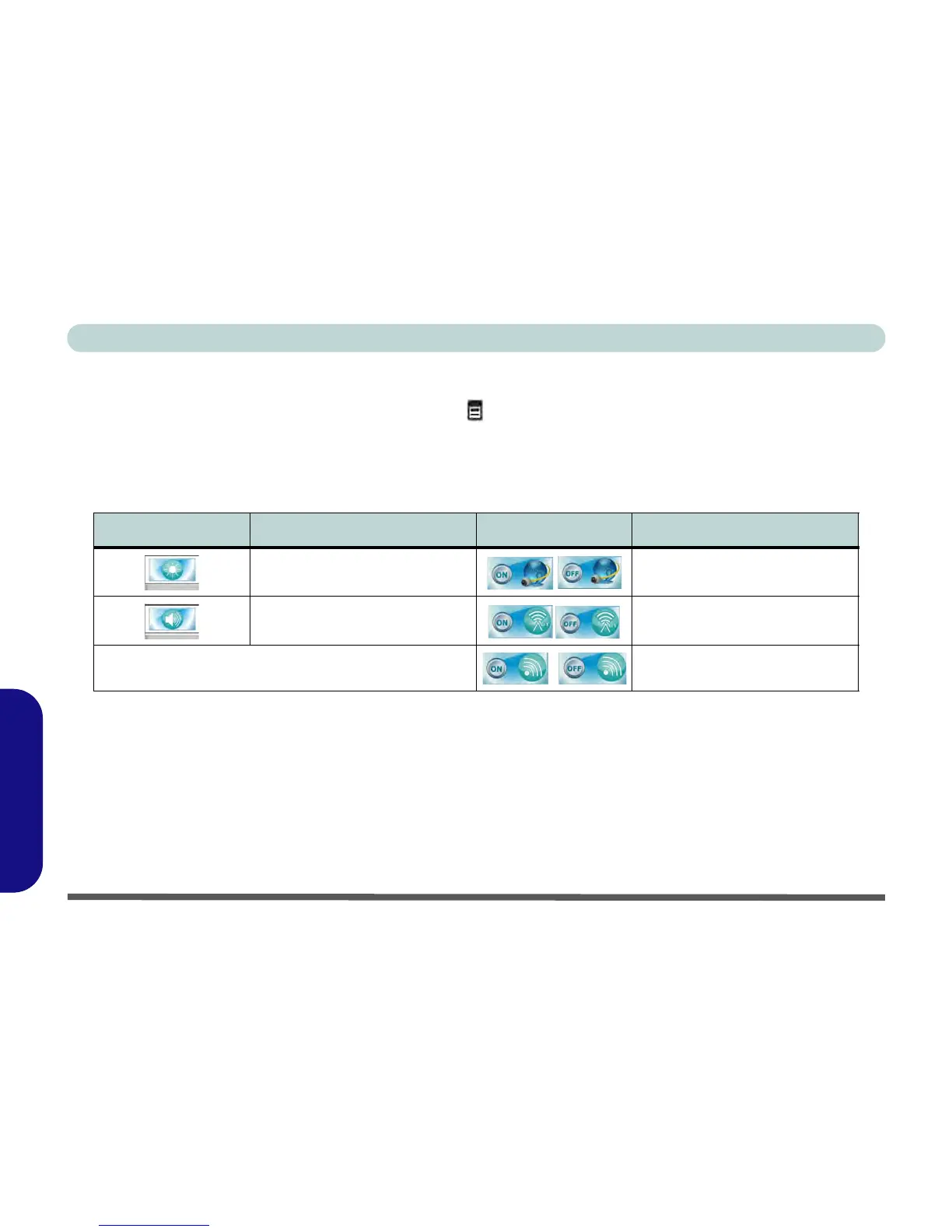
Press the function menu button for about two seconds to bring up the On Screen Display. The OSD provides
visual indicators for brightness, volume, camera power toggle and WLAN/Bluetooth power toggle (the camera,
WLAN and Bluetooth power indicators will only display if the modules are included in your purchase configu-
ration) when the Hotkey AP is installed (see page D - 19).
Table D - 3 - On Screen Display Indicators
The indicators will appear when the computer boots up, or resumes from a power saving state, in order to display
the current power status of the camera and/or WLAN/Bluetooth module. If you adjust the brightness or volume
the OSD indicators will appear, and will also allow you to adjust the power status of the camera and/or WLAN/
Bluetooth module using the mouse to click/tap on the icon.
The On Screen Indicators/Buttons do not function under Windows 8 as the system has its own built in controls.
OSD Icon Description OSD Icon Description
Volume Decrease/Increase Camera Power Toggle
Brightness Decrease/Increase Bluetooth Power Toggle
WLAN Power Toggle



 To Next Page