Intel Video Driver Controls
HDMI Audio Configuration B - 9
B
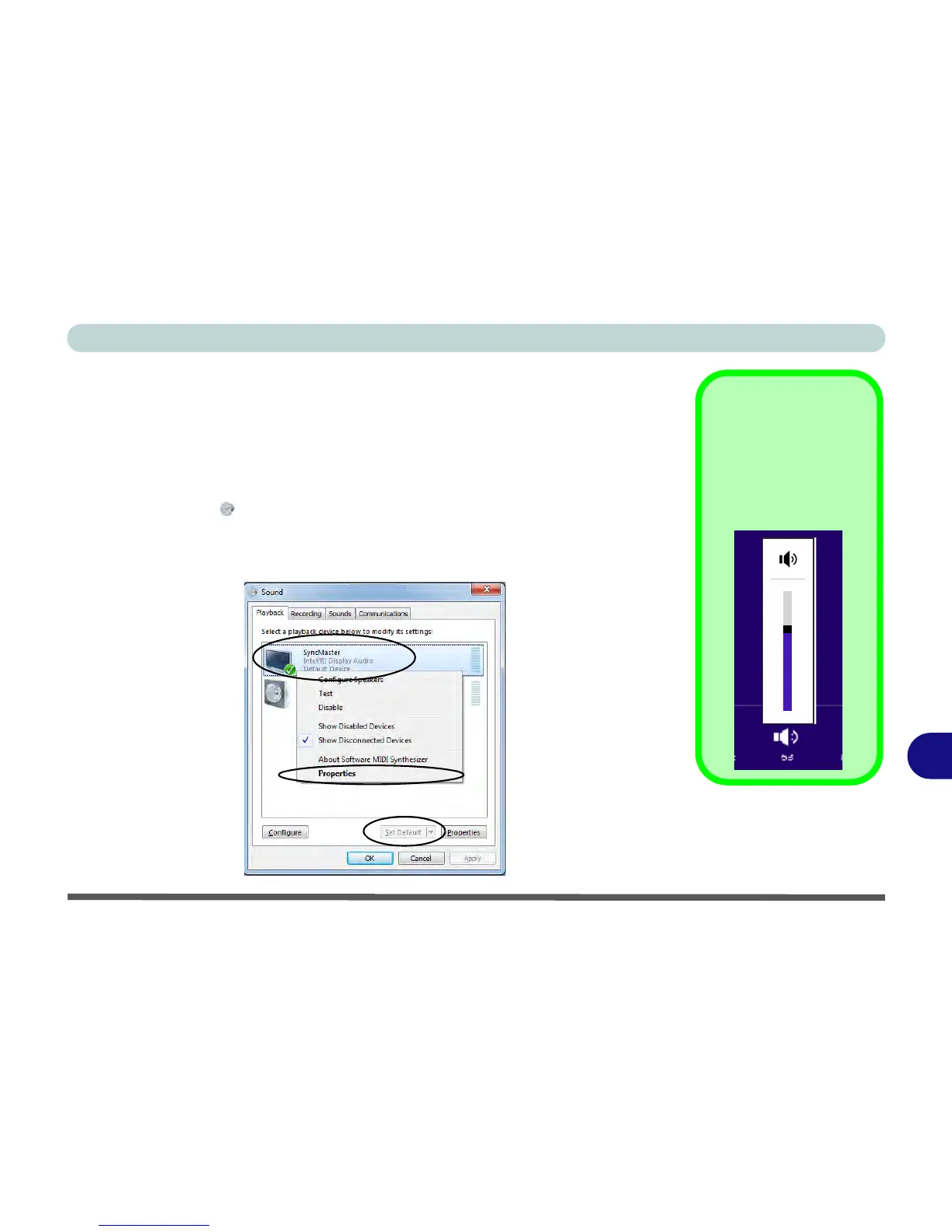
HDMI Audio Configuration
HDMI (High-Definition Multimedia Interface) carries both audio and video signals.
In some cases it will be necessary to go to the Sound control panel and manually
configure the HDMI audio output as per the instructions below.
1. Go to the
Control Panel
.
2. Click/tap Sound (Hardware and Sound) and click/tap Playback (tab)
3. Depending on your display, the playback device may be selected, however in some
cases you may need to select the audio device and click/tap
Set Default
(button).
4. Double-click/tap the device to access the control panel tabs illustrated overleaf.



 To Next Page