HDMI Audio Configuration D - 11
Windows 7
Windows 7
HDMI Audio Configuration
HDMI (High-Definition Multimedia Interface) carries both audio and video signals.
In some cases it will be necessary to go to the Sound control panel and manually con-
figure the HDMI audio output as per the instructions below.
1. Click/tap
Start
, and click/tap
Control Panel
(or point to
Settings
and click/tap
Con-
trol Panel
).
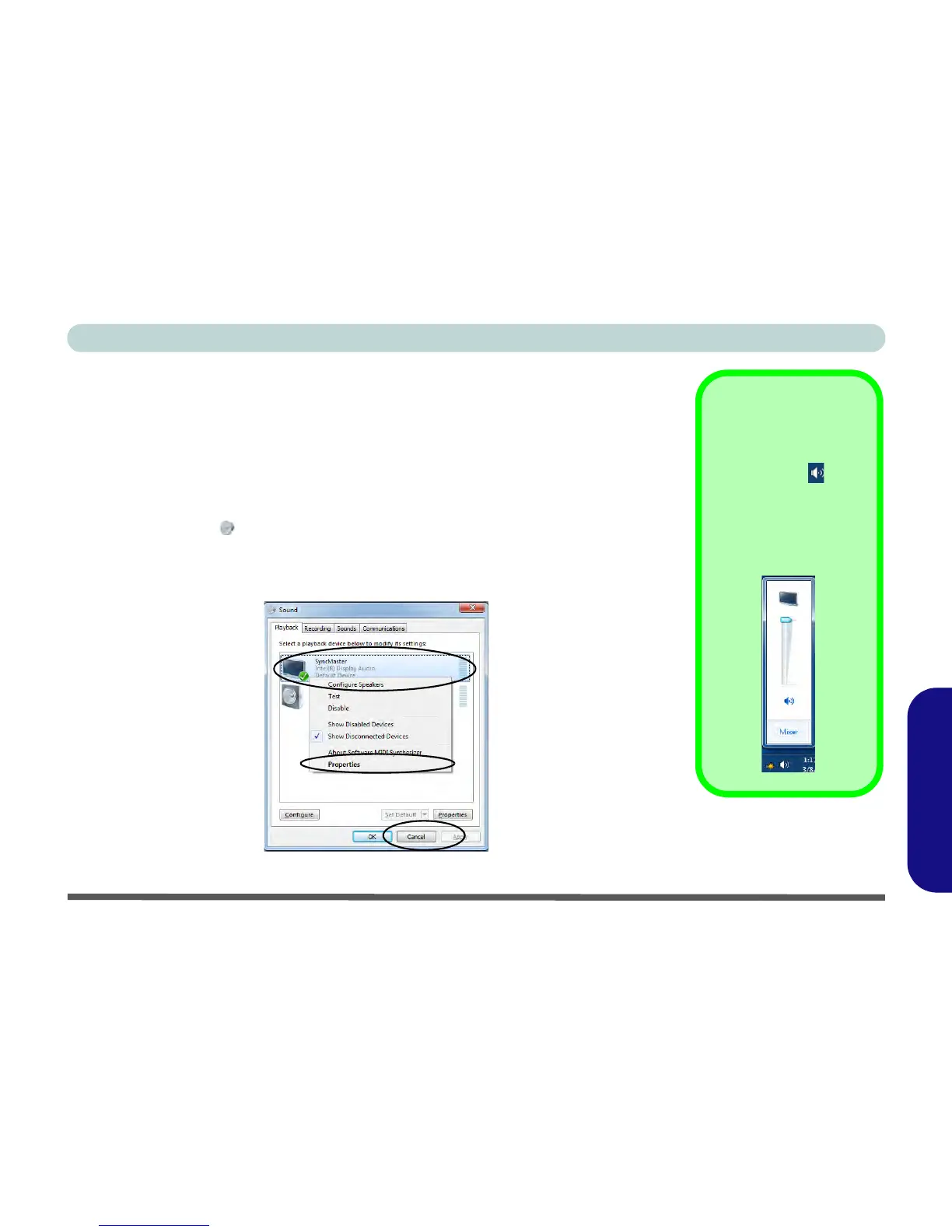
2. Click/tap Sound (Hardware and Sound) and click/tap Playback (tab)
3. Depending on your display, the playback device may be selected, however in some
cases you may need to select the audio device and click/tap
Set Default
(button).
4. Double-click the device to access the control panel tabs.
Figure D - 8 - Sound - HDMI Device (set Default
Volume Indicator
Click/tap the taskbar vol-
ume indicator when
an HDMI device is se-
lected, and you will note
that the icon at the top of
the volume level indica-
tor has changed.



 To Next Page