Windows 8 Touch Screen Controls/Gestures 1 - 19
Quick Start Guide
1
Windows 8 Touch Screen Controls/Gestures
Model B computers incorporate a Touch Screen and this can be used to navigate through he interface in much
the same way as a mouse, touchpad and keyboard. The following gestures are useful when navigating the Win-
dows 8 interface.
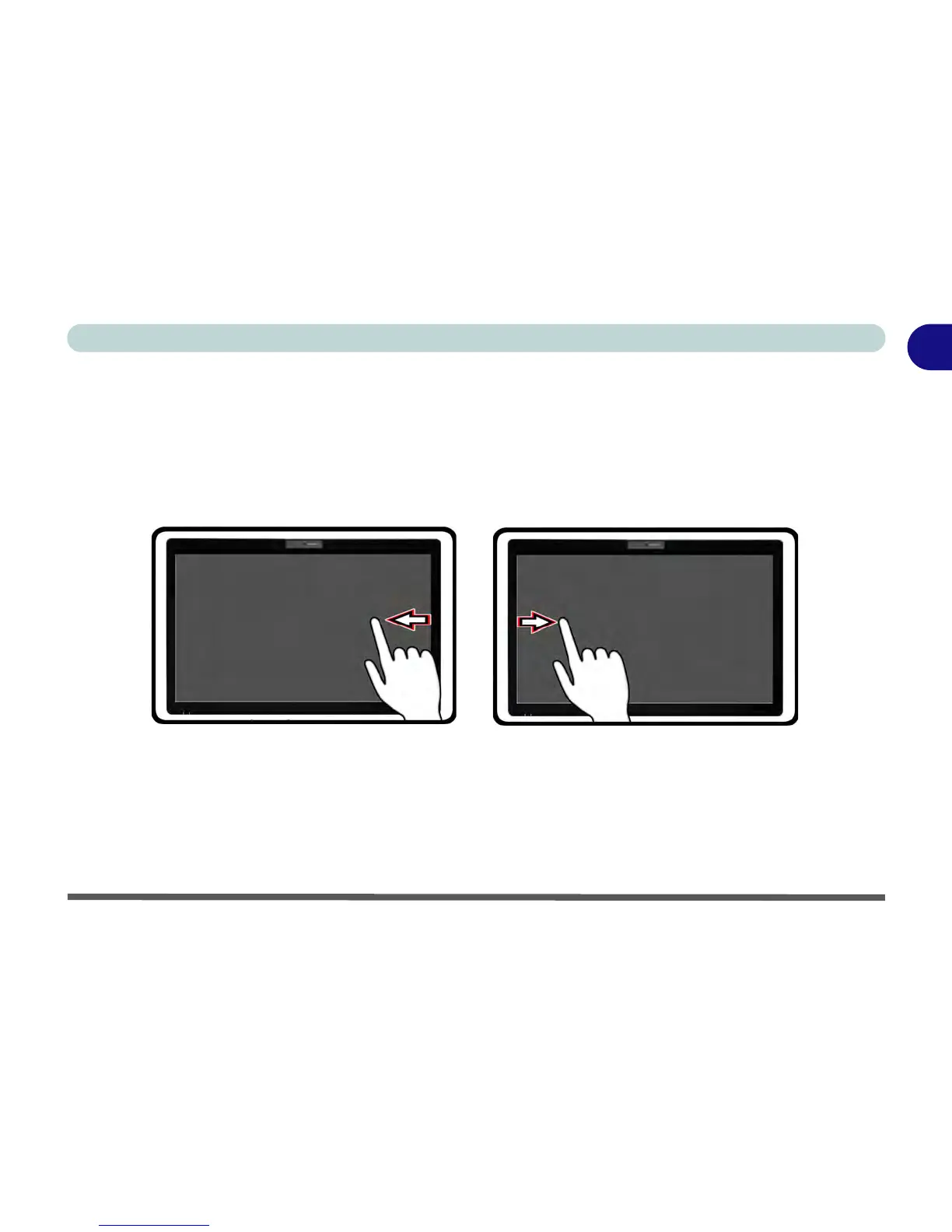
• Swipe from the right (Access the Charms Bar) - Pull your finger from the right side of the screen (in the
black area) to the left a little bit to bring up the Charms Bar.
Figure 1 - 12 - Swipe from Right & Left
• Swipe from the left (Switch apps) - If multiple apps are running you can slide your finger from the left side
of the screen (in the black area) to the right to switch between apps.
• Swipe slowly from the left (Snap apps) - Perform the same action above more slowly, to drag one app out
and display it side-by-side with the app that was already on your screen.



 To Next Page