1 - 38 Running Metro UI Apps
Quick Start Guide
1
Running Metro UI Apps
To run apps in the Metro UI in Windows 8 you will need to check that the Screen Resolution and User Account
Control Settings are compatible with the system requirements.
Screen Resolution Settings
1. Switch to the Windows Desktop (click/tap the app or use the Windows logo key + D key combination).
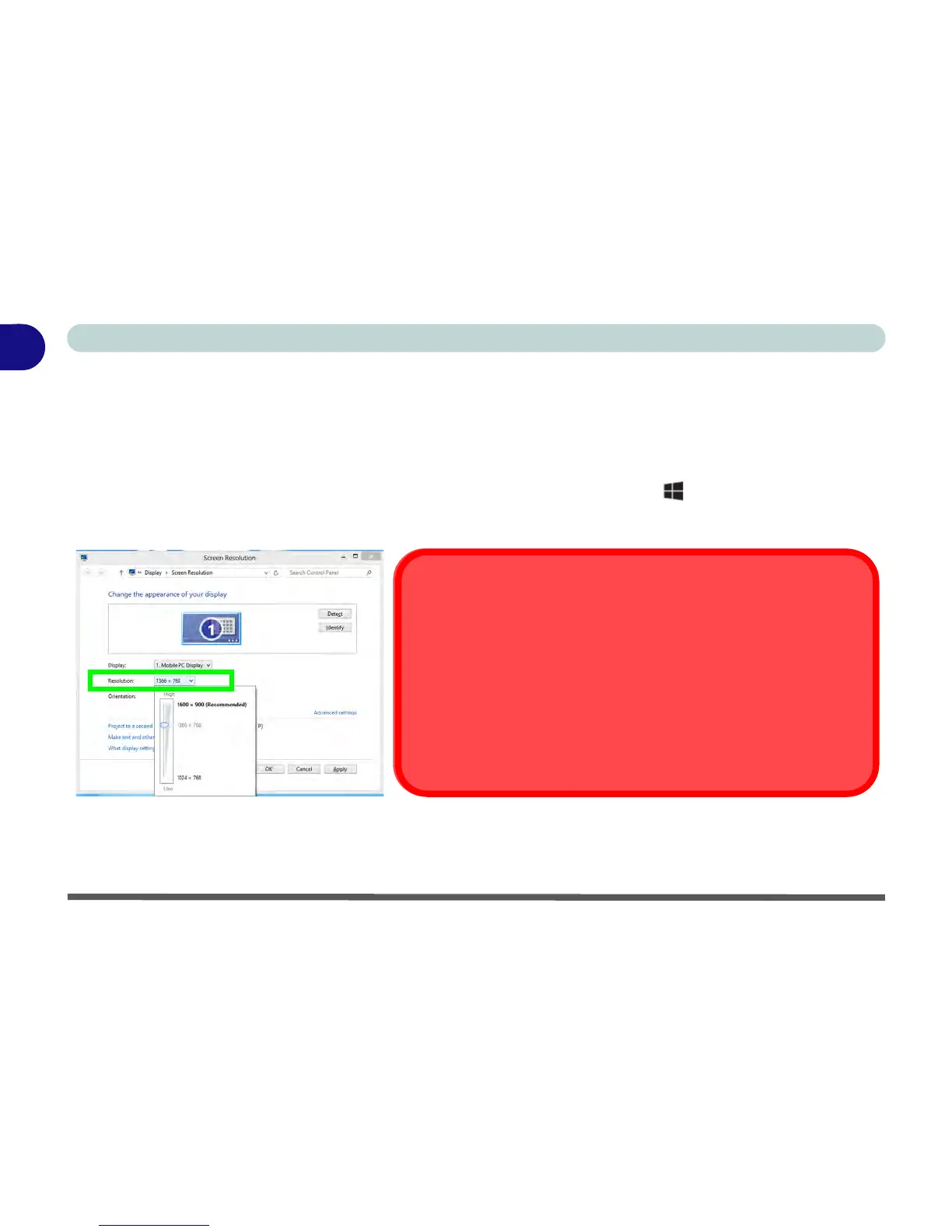
2. Right-click a blank area of the Windows Desktop and select Screen Resolution. Adjust the Resolution to
make sure that it is at least 1024 * 768, although preferably 1366 * 768 or above (see sidebar).
Figure 1 - 32 - Screen Resolution
Screen Resolution for Metro Style Apps
(Windows 8)
The minimum resolution in which Metro style Apps will run is 1024x768.
The minimum resolution required to support all the features of Windows
8 (including multitasking with snap) is 1366x768.
These specs are the minimum screen resolution that supports all the
features of Windows 8 on a useful physical size.



 To Next Page