Power Management
Turning On the Computer 3 - 3
3
Turning On the Computer
Now you are ready to begin using your computer. To turn it on simply press the pow-
er button on the front panel.
When the computer is on, you can use the power button as a Stand by/Hibernate/
Shutdown hot-key button when it is pressed for less than 4 seconds (pressing and
holding the power button for longer than this will shut the computer down). Use
Power Options (Hardware and Sound) in the Windows control panel to configure
this feature.
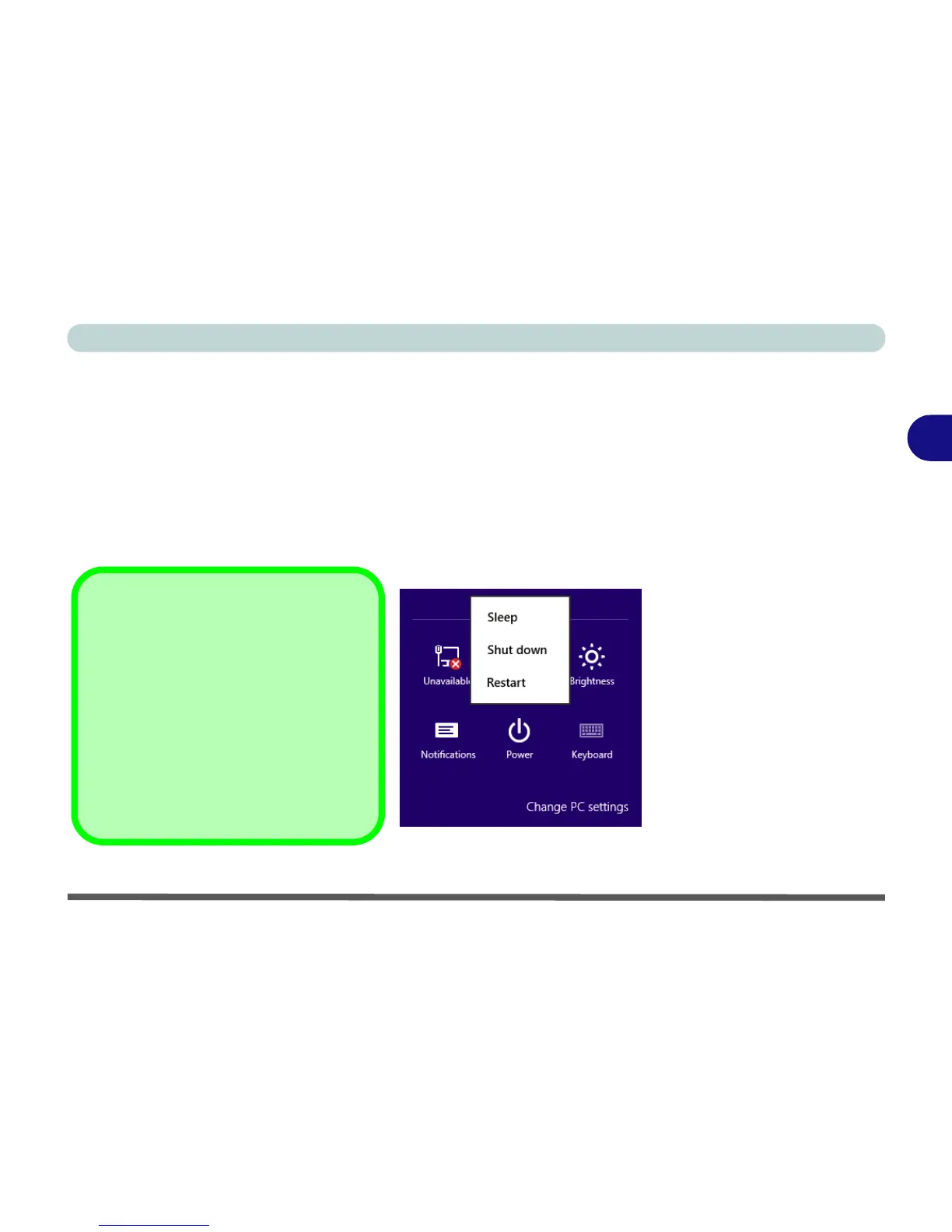
Shut Down
Note that you should always shut your com-
puter down by choosing the Shut Down
command from the Power Menu in the Set-
tings menu in the Windows 8 Charms Bar.
This will help prevent hard disk or system
problems. If you want to add Hibernate/
Sleep to the Power Menu
see “Adding Hi-
bernate/Sleep to the Power Menu” on
page 3 - 9.



 To Next Page