Features & Components
Audio Features 2 - 9
2
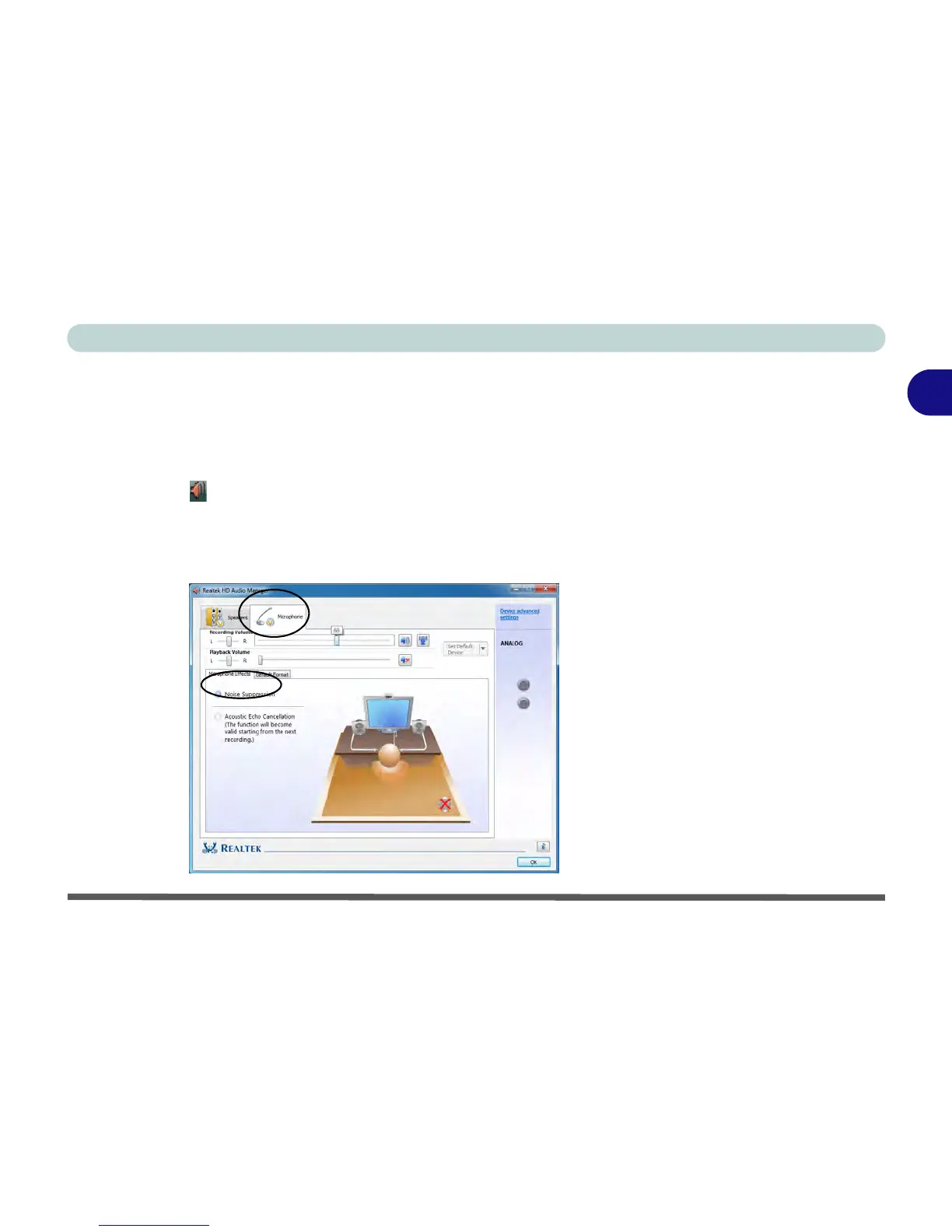
Setup for Audio Recording
To record audio sources on your computer at optimum quality follow the instruc-
tions below:
1. Go to the
Control Panel
.
2. Click/tap Realtek HD Audio Manager (Hardware and Sound), or right-click the
taskbar icon and select Sound Manager.
3. Click/tap Microphone Effects (tab) in Microphone (tab), and then click/tap to
select Noise Suppression (button), or adjust the Recording Volume level to
around 60, to obtain the optimum recording quality.
4. Click/tap OK to close the control panel and save the settings.



 To Next Page