Quick Start Guide
1 - 10 Buttons & LED Indicators (Win 8)
1
Buttons & LED Indicators (Win 8)
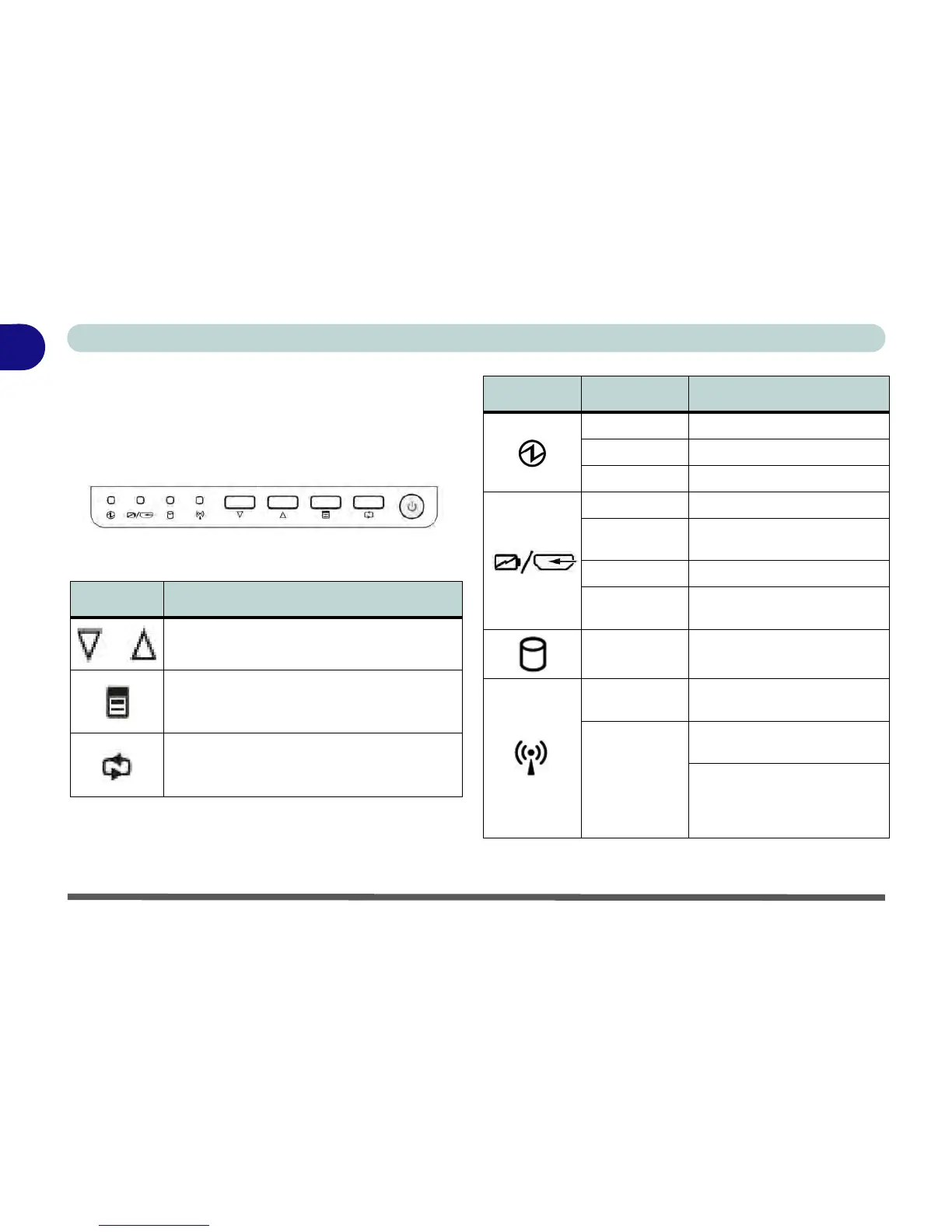
The buttons located under the front panel icons allow
you to make screen and input adjustments (see page D
- 3 for Windows 7 information).
Figure 1 - 6 - Front Icons
Table 1 - 1 - Function Buttons
The LED indicators on the computer display helpful
information about the current status of the computer.
Table 1 - 2 - LED Indicators
Icon Description
Decrease/Increase Buttons - Use the buttons
to decrease/increase the brightness
Menu Toggle - Use this button to bring up the
on screen menu when HDMI devices are
plugged in
Mode Toggle - Use this button to toggle
between the computer and HDMI Input
modes (see “Mode Toggle” on page 1 - 12)
Icon Color Description
Orange AC/DC Power is Plugged In
Green The Computer is On
Blinking Green The Computer is in Sleep Mode
Orange The Battery is Charging
Blinking Orange
The Battery has Reached
Critically Low Power Status
Blank The Battery is Fully Charged
Green
HDMI Cable Plugged-In (if the
computer is off - see page 1 - 12
Green System Activity
Green
The (optional) WLAN Module is
Powered On
Orange
Win 7 - The (optional) Bluetooth
Module is Powered On
Win 8 - The (optional) Bluetooth
Module is Installed (this is not a
power on/off indicator in
Windows 8)



 To Next Page