Windows 8 Start Screen & Desktop 1 - 29
Quick Start Guide
1
Charms Bar Items
• Search : You can search for any file, application, Apps and control panel settings with instantaneous
results.
•Share : This button is used to share information with people via mail or social networks.
•Start : Click/tap to bring up the Start Menu (the same function as pressing the Windows Logo Key or
clicking the bottom left of the screen).
• Devices : Click/tap this button to change connected peripheral device settings e.g. an external display.
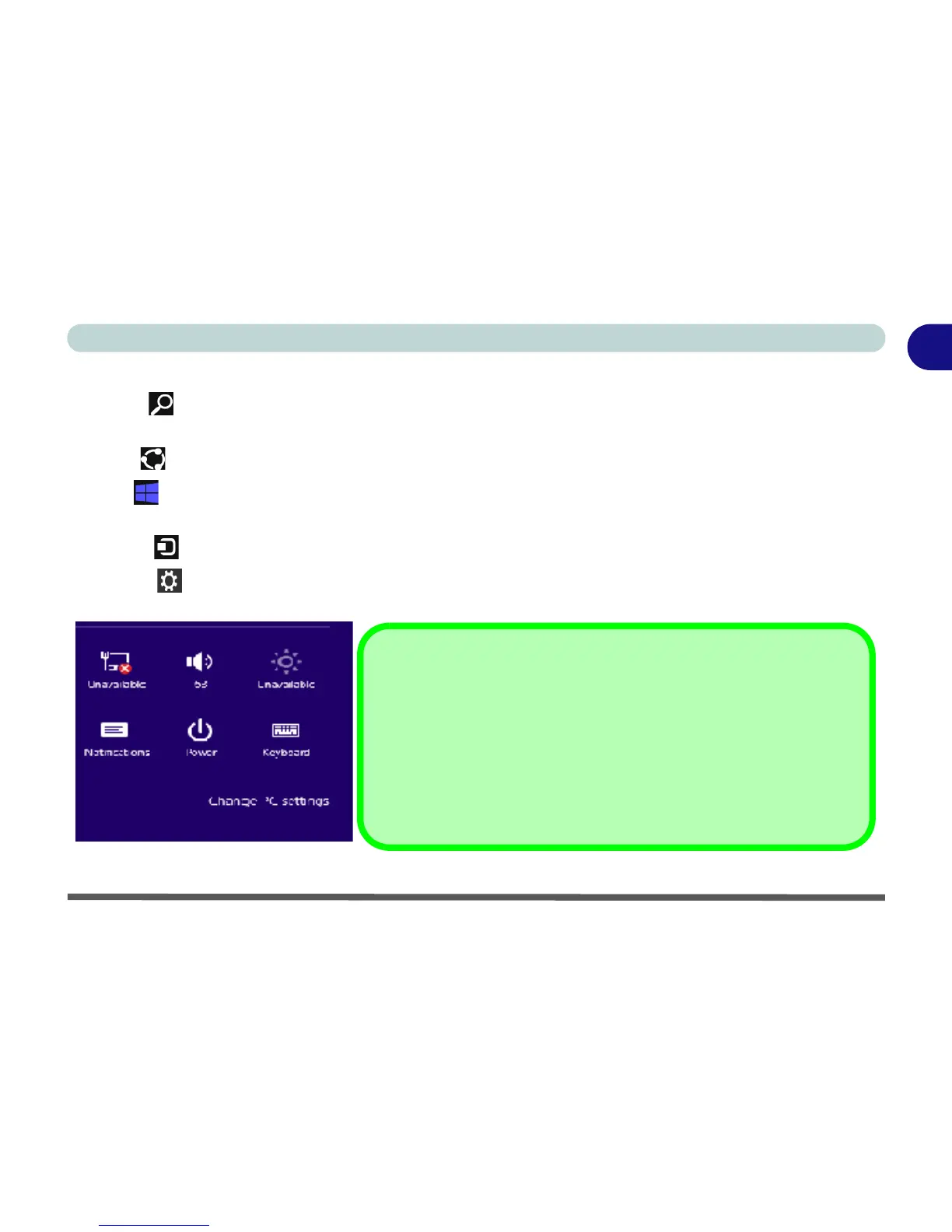
• Settings : This button gives instant access to the computer settings, such as Network, Audio, Notifica-
tions, Power and Keyboard (click/tap Change PC Settings to activate the PC Settings menu).
Figure 1 - 22 - Settings Menu
Charms Bar - Touch Screen Access
To quick access the Charms Bar using the Touch Screen:
1. Place your finger off the Touch Screen (slightly to the right of
the screen resting on the black area around the computer
screen).
2. Move your finger across to the left on to the Touch Screen.
3. The Charms Bar will then pop-up.



 To Next Page