Modules & Options
Trusted Platform (Security) Module 7 - 35
7
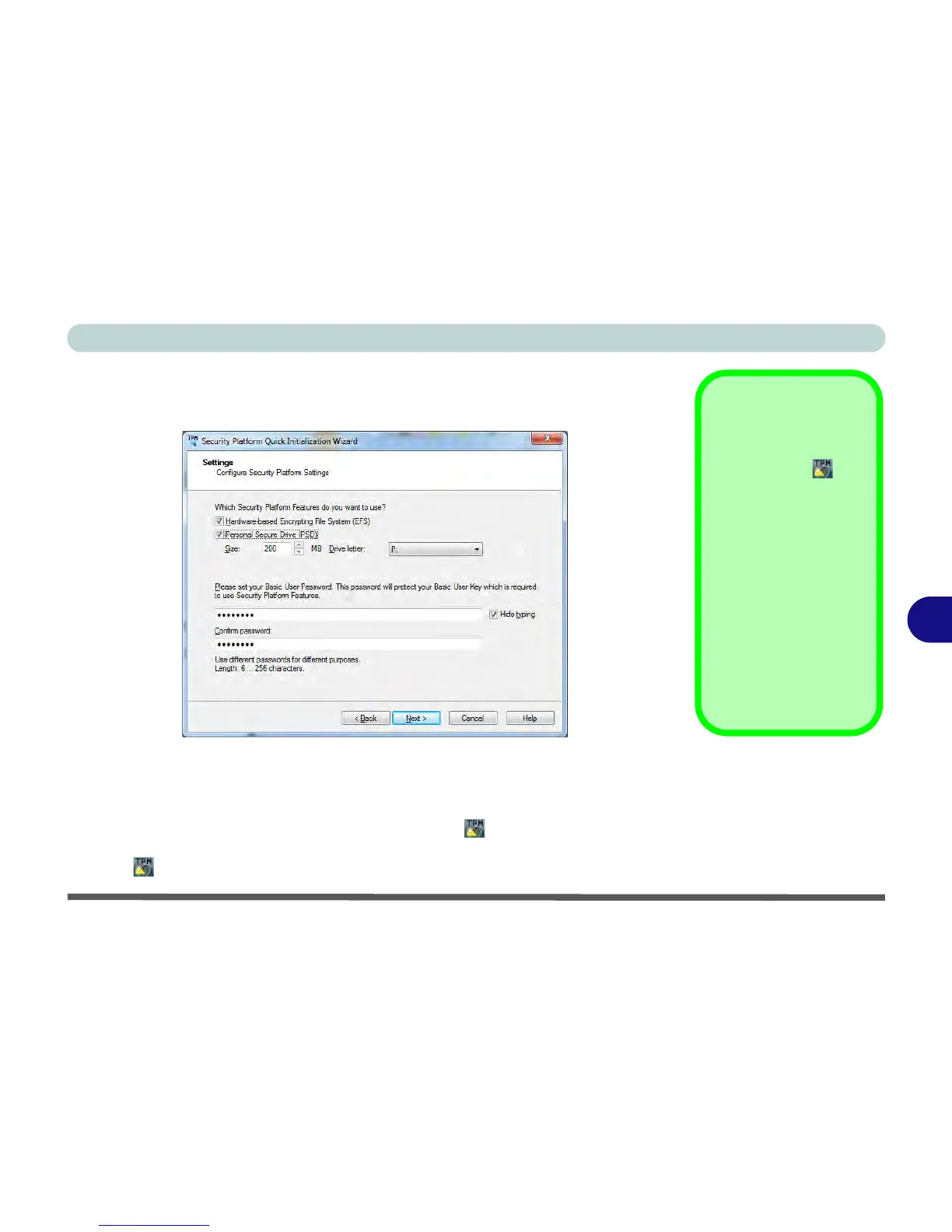
5. Choose the Security Platform Features you want to use by clicking the
appropriate tickbox.
6. Enter a Basic User Password (and re-type to confirm it) and click/tap Next.
7. Click/tap Next to confirm the settings.
8. The computer will then initialize the settings.
9. Click/tap Finish.
10. Click/tap the tabs and control panels to adjust the settings.
11. Go the to the desktop and double-click/tap the icon in the taskbar notification
area to access the Infineon Security Platform Settings Tool, or right-click the
icon and select a menu item.
Help
Go the to the desktop and
right-click the icon in the
notification area of the task-
bar to bring up the menu to
select
Help
or
How to use
the Security Platform Fea-
tures
.
You can also click/tap the
Help
button in any of the Infi-
neon Security Platform Set-
tings Tool tabs to bring up
specific help topics on each
tab.
Security Platform Help
is
also available from the
Start
screen in
Windows 8
.
Figure 7 - 26
Settings



 To Next Page