EasyManua.ls Logo

Blue Sonic Multimedia PC - Page 63

Blue Sonic Multimedia PC
304 pages
Print Icon
To Next Page IconTo Next Page
To Previous Page IconTo Previous Page
Loading...
Video Features 1 - 35
Quick Start Guide
1
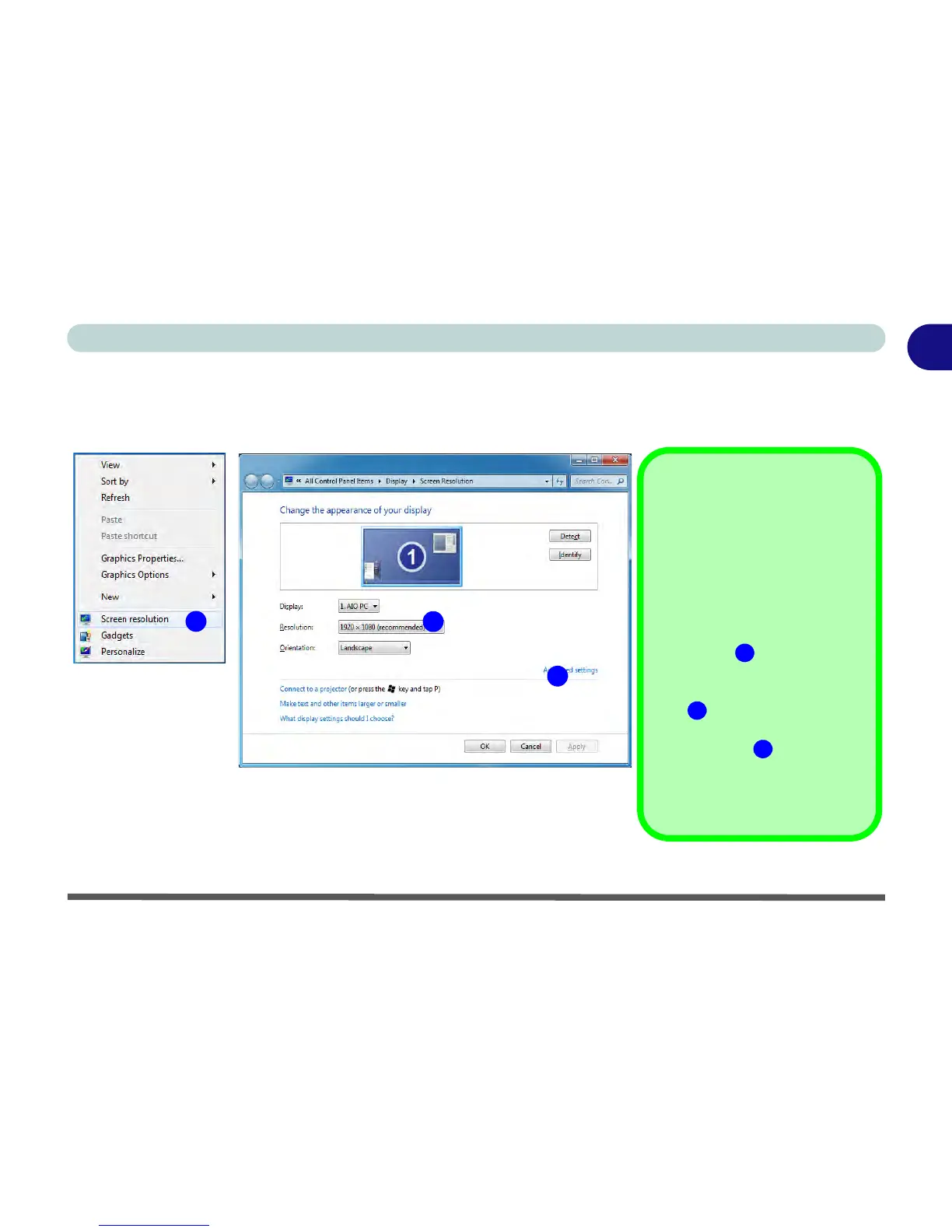
To access Display (Control Panel) and Screen Resolution in Windows 8:
1. Go to the Control Panel.
2. Click/tap Display (icon) - In the Appearance and Personalization category.
3. Adjust resolution.
Figure 1 - 29 - Screen Resolution
1
3
2
Right-Click Desktop App
1. You can right-click (tap
and the touch screen
until you see a square
icon and then release
your finger) the desktop
and select Screen reso-
lution (Figure 1 - 29).
2. Use the dropbox to select
the screen Resolution
(Figure 1 - 29).
3. Click Advanced
settings (Figure 1 -
29) to bring up the
Advanced properties
tabs.
1
2
3

Table of Contents