Operation
6
CLS Pro 600 – Line and Contrast Sensor 57/108
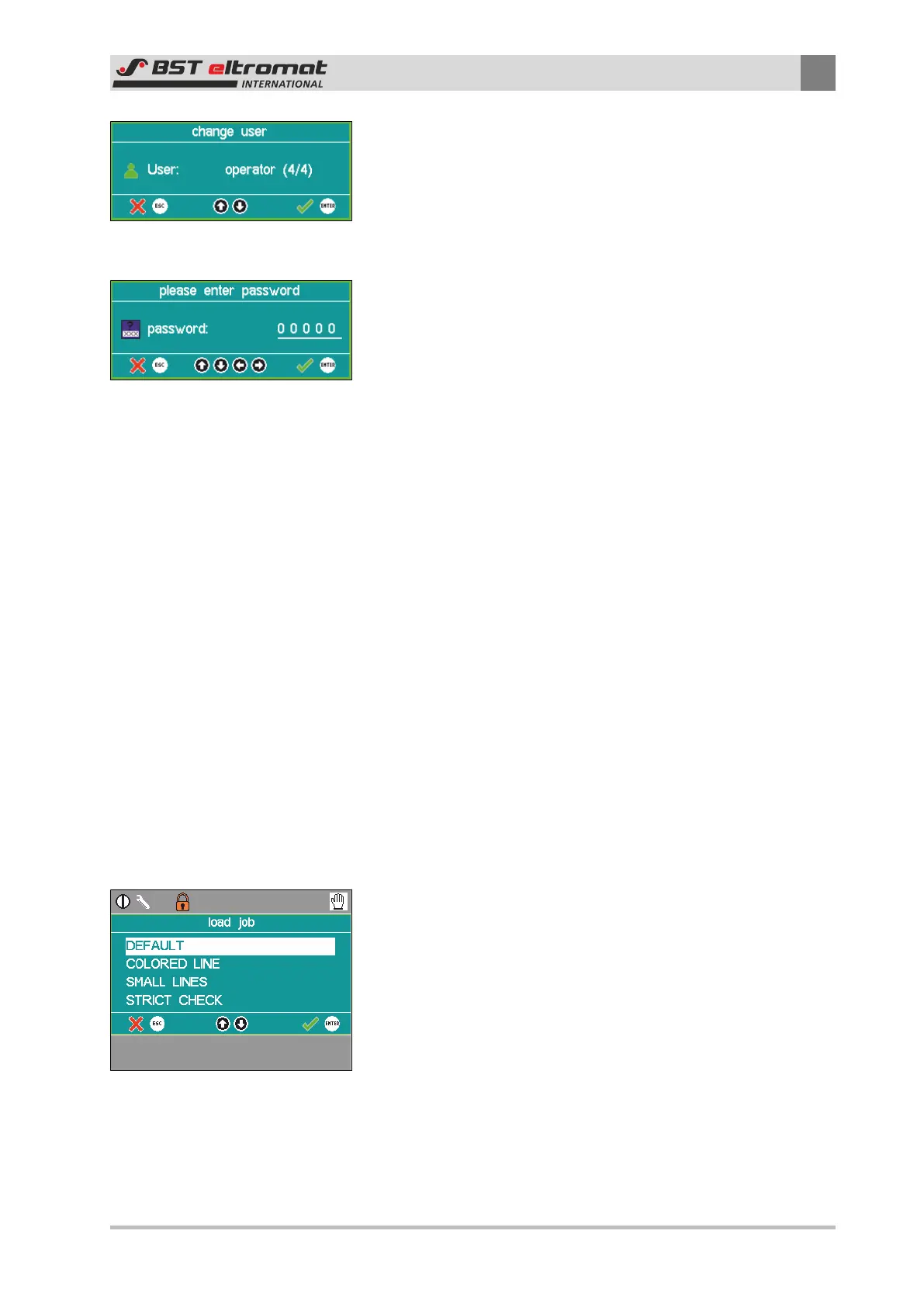
2. Define the user levels in the following dialog window. The fol-
lowing are available for use:
① Operator (no password)
② Maintenance (password = 00001)
③ Administrator (password = 00002)
3. Use the up or down arrow keys to select the required level and
then press ENTER to confirm it.
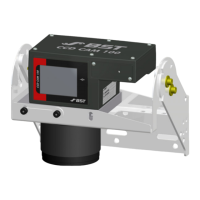
4. You will be asked to enter a password afterwards. Enter a valid
password here and then press ENTER to confirm it.
ð You are now logged into the selected user level. You can
now adapt the parameters that can be accessed from this
level.
6.6.2 Job Administration
It might be necessary to enter different measuring settings due to
the variety of materials and print images processed in the differ-
ent applications. A relevant measuring parameter set, consisting
of material and/or job specific parameters can be saved as a Job.
These jobs can be called up whenever necessary. This enables you
to set up repeat jobs quickly and without any errors. Certain basic
jobs have already been pre-configured in the factory and are avail-
able under the \\parameter\jobs\choose job\load job menu (see
Section 6.5.1 as well).
Saving a Job:
Proceed as follows if you want to create specific jobs for the ap-
plication:
1. Set up the necessary parameters first.
2. Select the \\parameter\jobs\save job menu afterwards. An
entry screen will be displayed, in which you can use the arrow
keys to enter the job name.
3. Press ENTER to confirm your entry. The settings will be saved
under this name in the job list.
Selecting a Job:
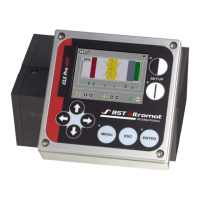
1. Call up the \\parameter\jobs\choose job\load job menu. The
selection list of existing jobs will be displayed on the screen.
2. Use the up / down arrow keys to select the job that you want
and then press ENTER to confirm your selection.


 To Next Page