Customizing the Home Screen
1648-0H7
You can change the item display order to make it easier to access the Home screen, and customize the Home screen.
Changing the Arrangement of Buttons (Touch Panel Model)(P. 159)
Changing the Item Display Order (Black and White LCD Model)(P. 160)
Changing the Arrangement of Buttons (Touch Panel Model)
To make the buttons easier to use, you can rearrange the buttons however you like. You can also insert a blank (space)
instead of a button to make it easier to view the Home screen.
1
Select <Home Screen Settings> in the Home screen. Home Screen(P. 107)
● If the login screen appears, enter the correct ID and PIN. Logging in to the Machine(P. 123)
2
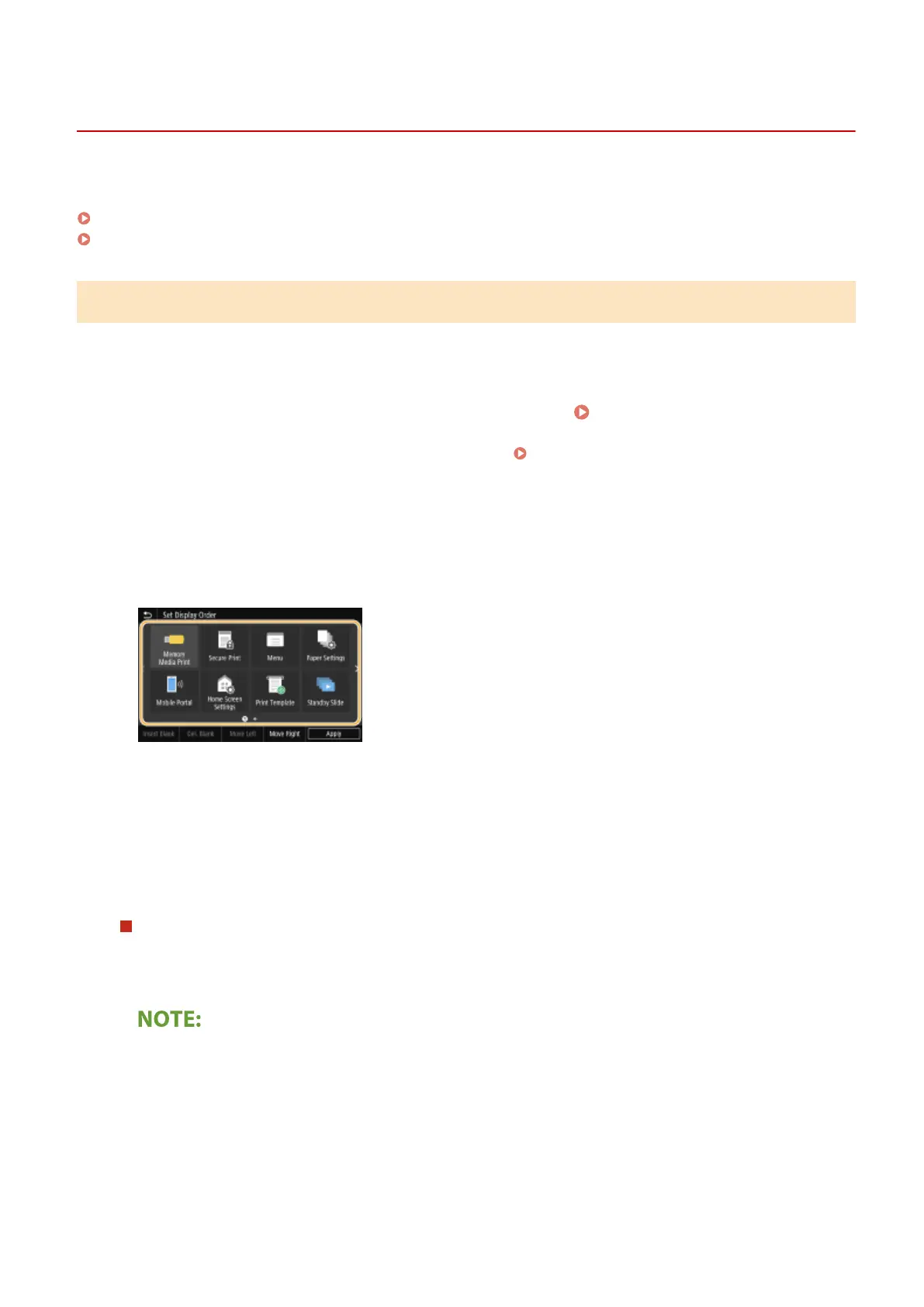
Select <Set Display Order>.
3
Select the button to move.
● The selected button is highlighted. Tap the selected button again to deselect it.
4
Select <Move Left> or <Move Right>.
● The button moves as many times as you tapped.
● Long touching <Previous>/<Next> to move the button continuously.
Inserting a blank
● When <Insert Blank> is selected, a blank is inserted into the left side of the selected button.
● If the button at the end is selected, a blank is inserted even if <Move Right> is selected.
Deleting a blank
● Select the blank to be deleted, and select <Del. Blank>.
5
Select <Apply>.
Basic Operations
159



 To Next Page