Limiting the Paper Sizes Displayed
1648-038
You can ensure that only frequently used paper sizes are shown in the screen for selecting the paper size setting.
1
Select <Paper Settings> in the Home screen. Home Screen(P. 107)
2
Select <Select Frequently Used Paper Sizes>.
3
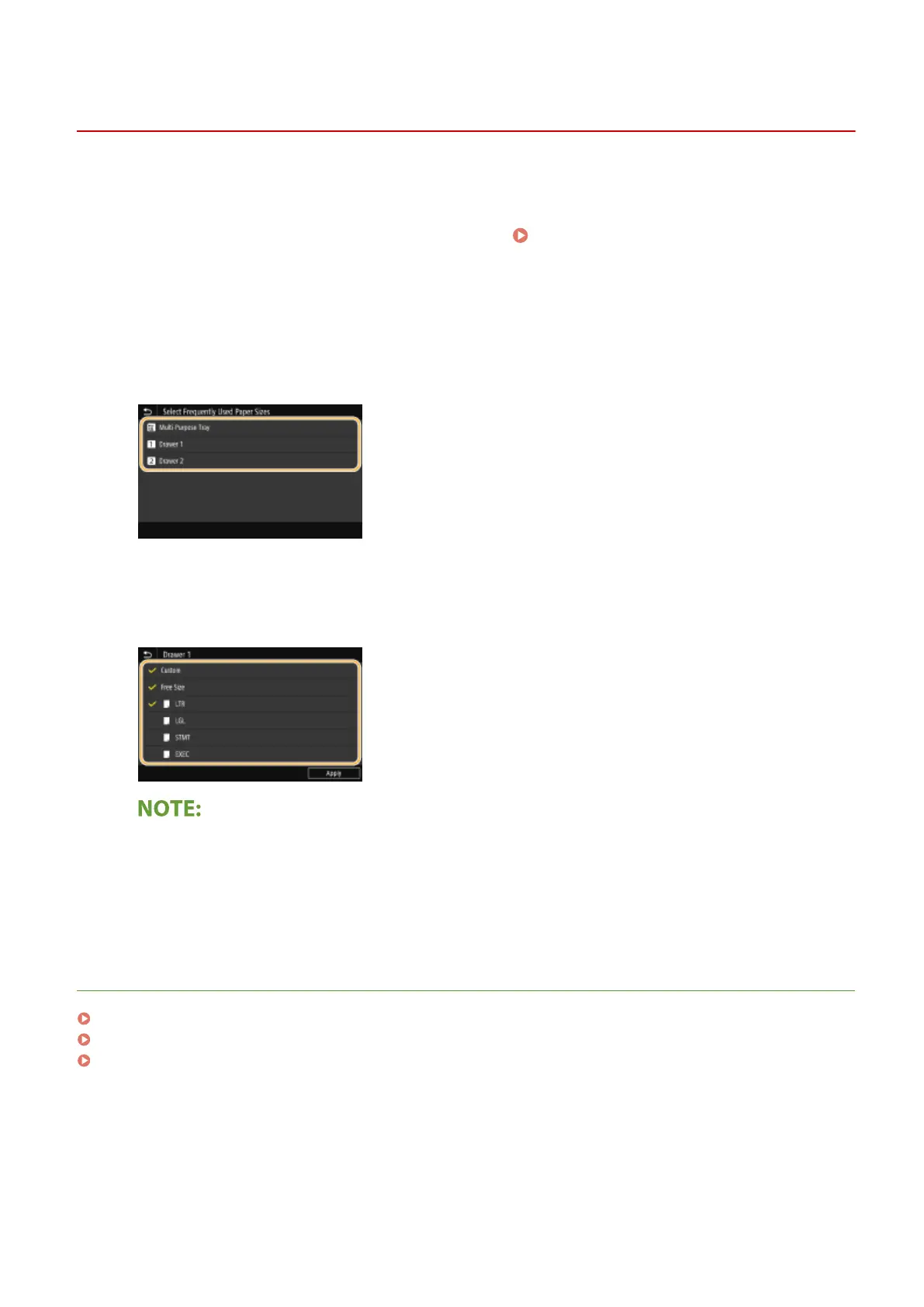
Select the paper source you want to limit the paper sizes to be displayed for.
4
Clear the check boxes for paper sizes you do not want displayed.
● Ensure that only the check boxes for frequently used paper sizes are selected.
● Paper sizes that are not selected can be viewed by selecting <Other Sizes> in the paper size setting
selection screen.
5
Select <Apply>.
LINKS
Specifying Paper Size and Type in the Paper Drawer(P. 145)
Specifying Paper Size and Type in the Multi-Purpose Tray(P. 147)
Registering Default Paper Settings for the Multi-Purpose Tray(P. 150)
Basic Operations
155











 To Next Page