Conguring Printer Ports
1648-012
Printing errors can occur when the IP address of the machine has been changed, or when a printer has been added via
the Windows printer folder. These errors are typically caused by incorrect printer port settings. For example, an
incorrect port number or port type may have been specied. In such situations, your attempt to print fails because the
document data cannot reach the machine. To x this type of problem, congure the printer port settings on the
computer.
● To perform the following procedure, log in to your computer with an administrator account.
1
Open the printer folder. Displaying the Printer Folder(P. 543)
2
Right-click the driver icon for this machine, and click [Printer properties] or
[Properties].
3
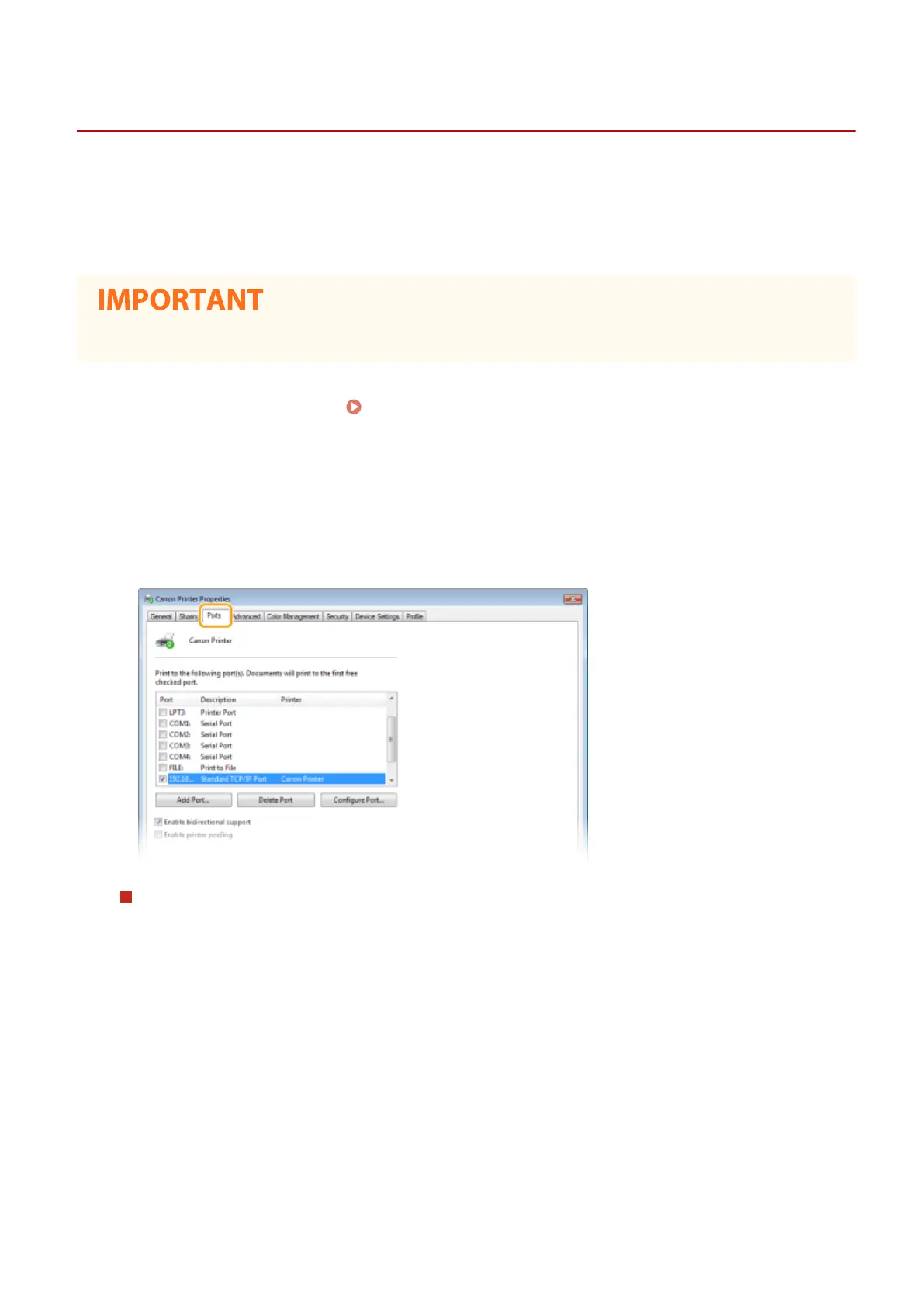
Click the [Ports] tab and congure the required settings.
Adding a port
If you have changed the IP address of the machine or you have selected an incorrect port while installing a
driver, add a new port.
1
Click [Add Port].
2
Select [Standard TCP/IP Port] in [Available port types] and click [New Port].
3
Click [Next].
4
Enter the IP address or the DNS name of the machine, and click [Next].
● The [Port Name] is entered automatically. If necessary, you can change it.
Setting Up
54











 To Next Page