<Special Processing>
If the print results on special types of paper are not satisfactory, the following settings may improve the quality of the
printouts.
<Special Paper Processing>
When printing on the back side of printed paper, rough paper, or envelopes, the print results may be improved
by adjusting the following settings.
<Manual Back Side Print (2-Sided Only)>
If printouts on the back side of printed paper are too light, select <On>. You can specify this setting
separately for each paper source.
<Multi-Purpose Tray>
<Off>
<On>
<Drawer 1>
<Off>
<On>
<Drawer 2>
*
<Off>
<On>
Touch panel model
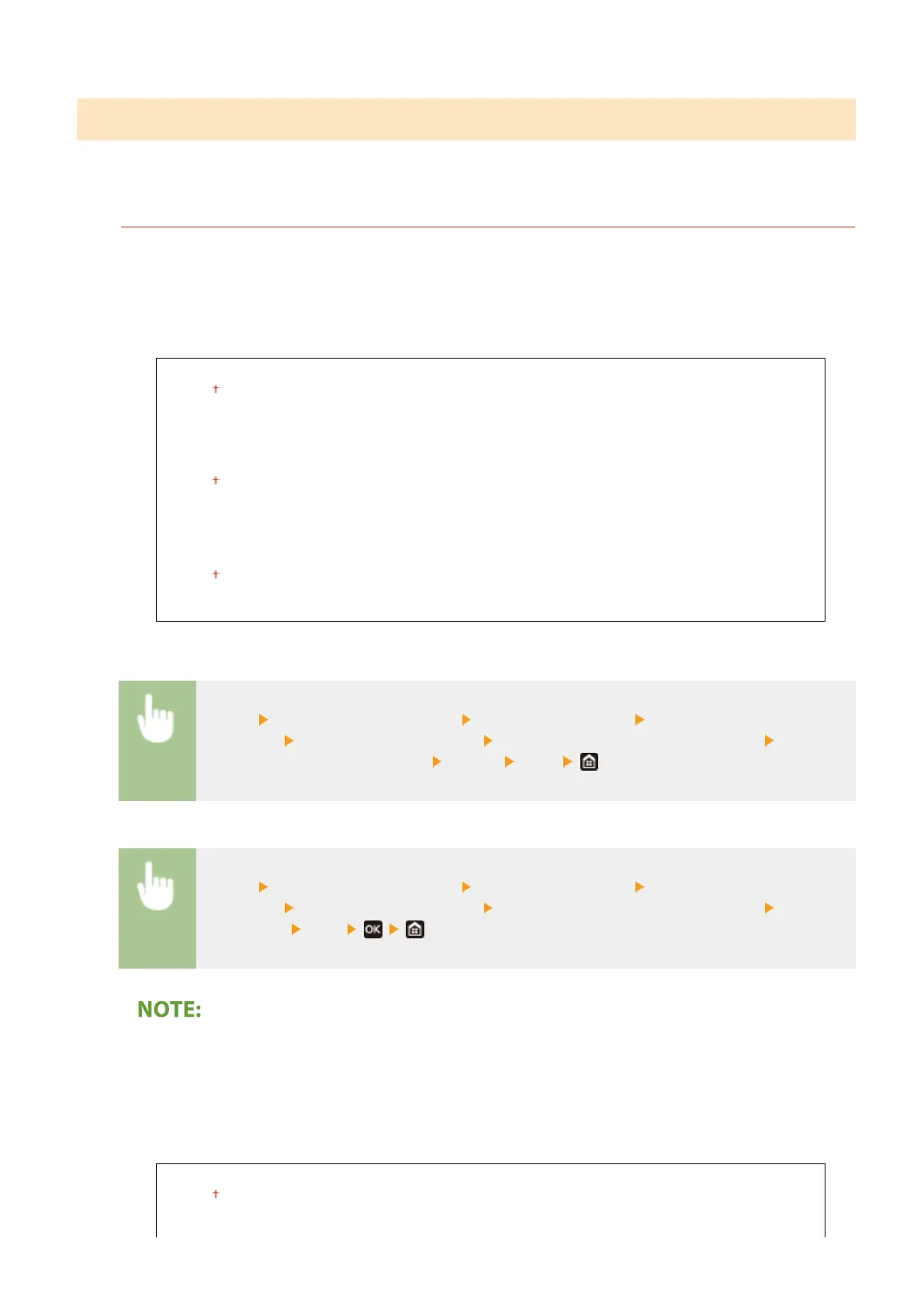
<Menu> <Adjustment/Maintenance> <Adjust Image Quality> <Special
Processing> <Special Paper Processing> <Manual Back Side Print (2-Sided Only)> Select
<On> in the paper source to be set
<Apply> <Yes>
Black and white LCD model
<Menu> <Adjustment/Maintenance> <Adjust Image Quality> <Special
Processing> <Special Paper Processing> <Manual Back Side Print (2-Sided Only)> Select the
paper source <On>
● If you set to <On>, image quality may be affected or a paper jam may occur when a certain length of time
elapses after printing on the front side or depending on the ambient humidity.
<Rough Surface Paper Mode>
When printing on rough paper, especially when color images are printed too light, select <On>. You can
specify the settings separately for each paper source.
<Multi-Purpose Tray>
<Off>
<On>
Setting Menu List
334











 To Next Page