<Drawer 1>
<Off>
<On>
<Drawer 2>
*
<Off>
<On>
Touch panel model
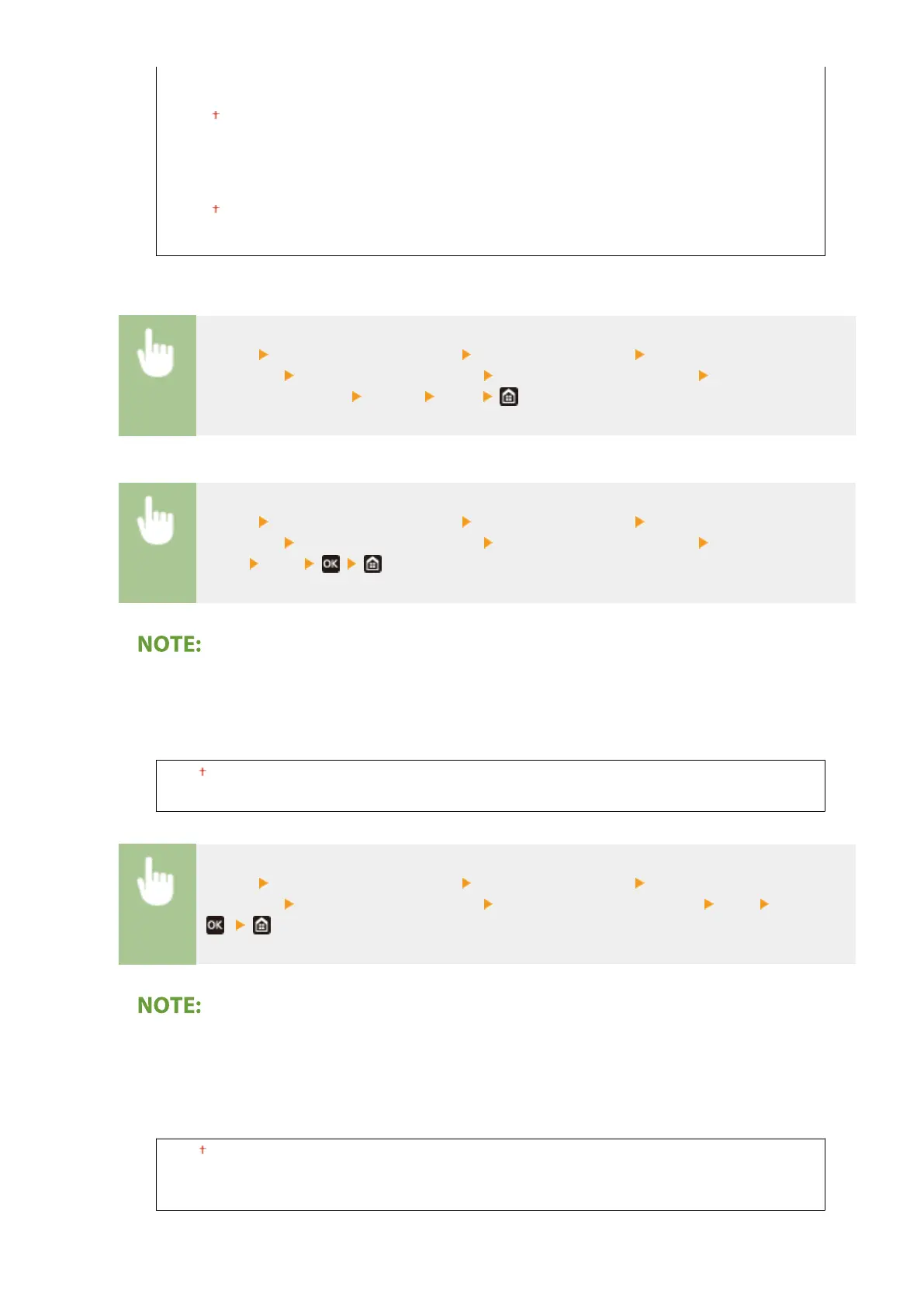
<Menu> <Adjustment/Maintenance> <Adjust Image Quality> <Special
Processing> <Special Paper Processing> <Rough Surface Paper Mode> Select <On> in the
paper source to be set
<Apply> <Yes>
Black and white LCD model
<Menu> <Adjustment/Maintenance> <Adjust Image Quality> <Special
Processing> <Special Paper Processing> <Rough Surface Paper Mode> Select the paper
source
<On>
● If you set to <On>, the printing speed may be slower or image quality may be affected.
<Env. Flap Closing Prevention>
If envelope aps cling to the envelope bodies when printing, select <On>.
<Off>
<On>
<Menu> <Adjustment/Maintenance> <Adjust Image Quality> <Special
Processing> <Special Paper Processing> <Env. Flap Closing Prevention> <On> <Yes>
( )
● If you set to <On>, toner may not be xed suciently, resulting in faded printouts.
<Paper Wrinkle Correction>
Printouts may wrinkle depending on the paper to use. In this case, setting this item may solve the problem.
The improvement effect is stronger with <Mode 2> than with <Mode 1>.
<Off>
<Mode 1>
<Mode 2>
Setting Menu List
335











 To Next Page