Specifying Paper Size and Type in the Multi-Purpose
Tray
1648-0JS
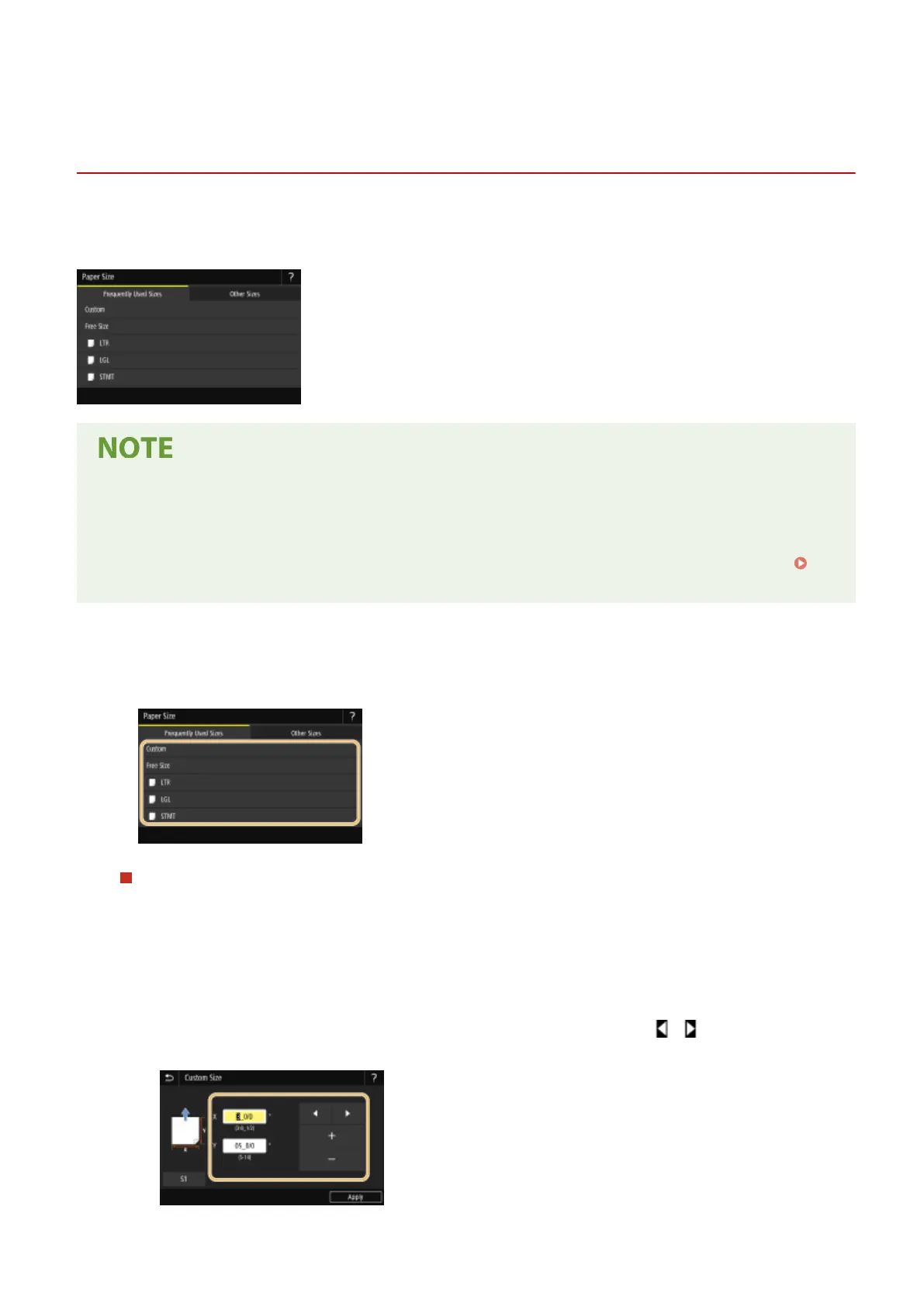
The screen shown here is displayed when paper is loaded in the multi-purpose tray. Follow the on-screen instructions
to specify settings that match the size and type of the loaded paper.
If the screen shown above is not displayed when paper is loaded
● If you always load the same paper in the multi-purpose tray, you can skip the paper setting operations by
registering the paper size and type as the default setting. When the default setting is registered, however,
the screen shown above is not displayed. To display the screen, select <Specify When Loading Paper> (
Registering Default Paper Settings for the Multi-Purpose Tray(P. 150) ).
1
Select the paper size.
● If the loaded paper size is not displayed, select <Other Sizes>.
When loading custom size paper
1
Select <Custom>.
2
Specify the length of the <X> side and <Y> side.
Touch panel model
● Select <X> or <Y>, and enter the length of each side using <+>/<->, with / to move the cursor
between the digits for inputting whole numbers and fractions.
Basic Operations
147











 To Next Page