Touch panel model
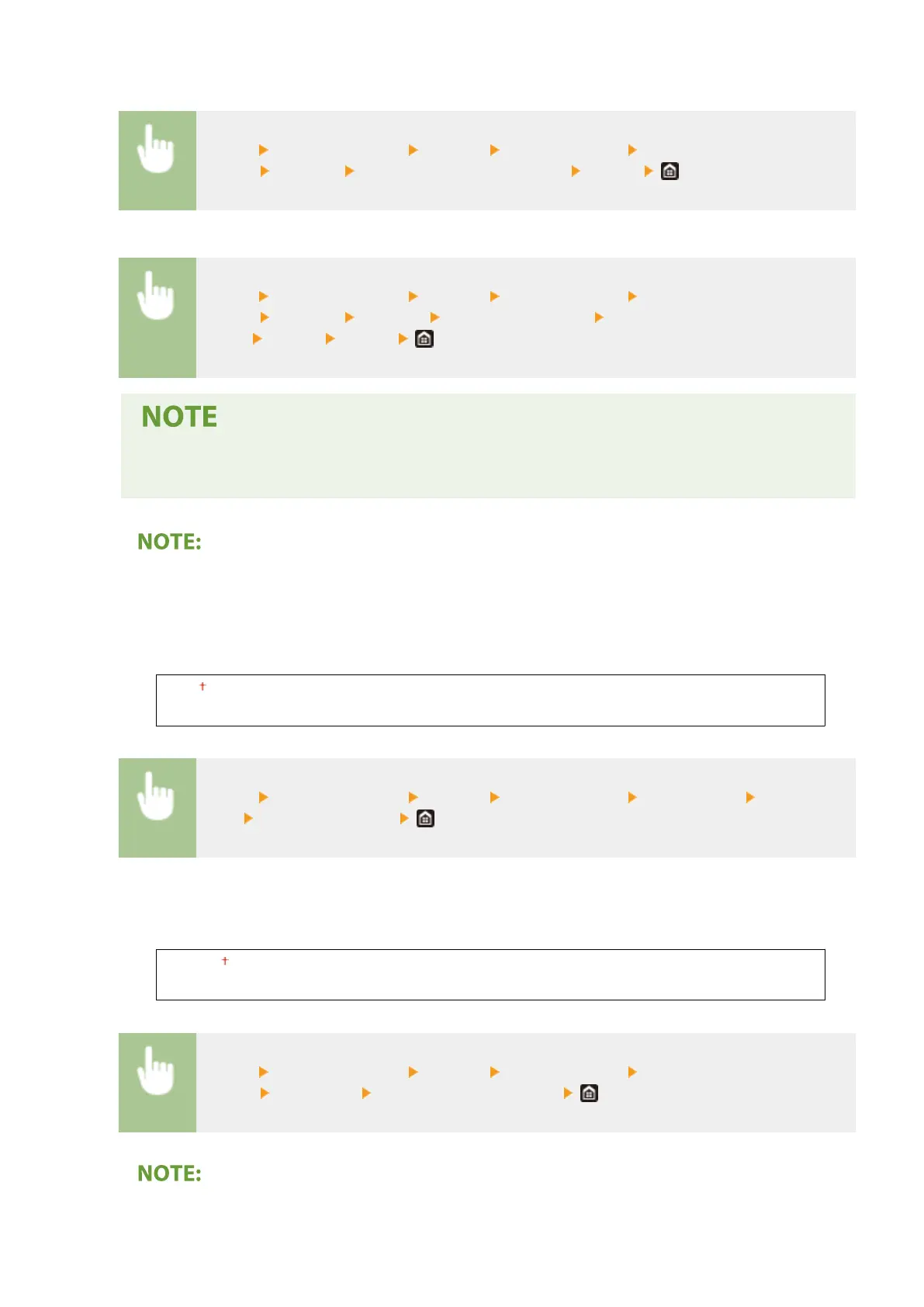
<Menu> <Function Settings> <Printer> <Printer Settings> <Print
Quality> <Density> Adjust the density of each color <Apply>
Black and white LCD model
<Menu> <Function Settings> <Printer> <Printer Settings> <Print
Quality> <Density> <Density> Select the target color Adjust the
density <Apply> <Apply>
● You can use <Fine Adjust> or <Density (Fine Adjust)> to adjust the toner density of each color to three
density levels: high density, medium density, and low density.
● When <Toner Save> is set to <On>, you cannot set this item.
<Toner Save>
You can save toner consumption. Select <On> when you want to check the layout or other appearance
characteristics before proceeding to nal printing of a large job.
<Off>
<On>
<Menu> <Function Settings> <Printer> <Printer Settings> <Print Quality> <Toner
Save> Select <Off> or <On>
<Gradation>
Specify the processing method used to reproduce gradation. <High 2> gives ner gradation than <High 1>.
<High 1>
<High 2>
<Menu> <Function Settings> <Printer> <Printer Settings> <Print
Quality> <Gradation> Select <High 1> or <High 2>
● This setting is only available when <Resolution> is set to <600 dpi>.
Setting Menu List
354











 To Next Page