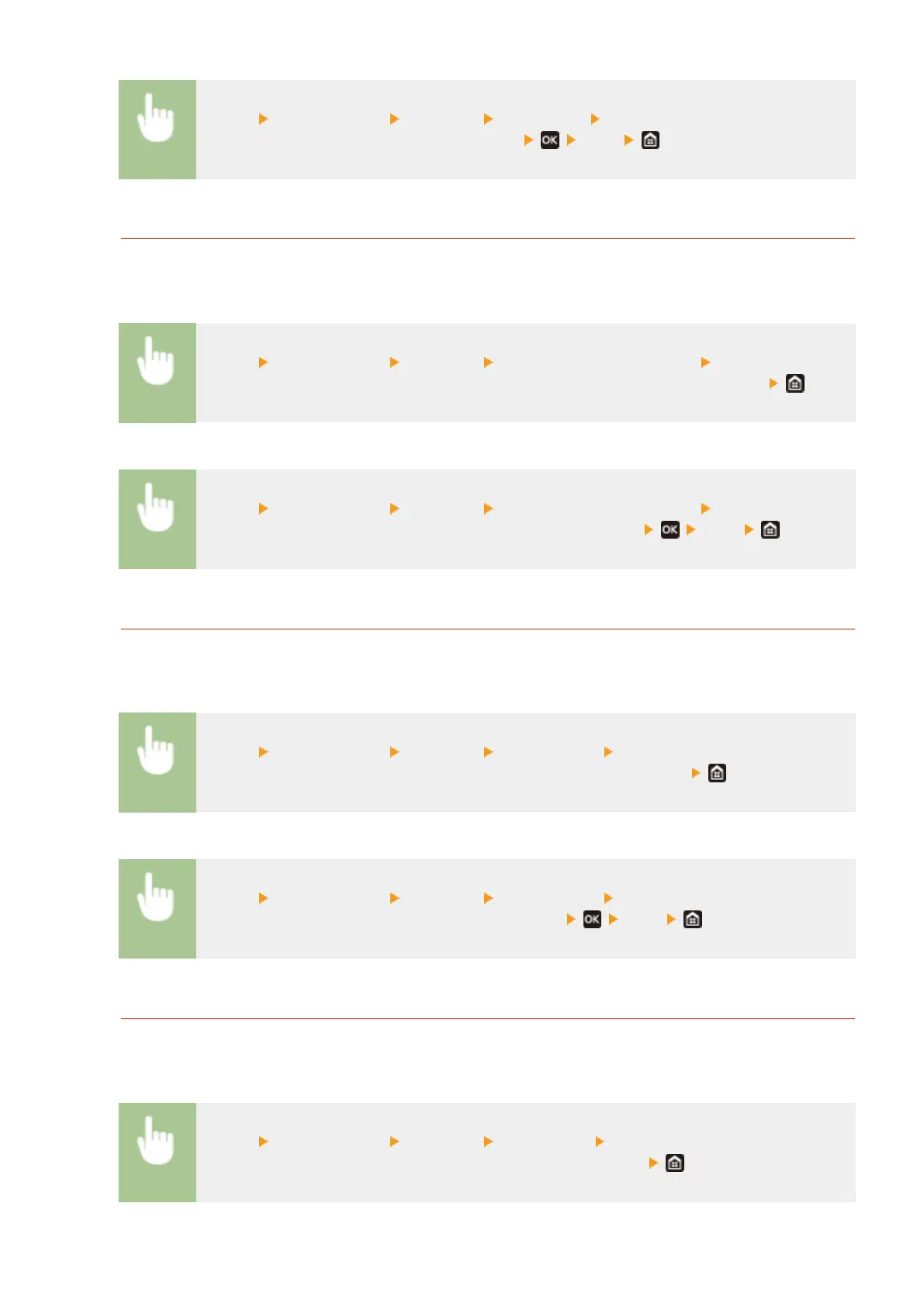
<Menu> <Output Report> <Print List> <Eco Report> Check that the size and type of paper
displayed on the screen is loaded in the machine <Yes>
Consumables Status Report
You can check the consumables status installed in the machine with a report.
Touch panel model
<Menu> <Output Report> <Print List> <Consumables Status Report> Check that the size
and type of paper displayed on the screen is loaded in the machine, and select <Start>
Black and white LCD model
<Menu> <Output Report> <Print List> <Consumables Status Report> Check that the size
and type of paper displayed on the screen is loaded in the machine <Yes>
PCL Font List
You can check the list of fonts available in PCL mode with a report.
Touch panel model
<Menu> <Output Report> <Print List> <PCL Font List> Check that the size and type of
paper displayed on the screen is loaded in the machine, and select <Start>
Black and white LCD model
<Menu> <Output Report> <Print List> <PCL Font List> Check that the size and type of
paper displayed on the screen is loaded in the machine <Yes>
PS Font List
You can check the list of fonts available in PS mode with a report.
Touch panel model
<Menu> <Output Report> <Print List> <PS Font List> Check that the size and type of paper
displayed on the screen is loaded in the machine, and select <Start>
Maintenance
444



 To Next Page