7
Contents
Preparation/
Setup
Print Using a
Computer
Appendix
IndexPrint/SaveInput/Edit
Names of
Components
Maintenance/
Printer Settings
Trouble-
shooting
13
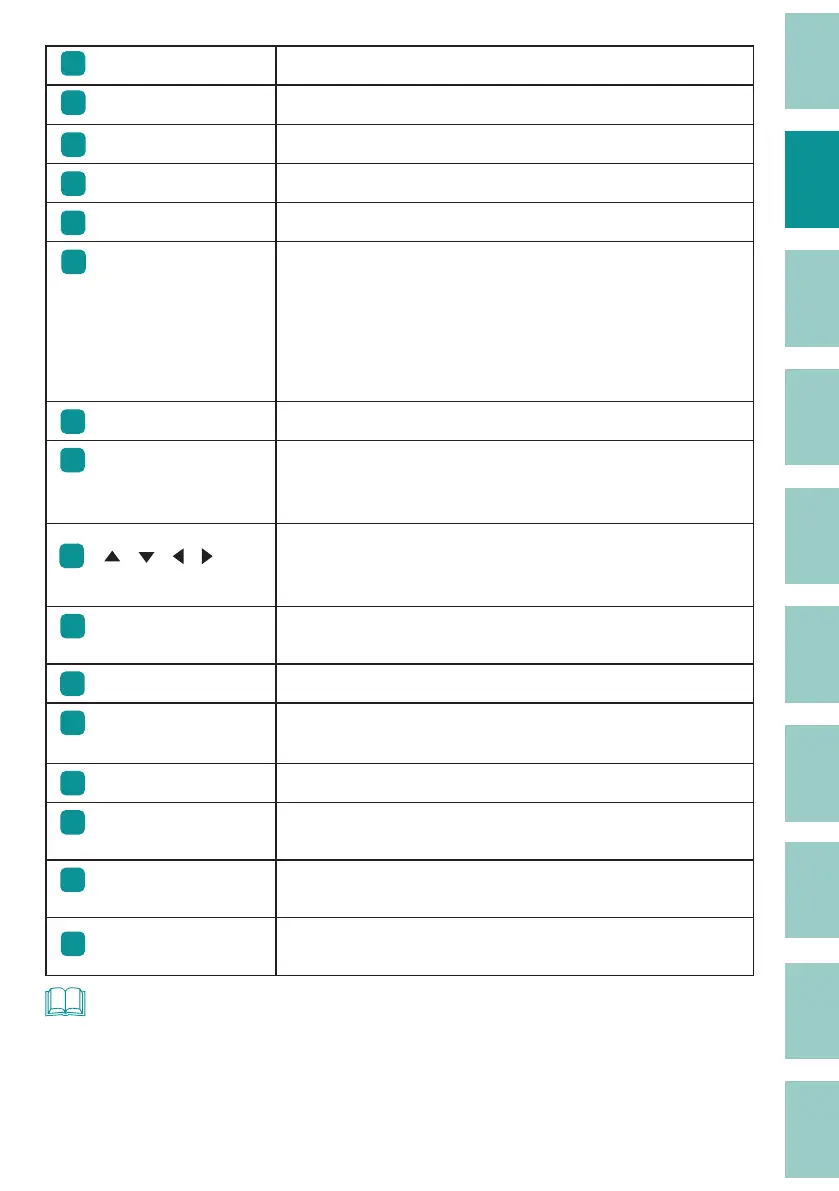
[Warmer] key Switches between tube warmer settings (optional).
(P.9)
14
[Settings] key All functions can be set using this key.
(P.231)
15
[Del All] key Deletes the currently entered characters and settings.
(P.41)
16
[Ins] key
Switches between Insert mode and Overwrite mode.
(P.37)
17
[Del] key Deletes the character selected by the cursor.
(P.40)
18
[Canc] key
Press this key while printing to stop printing, and then stop
after cutting the print media. If you press and hold this key for
2 seconds or more, the printer will stop without cutting.
If pressed during the operation of a function, the operation will
be canceled. Also, pressing this key while holding down [Shift]
will return you to the character input display.
19
[Back Space] key
Deletes the character to the left of the cursor position.
(P.40)
20
[Enter] key
Con rm the input of uncon rmed characters or selected items.
Pressing this key after nalizing text input will insert a page
break at the cursor position.
(P.65)
21
[ ][ ][ ][ ]
( Arrow keys)
Move the cursor or selected item up, down, left or right. If you
press this key while holding down [Shift] in the character input
display, you can move to the next or previous page.
(P.37)
22
[Print] key
Displays the printing preference display and allows you to
print the currently displayed data.
(P.77)
23
[Set Cut] key Sets the cut method for printing.
(P.92)
24
[Adjust] key
Adjust the print position and cut length
(P.85)
, and adjust
the cutter
(P.96)
.
25
Space key
Enter a space.
26
[Symbol 1] key,
[Symbol 2] key
Enter a symbol
(P.39)
. Use the [Alt]+[Enter] keys to con rm
the selected uncon rmed symbol.
27
[Remove] key
This key is used to remove the tube or label tape from the
printer.
(P.27)
28
[Caps Lock] key
If you press this key and then enter alphanumeric characters,
they will be capitalized.
(P.38)
NOT
• In this manual, pressing and holding down [Shift] (or [Alt]) and pressing the desired key will perform
the following operations.
Example: [Shift] + [Canc] keys



 To Next Page