153
Contents
Preparation/
Setup
Print Using a
Computer
Appendix
IndexPrint/SaveInput/Edit
Names of
Components
Maintenance/
Printer Settings
Trouble-
shooting
6
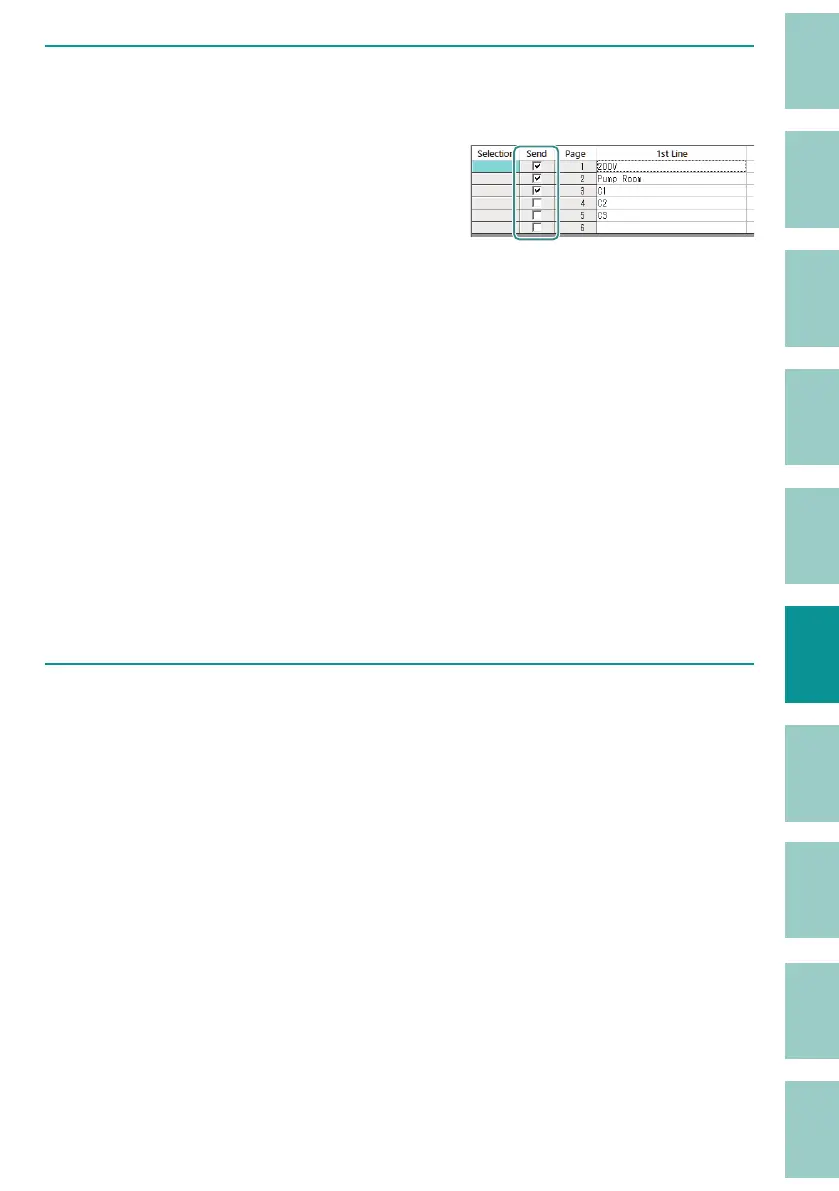
Place a check mark in the [Send] box of the page for which you want to print
a compound page.
To add or remove check marks from multiple
pages at once, make the settings from [Send
page selection] in the [Edit] menu. To select
pages, do one of the following.
- When selecting multiple pages in a row:
Click on the start point to select it, then click
on the end point while holding down [Shift]
on your keyboard. When you are done, release
[Shift].
- To select multiple, non-contiguous pages:
Hold down [Ctrl] on the keyboard while
selecting pages. Release [Ctrl] when you are
done.
- You can select all pages by clicking on the
header line.
You can also select [Send page selection] from
the menu that appears when y
ou right-click on
the data list.
7
Select [Compound Page Print Settings] from the [File] menu.



 To Next Page