Viewing VPN Topology
Chapter 16: Working with VPNs 541
The Save As dialog box appears.
5. Browse to a destination directory of your choice.
6. Type a name for the *.elg file and click Save.
The *.elg file is created and saved to the specified directory. This file contains the IKE
traces of all currently-established VPN tunnels.
7. Use the IKE View tool to open and view the *.elg file, or send the file to
technical support.
Viewing VPN Topology
You can view the topology of VPN sites to which the UTM-1 appliance is currently
connected.
To view VPN topology
1. Click Reports in the main menu, and click the Tunnels tab.
The VPN Tunnels page appears with a table of open tunnels to VPN sites.
2. Click View Topology.
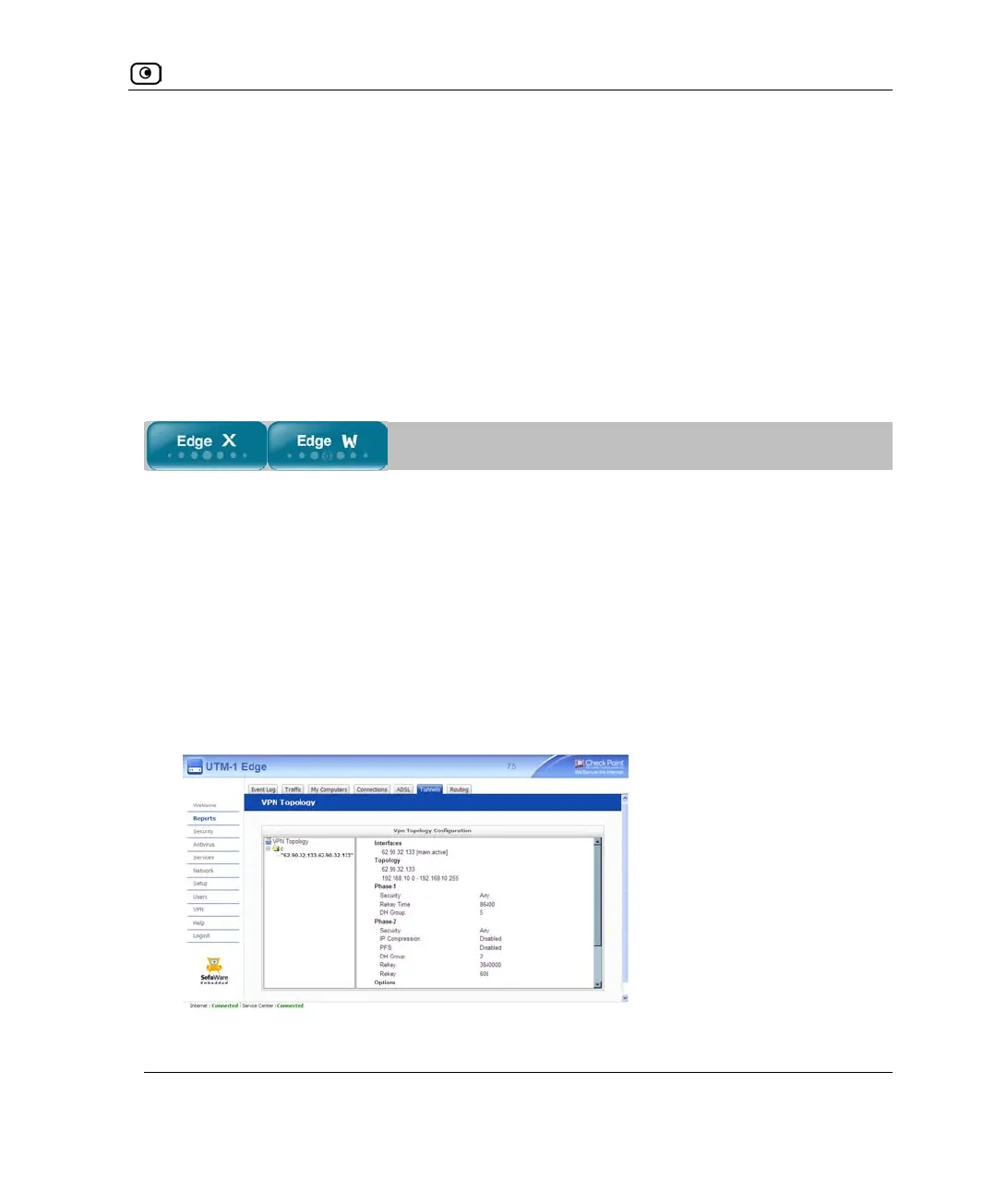
The VPN Topology page appears displaying the current topology of the VPN sites to
which the appliance is connected.















 To Next Page