Accessing a Remote Computer's Desktop
574 Check Point UTM-1 Edge User Guide
• If you are prompted to install the Remote Desktop Active X Control, then
install it.
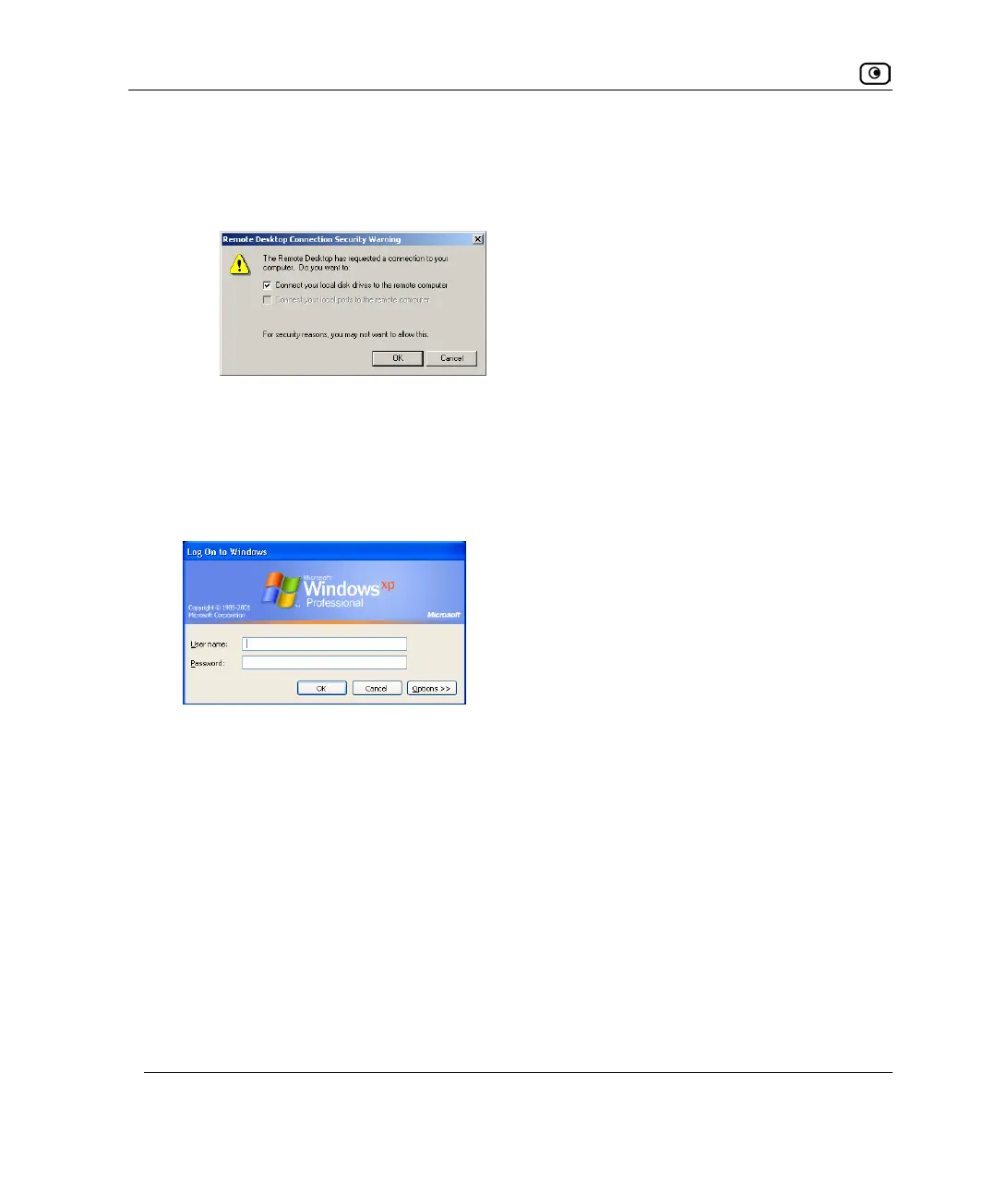
• The Remote Desktop Connection Security Warning dialog box appears.
3. Select the desired connection options.
The available options depend on your Remote Desktop configuration. See
Configuring Remote Desktop on page
567.
4. Click OK.
The Log On to Windows dialog box appears.
5. Type your username and password for the remote computer.
These are the credentials configured for your user account in Enabling the Remote
Desktop Server on page
570.
6. Click OK.
The remote computer's desktop appears onscreen.
You can use the following keyboard shortcuts during the Remote Desktop session:















 To Next Page