User Manual: WaveLinx Lite (4.0)
84
IMPORTANT: Communications issues may occur when deleting zones that have assigned devices. For best results,
move the devices individually, assigning them to different zones, and then delete the original zone. See the instructions
starting on page 83 for information on moving devices.
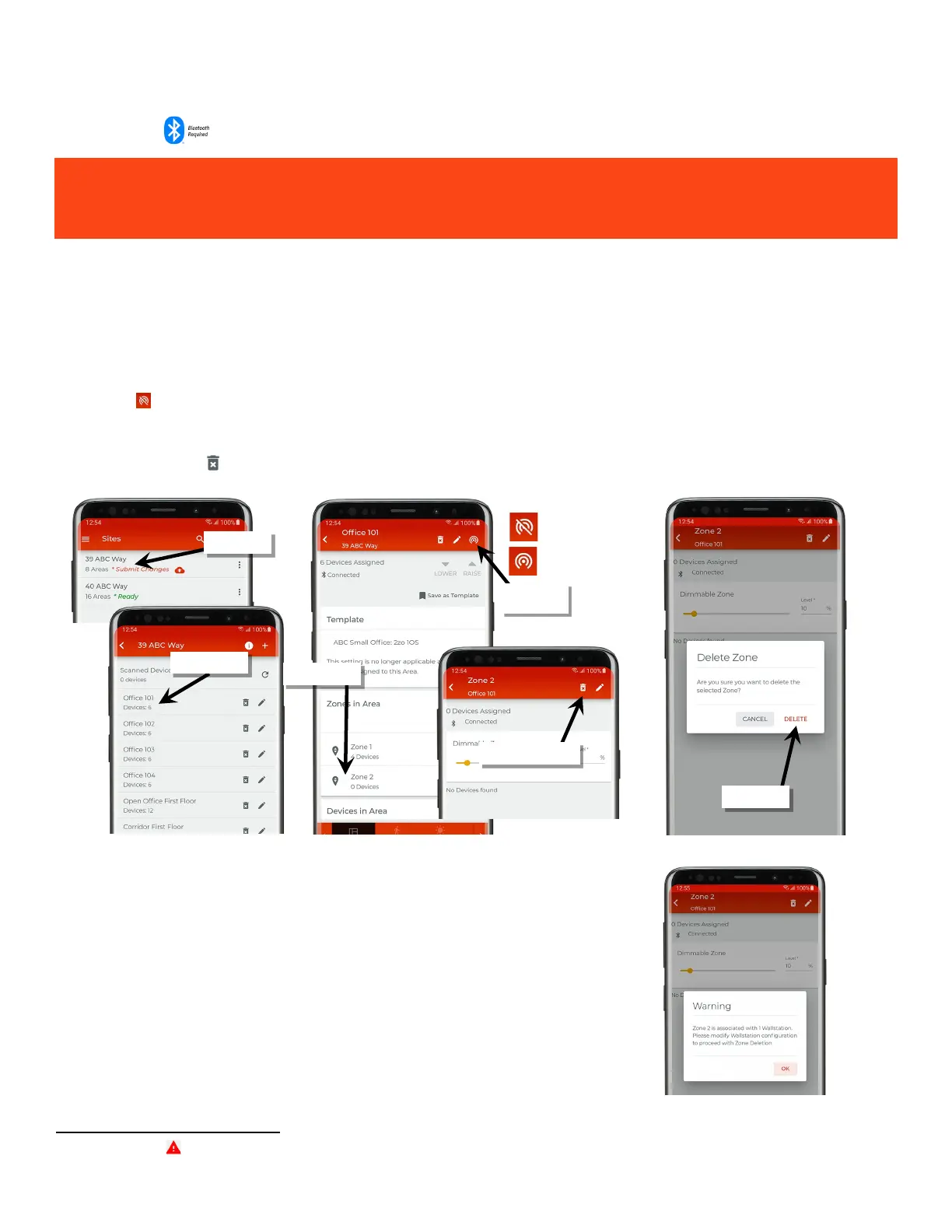
To delete a zone:
If the zone is empty, a Bluetooth connection is not necessary to delete the zone. If devices are still in the zone, the Bluetooth connection will be
necessary.
1: Bring the mobile device within range (within 60 feet) of any line voltage powered provisioned WaveLinx Lite device in the desired area.
2: Ensure that the mobile device Bluetooth is turned on, and then open the WaveLinx Lite Mobile Application.
3: In the site list, select a site.
4: In the area list, select the desired area. After a short delay, verify that the area shows that the mobile application is connected to the network.
Tap on the icon if it is necessary to refresh the connection.
5: In the zone list, select the zone. Make sure there are no devices in the zone being deleted. If there are devices in the zone, follow the
procedures on page 83 to move the devices to other zones before proceeding.
6: Tap on the delete icon ‘ ’ and then confirm by tapping ‘Delete’. (If devices were not moved prior to deletion, select the desired zone to move
the devices to. Communications errors may occur.)
68
: If a wallstation is programmed for a zone level, raise level or lower level action type to a specific zone, that
zone will not allow deletion until the wallstation action is changed, displaying a warning message on the screen.
Adjust the wallstation prog
ramming per the instructions on page 98 to change the wallstation button actions and
:
68
If errors or alert icons ‘ ’ display after this step, refer to the section “Resolve Mobile Application Communication Issues” on page 164 to resolve the errors before
proceeding.
Verify network
connection



 To Next Page