User Manual: WaveLinx Lite (4.0)
124
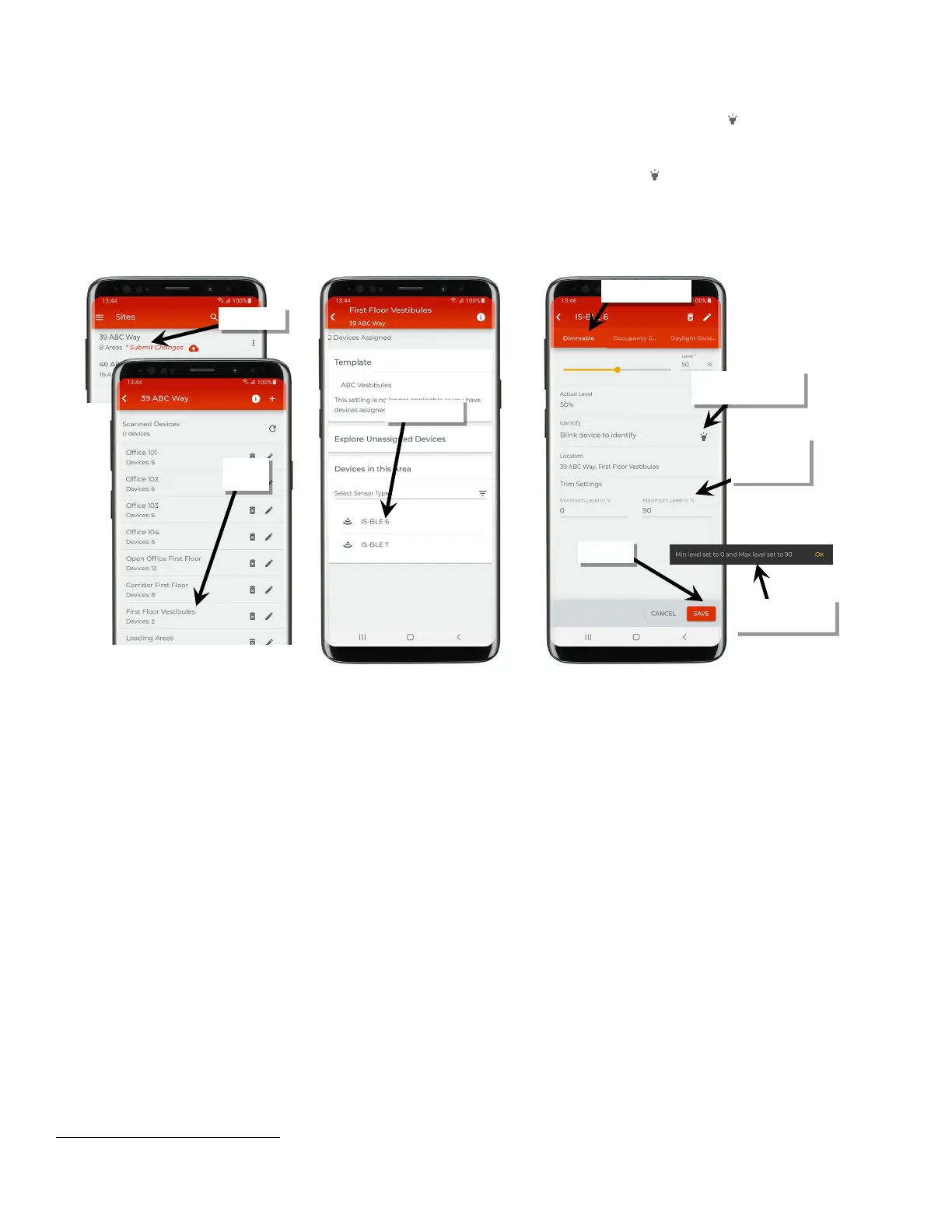
4: Once the device connects and opens, make sure that the ‘Dimmable’ tab is active, and then tap the identify icon ‘ ’ to place the device in the
identify mode to verify that it is the expected device. The device should respond with the identification behavior described in the device
reference sheet section beginning on page 9.
After 15 seconds the device will disconnect and return to normal operation or tap the identify icon ‘ ’ prior to 15 seconds expiring to cancel
the command and disconnect manually. If an unintended device responds, try the next device and continue until the expected device is
found.
5: Locate the minimum and maximum level entries and enter the desired settings. Tap ‘Save’ to save the settings, verifying that the change is
acknowledged. Note: The save button will still be active after the change is saved. Tap ‘Cancel’ to exit the screen.
Modify Occupancy Sensor Settings in Standalone Areas
Occupancy sensors in a standalone area will operate its attached lighting load independent of other devices. When adjusting occupancy sensor
settings in a standalone area, the adjustment must be made to each sensor that requires the change.
Occupancy sensors in the standalone area will automatically be in Occupancy Mode. The defined occupied level will occur when the sensor
detects initial motion.
85
Lighting will start transitioning to the unoccupied level when motion is not detected after the defined hold time expires.
The initial hold time, occupied level, and unoccupied level as well as energy saving options for any occupancy sensor in the standalone area is
dependent on the template used when the standalone area was created. If a custom template was used, the sensors will respond as defined in
the template. If the default template was used the initial sensor default behavior is:
• Occupancy Hold Time: 20 minutes
• Energy Saver Mode: Enabled
• Energy Hold Time: 10 minutes
• Occupied level/state: Default level 100%/ON
85
• Energy Saver level: 50%
• Unoccupied level/state: Default level 0%/OFF
The default settings can be changed to meet other requirements. This section discusses how to:
• Adjust occupancy sensor command settings in a standalone area
• Review and adjust other occupancy sensor settings
• Use test mode
Internet connection is not needed to modify occupancy sensor settings but connection to the WaveLinx Lite device is required.
85
If occupancy is sensed in the 30 seconds after an unoccupied command is issued (grace period), the device will resume the previous light level. If outside of the grace
period, the light level issued when occupied will be as defined for the occupied command. Devices with older firmware may not observe the 30 second grace period.
If needed, use ‘identify’ to
locate the correct device
levels to desired
settings
change



 To Next Page