User Manual: WaveLinx Lite (4.0)
46
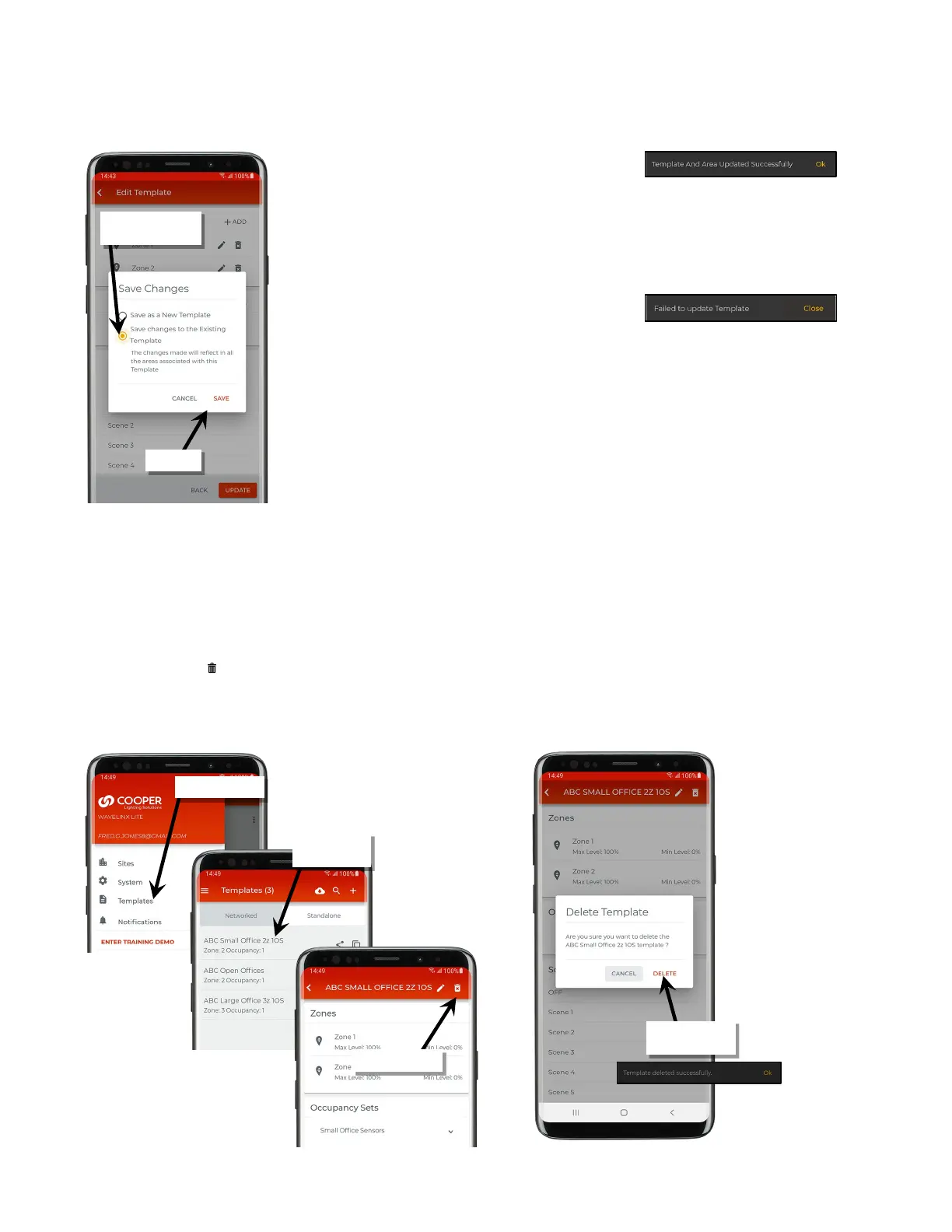
6: At the prompt, select the option to ‘Save Changes to Existing Template’ and then tap ‘Save’. A series of messages may show at the bottom of
the screen:
• Success Message: An area that has no devices
provisioned has been updated with the updated
settings.
• Failure to Update Template: This message means
that an area using this template has not been
updated with the settings. This is usually not a
cause for concern as it is typically displayed for
areas that have provisioned devices. Areas with
provisioned devices will need to be updated
manually with the desired changes.
If there is an internet connection, the updated template will automatically sync to the user’s cloud account. If there is not an internet
connection, manually sync the template once the connection is available. See “Sync Templates” on page 42 for details.
Delete a Template
Templates that are no longer being used can be deleted.
To delete an existing template:
1: From the menu, select ‘Templates’, and then locate and open the template to delete.
2: Tap on the delete icon ‘ ’.
3: When prompted, tap ‘Delete’ to confirm the deletion. If there is an internet connection, the change will automatically sync to the user’s cloud
account. If there is not an internet connection, manually sync the templates once the connection is available. See “Sync Templates” on page
42 for details.
existing template’
confirm
the template



 To Next Page