User Manual: WaveLinx Lite (4.0)
111
Modify Open Loop Daylight Control
This section focusses on the use of open loop sensor control for fixture mounted, tilemount and integrated sensors. Creating an open loop
daylight set is a multi-step process. This section includes details on how to:
• Step 1: Create and name the open loop daylight set
• Step 2: Enable/disable the open loop daylight set
• Step 3: Assign/remove the lighting loads controlled
• Step 4: Assign/remove the controlling daylight sensor
• Step 5: Adjust the amount of lighting response
• Step 6: Test daylight sensor operation
• Control lighting loads at different light levels from the same daylight sensor
Open loop daylighting requires the use of sensors that are auto calibrating. During sensor assignment, the mobile app will execute a
compatibility check to ensure that the sensors have the required hardware/firmware version. If a sensor is not showing as compatible, make
certain that the firmware is up to date. See “Update Device Firmware” on page 156 for details.
Sensors in devices that are in non-dimmable, or receptacle zones may be used as the controlling sensor but ON/OFF or plug load will not
respond to daylight commands although the mobile app allows them to be assigned as open loop outputs. Only dimmable loads will respond to
daylight signals.
Internet connection is not needed when modifying open loop daylight control but connection to the WaveLinx Lite device/network is required.
The mobile device will need to be in range and as close as possible (within 60 feet) to one of the line voltage powered WaveLinx Lite devices
that belongs to the same area
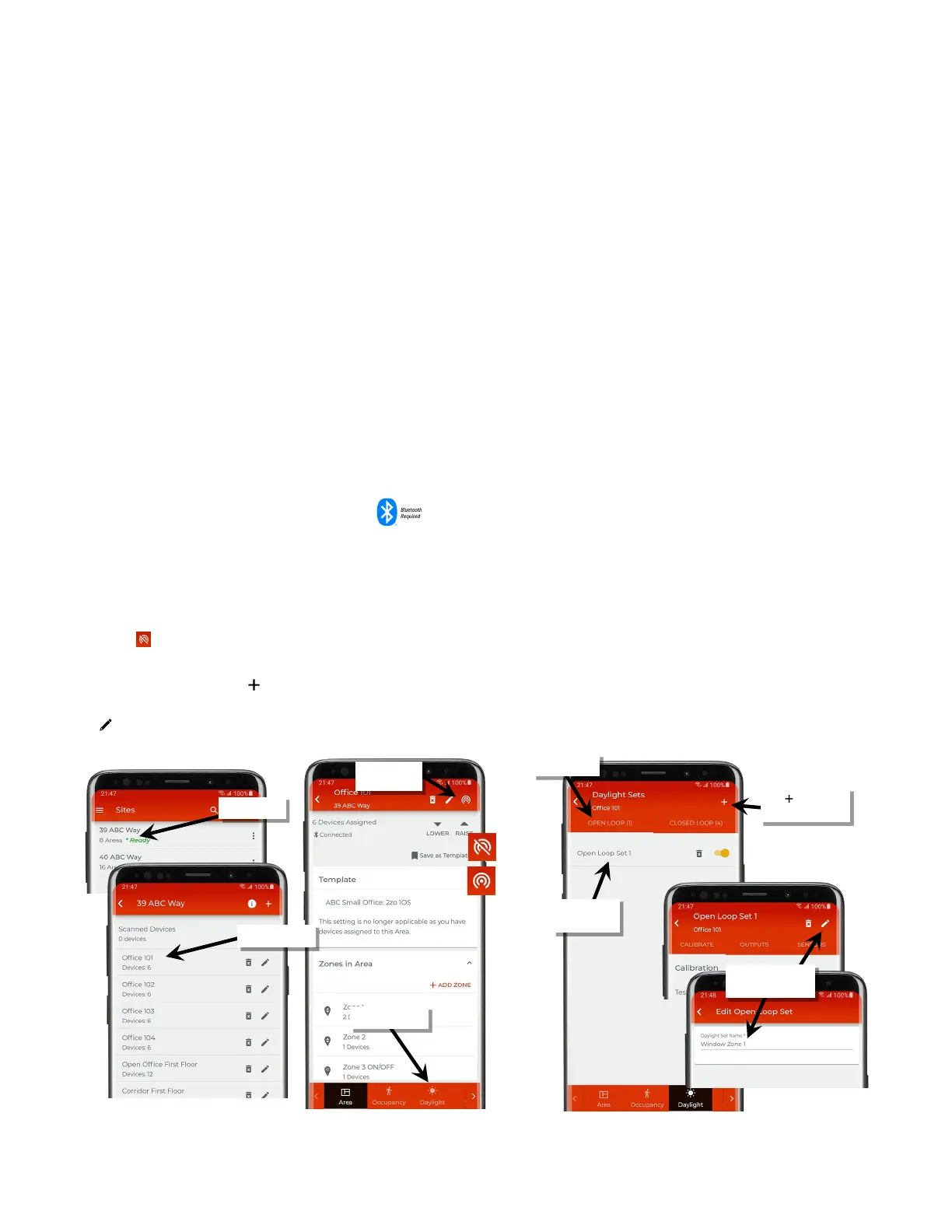
Step 1: Create and Name the Open Loop Daylight Set
One area can have up to 6 open loop daylight sets. To use open loop daylight control, first create an open loop daylight set.
1: Bring the mobile device within range (within 60 feet) of any line voltage powered provisioned WaveLinx Lite device in the desired area.
2: Ensure that the mobile device Bluetooth is turned on, and then open the WaveLinx Lite Mobile Application.
3: In the site list, select a site.
4: In the area list, select the desired area. After a short delay, verify that the area shows that the mobile application is connected to the network.
Tap on the icon if it is necessary to refresh the connection.
5: Tap ‘Daylight’ to open the daylight set list.
6: Tap ‘Open Loop’ and then tap ‘ ’ to add a new open loop set. The open loop set will appear with a generic name and will automatically be
enabled. Tap the daylight set to open it.
7: Tap ‘ ’ to edit the open loop set name. Type in a unique name for this daylight set and then select ‘Save’.
8: Repeat to create any additional needed open loop daylight sets in the area.
Verify network
connection
rename the sensor.
daylight set
Tap ‘ ’ to create a
new daylight set



 To Next Page