User Manual: WaveLinx Lite (4.0)
83
Move Devices to Different Zones
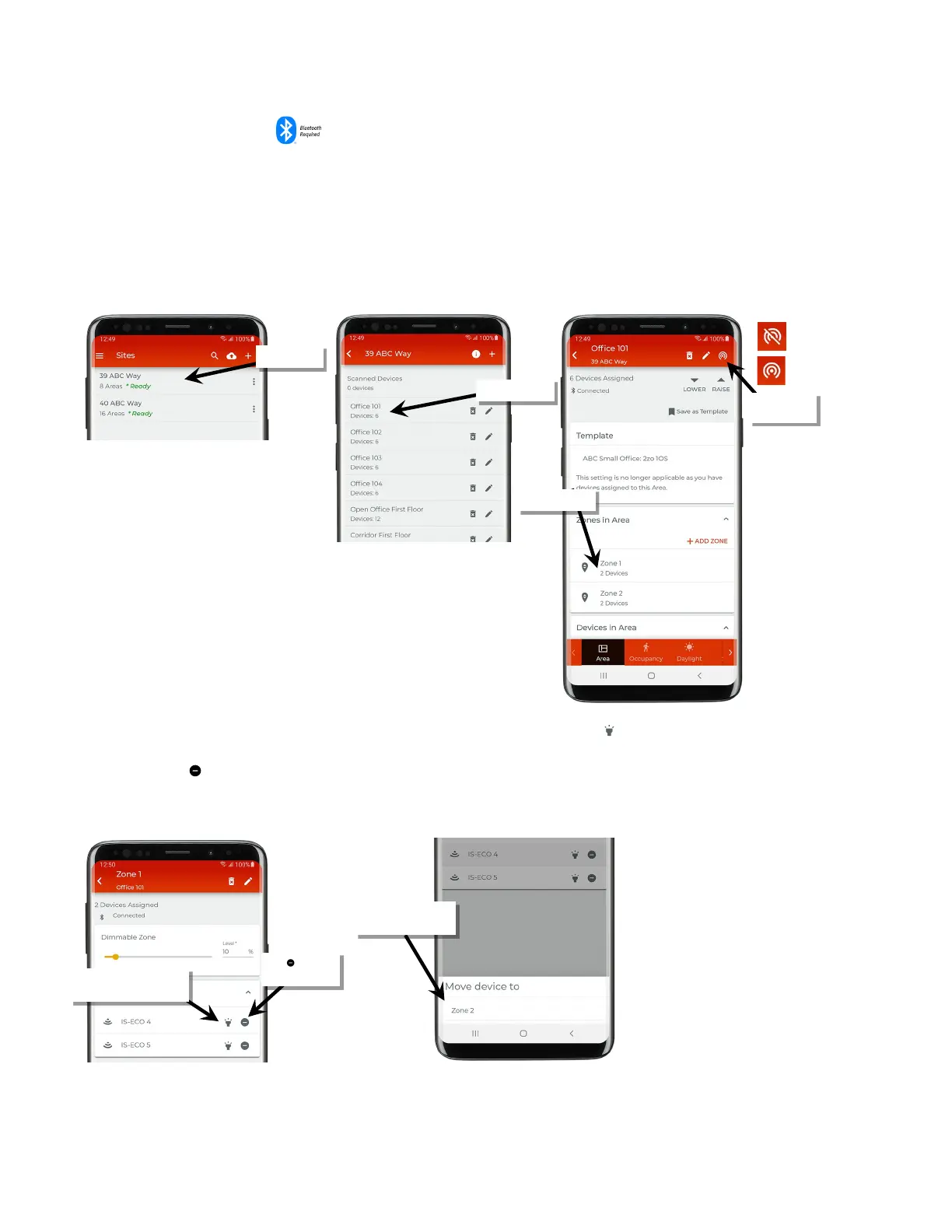
If a device that was assigned to a zone during provisioning needs to be moved to a different zone, follow the steps below.
To move a device to a different zone:
1: Bring the mobile device within range (within 60 feet) of any line voltage powered provisioned WaveLinx Lite device in the desired area.
2: Ensure that the mobile device Bluetooth is turned on, and then open the WaveLinx Lite Mobile Application.
3: In the site list, select a site.
4: In the area list, select the desired area. After a short delay, verify that the area shows that the mobile application is connected to the network.
5: In the zone list, select the zone.
6: In the list of devices in the zone, locate the device to move. If needed, use the identify icon ‘ ‘ to flash the loads until the correct one is
found.
7: Tap the minus icon ‘ ’.
8: When prompted, select the zone to move the device to. The display will show several informational messages and then return to the zone
details view once the move is complete.
Verify network
connection
Tap ‘ ‘ to move
If needed, use ‘identify’ to
locate the correct device
zone for the device



 To Next Page