User Manual: WaveLinx Lite (4.0)
137
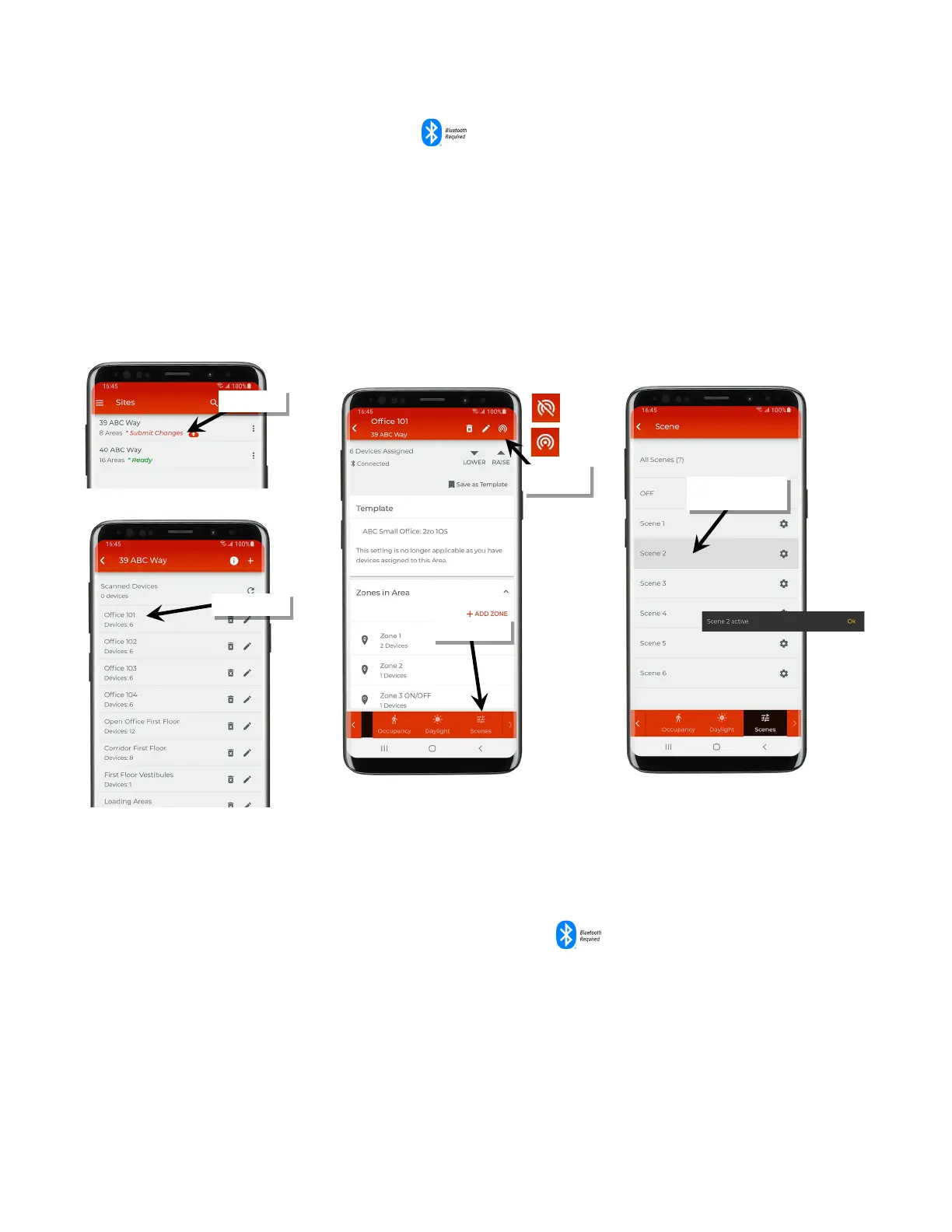
Issue Scene Commands in a Networked Area
Use the scene screen to send a scene command from the mobile application.
To send a scene command:
1: Bring the mobile device within range (within 60 feet) of any line voltage powered provisioned WaveLinx Lite device in the desired area.
2: Ensure that the mobile device Bluetooth is turned on, and then open the WaveLinx Lite Mobile Application.
3: In the site list, select a site.
4: In the area list, select the desired area, and verify that there is a network connection.
5: Tap ‘Scenes’ to open the scene list.
6: Tap the scene row to issue the desired scene.
Raise and Lower the Light Level of a Single Device in Any Area
If the light level of a single device is raised or lowered from the mobile application, the mobile application treats this as a temporary High
Priority Override. A High Priority Override will prevent other commands from processing and overrides the current commanded level until the
priority is released.
The High Priority Override will command the lighting to the desired level and remain in effect for:
• 10 minutes if the mobile application is left in the device details page (can navigate between Dimmable, Occupancy Sensor, or Daylight
Sensor tabs) without making further adjustments OR
• the device details page is exited
When the device exits from the High Priority Override, it will revert to the zone light level.
the scene command
Verify network
connection



 To Next Page