User Manual: WaveLinx Lite (4.0)
153
The restore function allows a site administrator to load site databases that are stored in the cloud portal onto a new mobile device or to restore
a site that has been transferred from another user. The restore function will not overwrite a site database that is already on a mobile device.
Recommended: Do not load the site database to more than one mobile device using the same user credentials at the
same time. See “Advanced Site Setup: Sites with Multiple Commissioners” on page 71 to invite additional users to
collaborate as co-commissioners of a site.
If the original mobile device being used for the site fails and has been replaced with a new device or if a site has been transferred from another
user, use the procedure below to restore sites from the cloud portal.
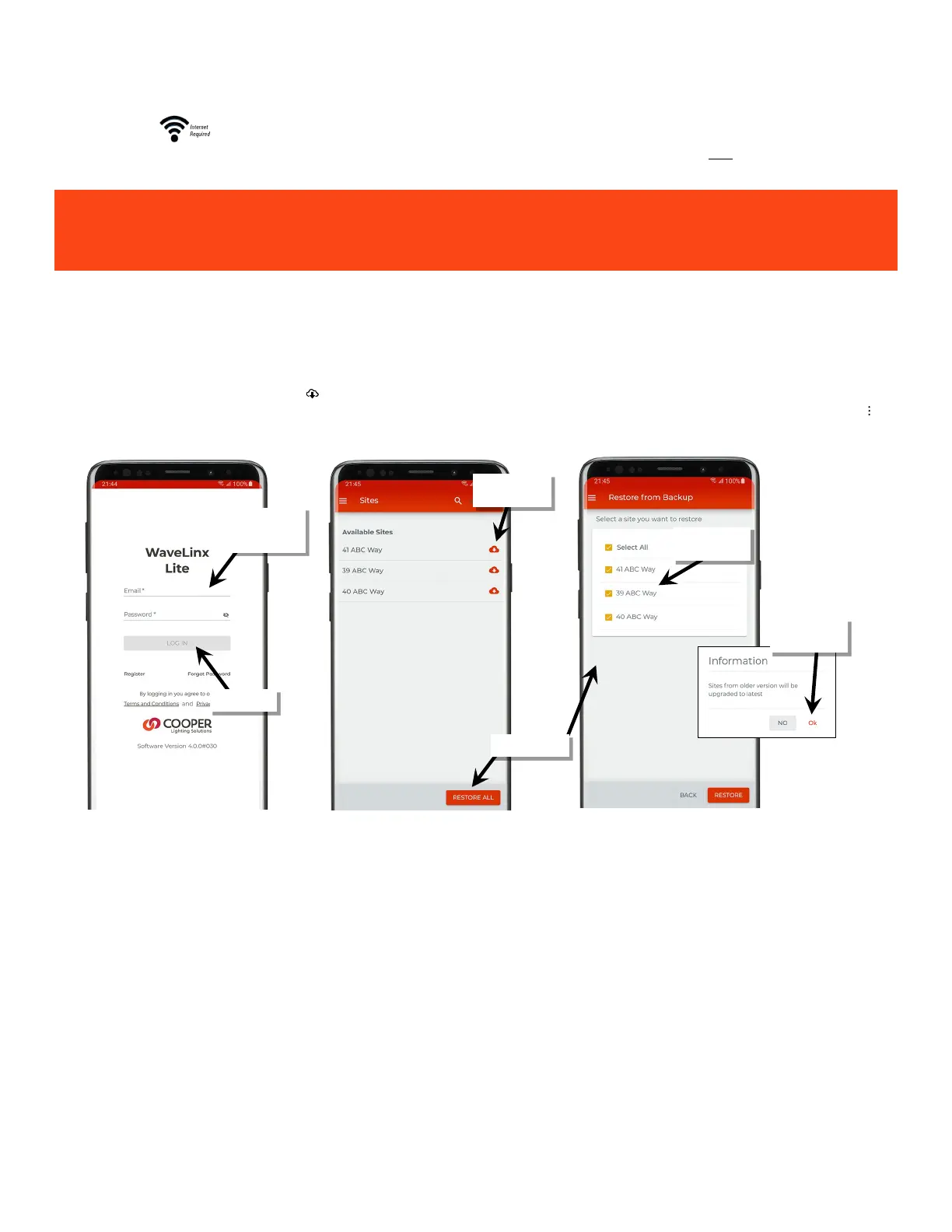
1: Ensure that the mobile device has internet access and then launch the WaveLinx Lite Mobile Application from the app icon.
2: When prompted for login, enter the registered email address and password, and then tap ‘Login’.
3: The WaveLinx Lite Mobile Application will open and display the available sites in the cloud portal.
4: Select a site and tap the download icon ‘ ’ to restore an individual site or select the option to ‘Restore All’ and select which sites to restore. If
prompted that an update may occur, tap ‘OK’ to continue. Note: This function can also be accessed From Menu System more icon ’ ’
Backup & Restore Restore
Special Considerations
• ‘Restore All’ will only operate with databases that are not currently loaded on the device. It will not sync sites with ‘Update Required’ status.
Use the download icon in the site row to sync these sites.
• For sites with co-commissioners, refer to see “Additional Considerations: Transferring Site Workspace Ownership before the Site Merge”
on page 79 for special details on the restore function
• The restore function will not allow the site ownership to be transferred to a different user account. The site ownership must be transferred
manually before the site can be restored by the new owner. See “Transfer Site Ownership” on page 154 for more details.
administrator’s
credentials
site(s) to restore
individual site
‘OK’



 To Next Page