User Manual: WaveLinx Lite (4.0)
32
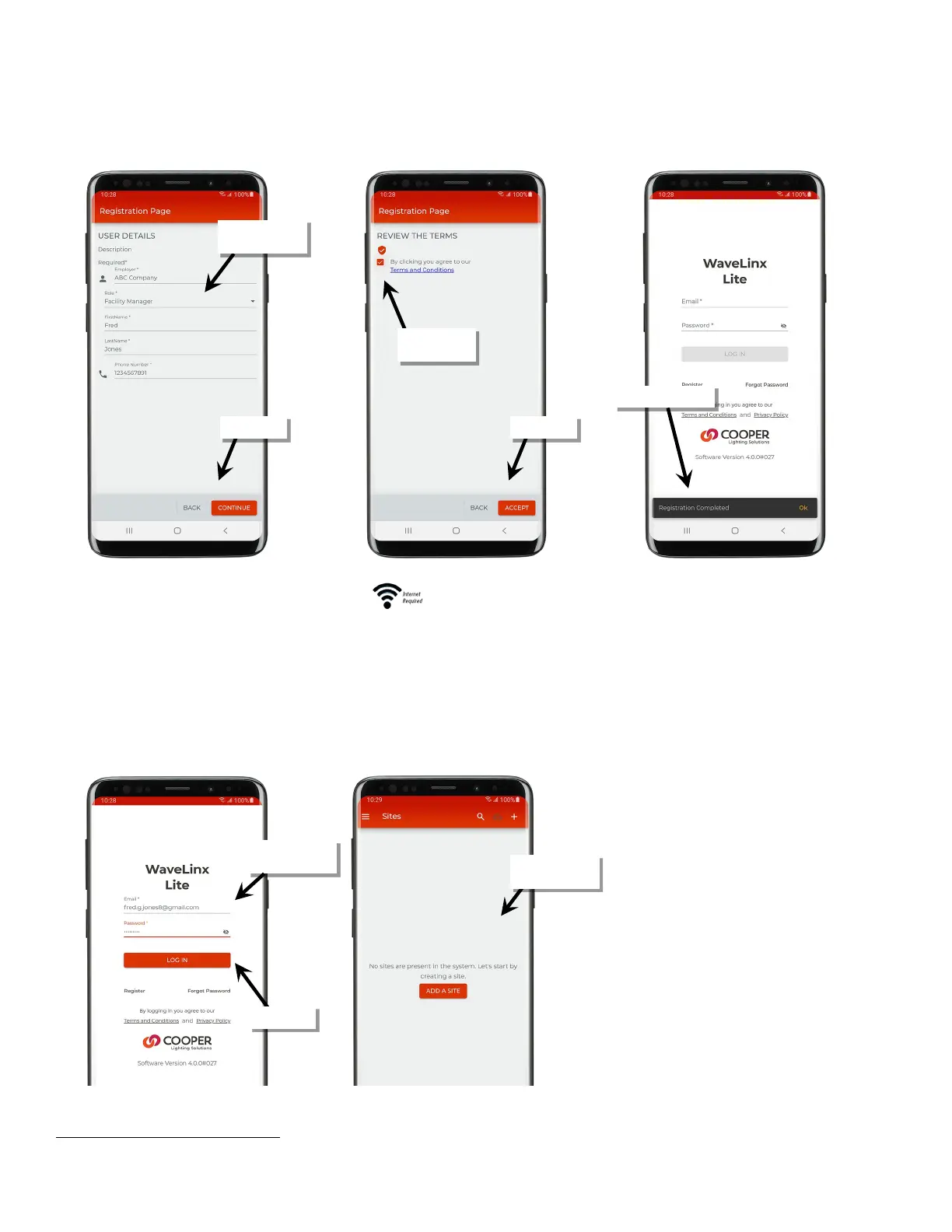
6: Enter the requested details for the user account, tapping ‘Continue’ to advance the screen.
7: After reviewing ‘Terms and Conditions’, tap the checkbox, and then tap ‘accept’. A brief message will display that registration is complete.
in to the Mobile Application
Once the account is registered, log in to the application. The user account should only be used to log in to the application in ONE mobile device.
1: Open the app from the app icon.
2: When prompted for login, enter the registered email address and password, and then tap ‘Login’.
3: The WaveLinx Lite Mobile Application will open and display the option to add a site or will display configured sites if the application has been
used previously.
Once logged in, the user remains logged in even if the mobile application is closed. The only time the application will logout is if the user
manually requests it.
47
47
If the mobile device has not had access to an internet connection for longer than 14 days, the application will request login credentials before backup functions, restore
functions or site creation functions will operate.
details
and Conditions
and password



 To Next Page