User Manual: WaveLinx Lite (4.0)
95
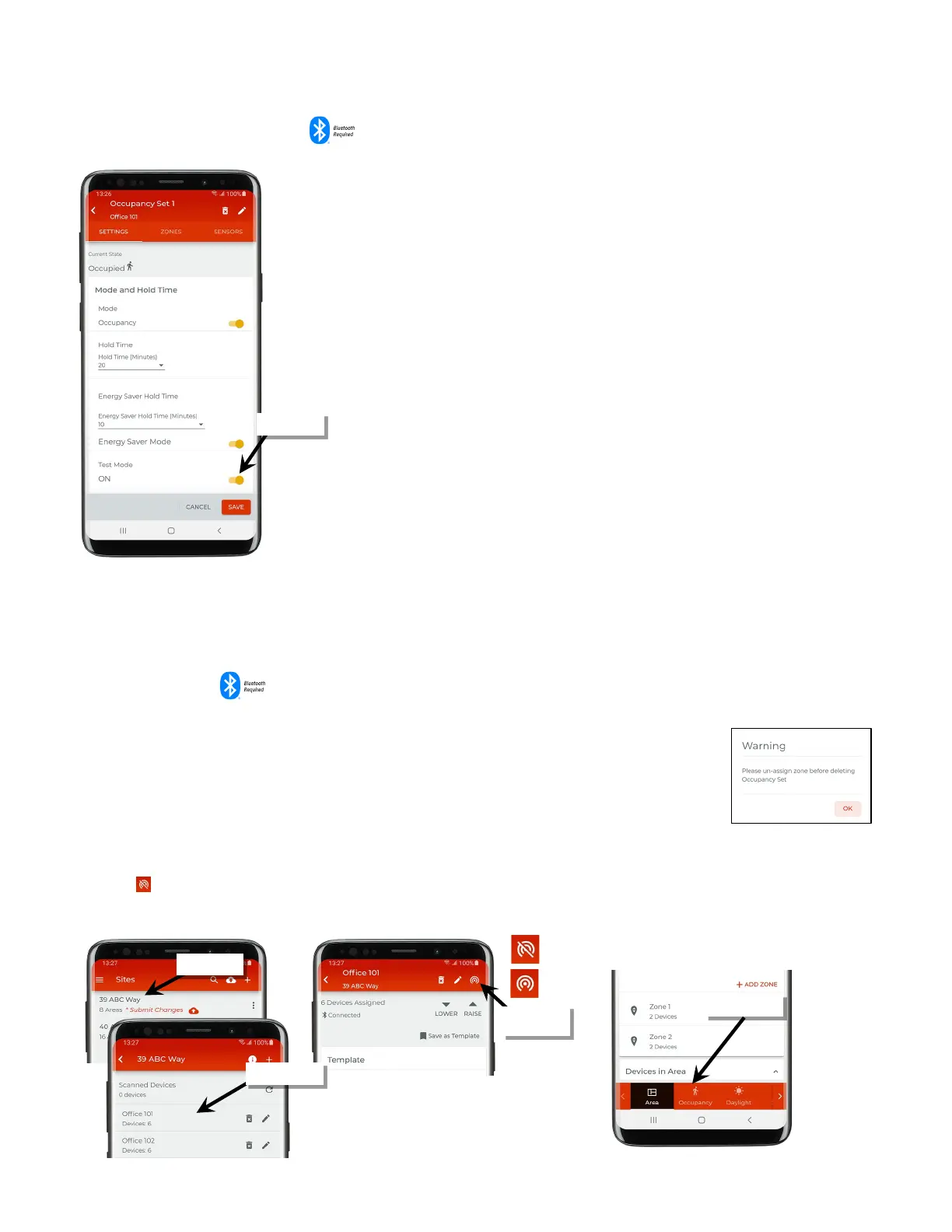
Use Occupancy Sensor Set Test Mode
The occupancy set may be placed into a temporary test mode to verify sensor response. If
test mode is activated, all sensors belonging to the occupancy set will be placed in test
mode for 10 minutes. Sensors will operate with a 10 second hold time. Test mode will
automatically revert to normal operation after 10 minutes or may be manually disabled
through the mobile application.
To test occupancy sensors, test during a time when there is little motion occurring in the
area. Access the occupancy set settings screen and slide the test switch to the ON position.
If lighting is ON, stand still. Lighting should transition to the unoccupied level after 10
seconds of no activity on any sensor. Once lighting goes to the unoccupied level, move to
verify that the lighting goes back to the occupied level.
Continue this process at each sensor location to verify individual sensor operation. If the
sensor sensitivity needs to be adjusted, see page 88 for further details.
Note: It is recommended to avoid placing sensors within 3ft (1m) of air vents.
Create New Occupancy Sets
For details on creating new occupancy sets, see “Step 4: Manage the Area Occupancy Sets (Networked Areas Only)” on page 60 for a step-by-
step walkthrough.
e Occupancy Sets
An occupancy set can be deleted ONLY if there are no zones assigned to it. The mobile application will block
the deletion if the occupancy set has assigned zones, displaying the following message:
delete an occupancy set once there are no zones assigned:
Bring the mobile device within range (within 60 feet) of any line voltage powered provisioned WaveLinx Lite
device in the desired area.
2: Ensure that the mobile device Bluetooth is turned on, an
d then open the WaveLinx Lite Mobile Application.
3: In the site list, select a site.
4: In the area list, select the desired area. After a short delay, verify that the area shows that the mobile application is connected to the network.
Tap on the icon if it is necessary to refresh the connection.
5: Tap on ‘occupancy’ to open the occupancy set list.
Verify network
connection



 To Next Page