User Manual: WaveLinx Lite (4.0)
157
Update Devices Using Firmware Files Obtained from the Cloud
Registered WaveLinx Lite 4.0 Mobile App users will receive a notification in the app when new firmware files are available.
Downloading the Firmware Files from the Cloud
The WaveLinx Lite Mobile App allows registered users to download the most recently released firmware directly into the mobile device from the
Mobile App’s ‘System’ page. This requires an internet connection to access the cloud.
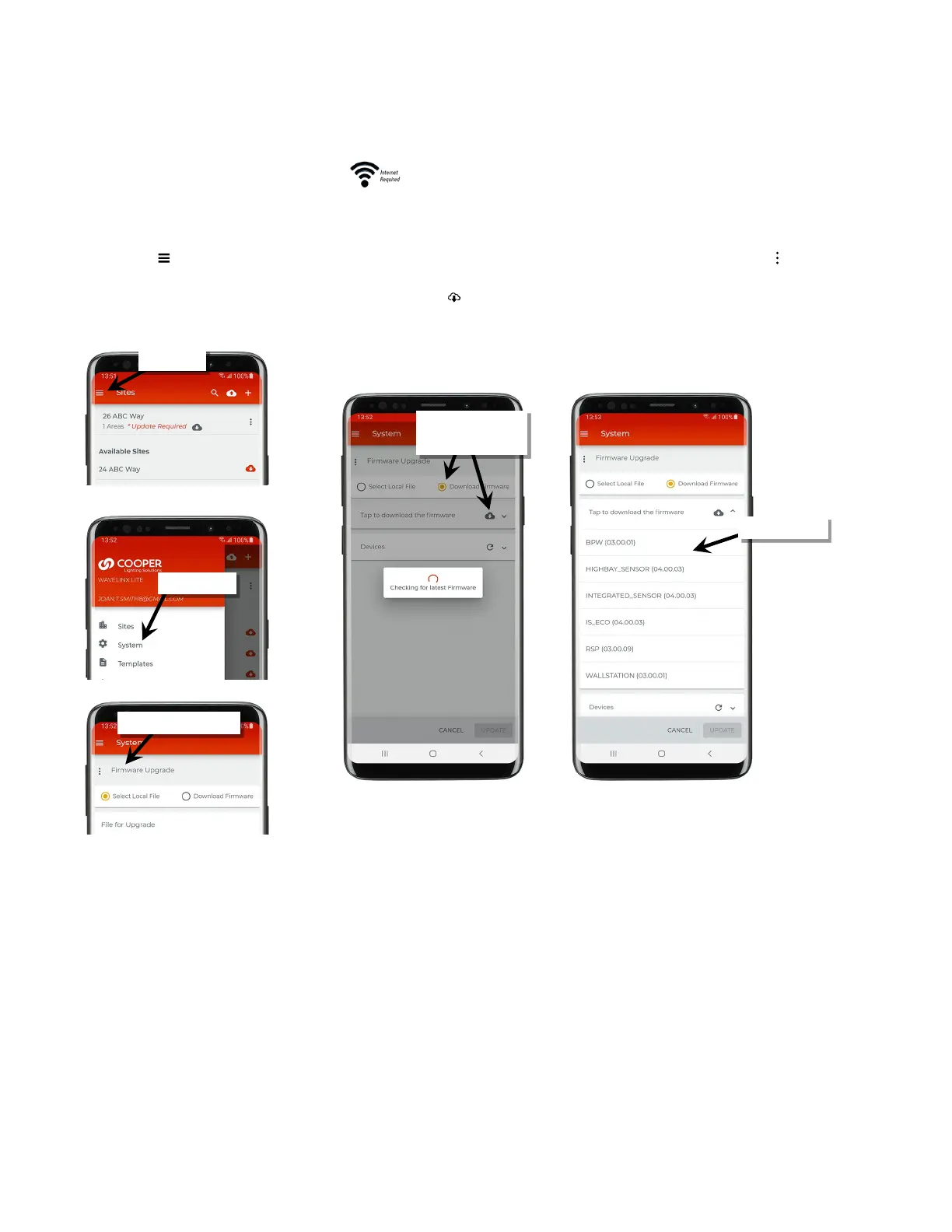
1: Ensure that the mobile device has internet access and then launch the WaveLinx Lite Mobile Application from the app icon.
2: Tap the menu ‘ ’, and then select ‘System’. If not already showing the ‘Firmware Upgrade’ screen, select the more icon ’ ’ and then tap
‘Firmware Upgrade’.
3: Tap ‘Download Firmware’ and then tap the cloud download icon ‘ ’ to download the latest firmware from the cloud.
4: The downloaded files will be displayed, ready to be used in the device update. Proceed to the next section to run the device update.
Downloaded files are stored on the mobile device and will remain available for any registered user logged in on that mobile device. Tap the
cloud icon to overwrite the downloaded files with updated files from the cloud. This can be done at any time or if a notification is received
that a new firmware version is available.
Select ’Firmware Upgrade’
Firmware’ then tap the
cloud icon.



 To Next Page