User Manual: WaveLinx Lite (4.0)
87
Modify Occupancy Sets in Networked Areas
In networked areas, occupancy sensors belong to an occupancy set. An occupancy set is a group of occupancy sensors that operate together
to control a group of devices. Any sensor sensing motion will refresh its occupied command at continuous intervals to the group. When a
sensor is no longer registering motion and is no longer receiving occupied signals from other sensors in the group, it will begin transitioning its
connected fixture through the hold time to the unoccupied level. With this logic, ANY sensor in the occupancy set can command the group to
the occupied light level, but ALL sensors in the occupancy set need register an unoccupied state before lighting can transition to the
unoccupied level.
The behavior of the occupancy set initially is dependent on the template used when the area was first created. If a custom template was used,
the occupancy set will follow the behavior defined in the template. If the area was created with the default network area template, the
occupancy set behavior is:
• Occupancy Hold Time: 20 minutes
• Energy Saver Mode: Enabled
• Energy Hold Time: 10 minutes
• Occupied level/state: Default Zone level 100%/ON
69
• Energy Saver level: 50%
• Unoccupied level/state: Default Zone level 0%/OFF
The occupancy set behavior can be changed to meet other requirements. This section discusses how to:
• Rename an occupancy set
• Adjust individual occupancy sensor settings
• Adjust occupancy set settings
• Adjust controlled zones
• Review assigned sensors
• Use test mode
• Create new occupancy sets
• Delete occupancy sets
Internet connection is not needed to modify occupancy sensor settings but connection to the WaveLinx Lite device/network is required.
The occupancy set will be given a generic name upon creation. The occupancy set can be renamed at any time to allow for easier identification.
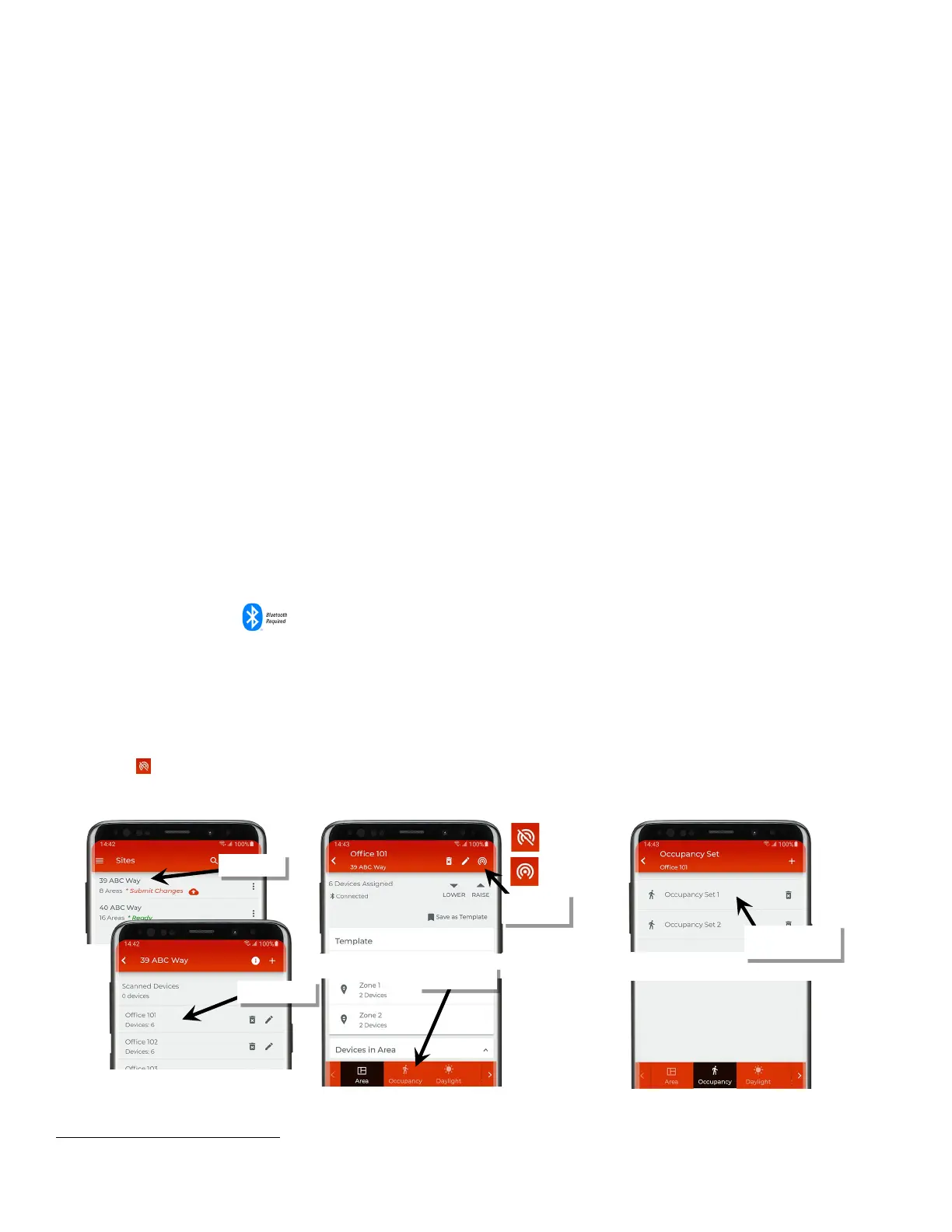
To rename an occupancy set:
1: Bring the mobile device within range (within 60 feet) of any line voltage powered provisioned WaveLinx Lite device in the desired area.
2: Ensure that the mobile device Bluetooth is turned on, and then open the WaveLinx Lite Mobile Application.
3: In the site list, select a site.
4: In the area list, select the desired area. After a short delay, verify that the area shows that the mobile application is connected to the network.
Tap on the icon if it is necessary to refresh the connection.
5: Tap on the ‘Occupancy’ option and then select the desired occupancy set.
69
If occupancy is sensed in the 30 seconds after an unoccupied command is issued (grace period), the device will resume the previous light level. If outside of the grace
period, the light level issued when occupied will be as defined for the occupied command. Devices with older firmware may not observe the 30 second grace period.
Verify network
connection
set to modify



 To Next Page