User Manual: WaveLinx Lite (4.0)
41
Copy an Existing Template
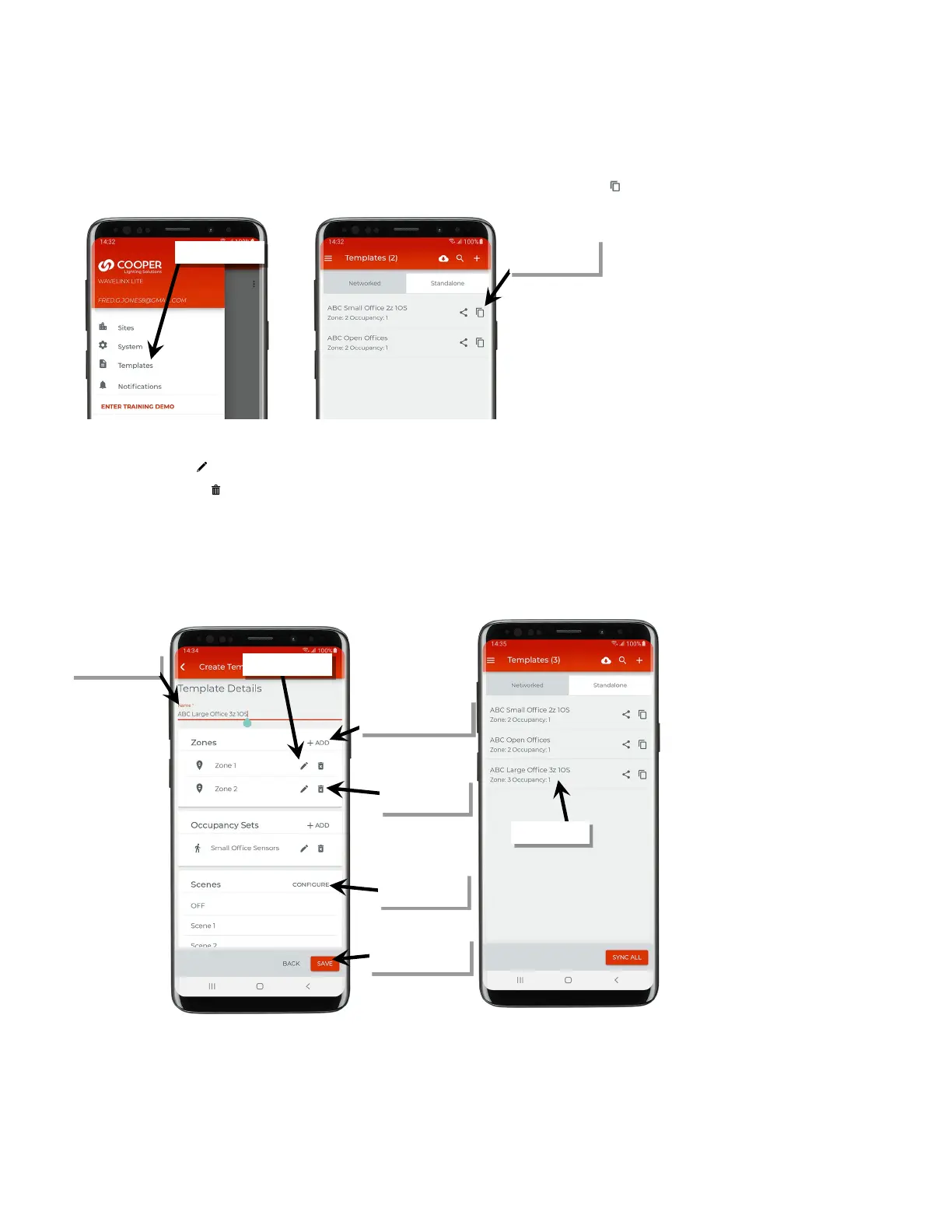
The mobile application allows copying of an existing template to create a new template.
To copy a template:
1: From the menu, select ‘Templates’, and then locate the template to copy. Tap the copy icon ‘ ’.
2: Give the template a new unique name and then edit the template to make the desired changes:
• Tap the edit icons ‘ ’ to modify existing settings.
• Tap the delete icons ‘ ’ to delete zones or occupancy sets.
• Tap the ‘+ Add’ option to add additional zones or occupancy sets.
• Tap ‘Configure’ to modify scene levels.
3: Once the changes are complete, tap ‘Save’. If there is an internet connection, the updated template will also automatically sync to the user’s
cloud account. If there is not an internet connection, manually sync the template once the connection is available. See “Sync Templates” on
page 42 for details.
next to the template
or occupancy sets
or occupancy sets
modify scenes
changes are complete



 To Next Page