User Manual: WaveLinx Lite (4.0)
134
Sensor Operation in a Standalone Area
The daylight sensor response can be tested by placing a sensor into test mode. During test mode, the daylight fade rate is lowered to 10
seconds and the time delays for dim-to-off functionality is reduced. The faster response allows the sensor operation to be quickly verified on
site. If left on, test mode will automatically time out after 10 minutes.
88
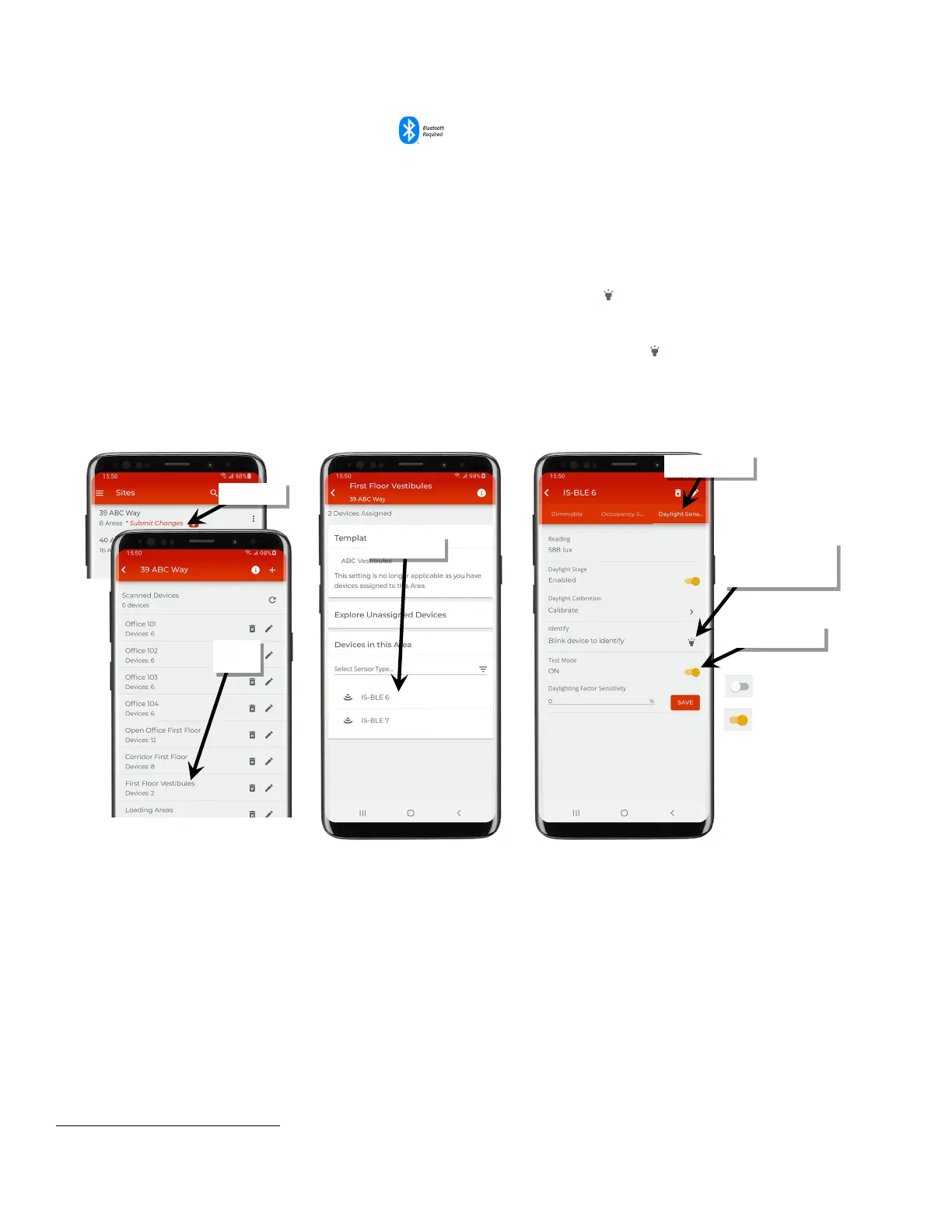
1: Ensure that the mobile device Bluetooth is turned on, and then open the WaveLinx Lite Mobile Application.
2: In the site list, select a site and then in the area list, select the standalone area.
3: Bring the mobile device within range (within 60 feet) of the desired device and then select the device from the ‘Devices in this Area’ section.
4: Once the device connects and opens, tap the ‘Daylight…’ tab, and then tap the identify icon ‘ ’ to place the device in the identify mode to
verify that it is the expected device. The device should respond with the identification behavior described in the device reference sheet
section beginning on page 9.
After 15 seconds the device will disconnect and return to normal operation or tap the identify icon ‘ ’ prior to 15 seconds expiring to cancel
the command and disconnect manually. If an unintended device responds, try the next device and continue until the expected device is
found.
5: Slide the switch next to ‘Test Mode’ to the ON position and proceed to test the sensor. Once testing is complete, slide the switch to OFF or
allow test mode to automatically time out after 10 minutes.
88
If the device allows dim-to-off, when the measured light level exceeds 150% of the calibrated light level for more than 30 seconds, the sensor will turn lighting OFF. Lighting
will be turned back ON when one of the two conditions occurs. Condition 1: The measured light level falls between 100% and 50% of the calibrated light level for more than
20 seconds. Condition 2: The measured light level falls below 50% of the calibrated light level for longer than 5 seconds.
If needed, use ‘identify’ to
verify that the correct
device is selected
the area



 To Next Page