User Manual: WaveLinx Lite (4.0)
148
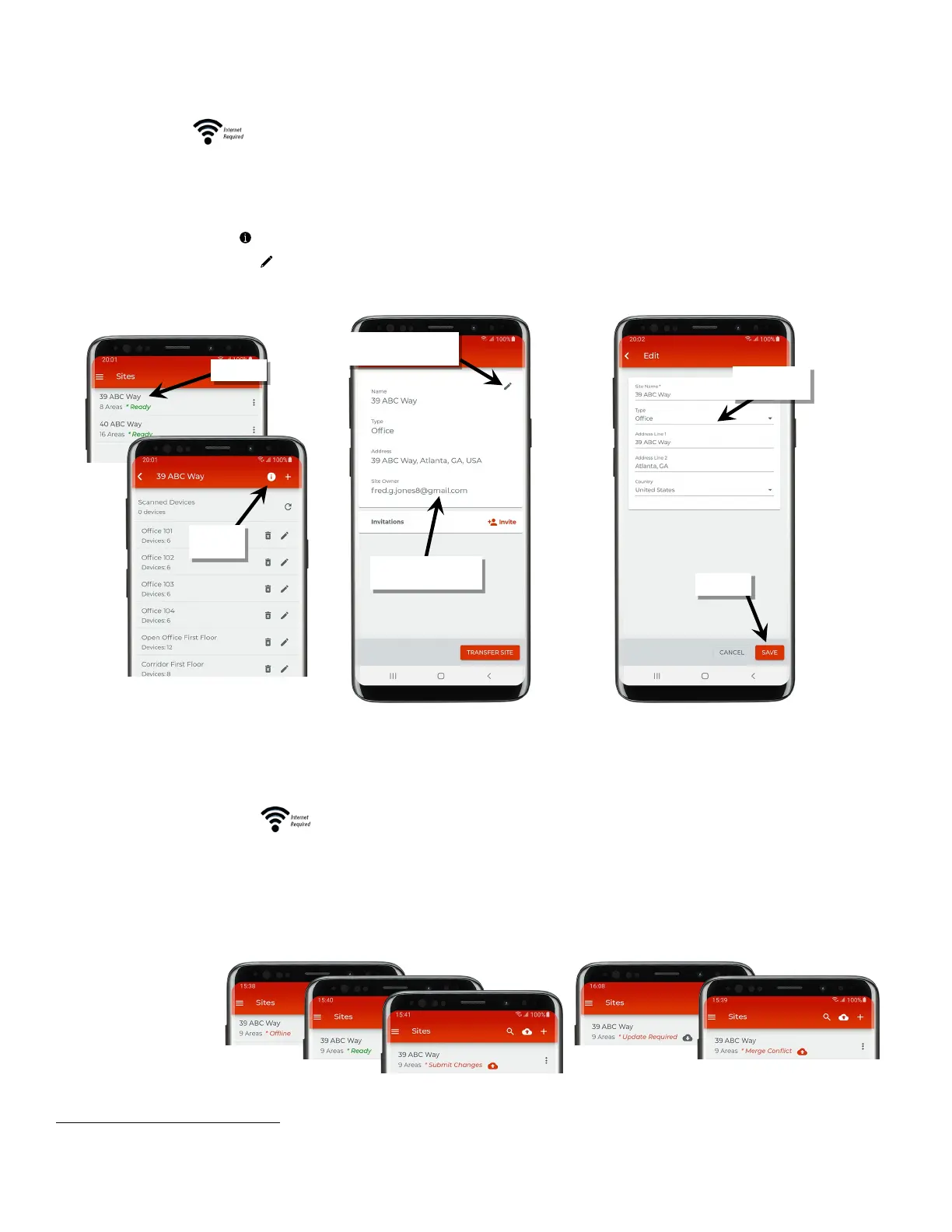
The site details entered when first creating a site can be edited. This includes the site name, the site type, and the site address. The site owner
name can also be viewed.
93
Access these items through the following process.
1: Ensure that the mobile device has internet access and then launch the WaveLinx Lite Mobile Application from the app icon.
2: Tap on the desired site.
3: Tap on the information icon ‘ ’ at the top of the area list page to open the site details.
4: To change information, tap edit ‘ ’.
5: Once the information is correct, tap ‘Save’.
94
The site information screen also provides access to inviting other users to commission the site and for the site owner to transfer the site to
another person. For details on these functions, see “Advanced Site Setup: Sites with Multiple Commissioners” on page 71 and “Transfer Site
Ownership” on page 154.
ing
The WaveLinx Lite Mobile Application strives to keep the local mobile app database in sync with the site cloud database to prevent the data
from getting out of sync. This section discusses the site sync status indicators and their meanings/resolutions as well as manual sync versus
automatic sync operation. Site databases can also be restored from the cloud to a new mobile device if needed.
Site Sync Status Indicators:
WaveLinx Lite 4.0 also contains new indicators next to the site name that show the sync status. These include the following:
• Ready
• Submit Changes
• Update Required
• Merge Conflict
93
In WaveLinx Lite (4.0), it is not possible to delete a site from the cloud portal. If a site is no longer being used, give the site a name that indicates that it is not an active site.
94
If the app displays the message “Error, site name already exists”, the site name has already been taken by another user for their site. Try adding on a unique number or
change the site name to something else.
information
modify details
icon



 To Next Page