User Manual: WaveLinx Lite (4.0)
82
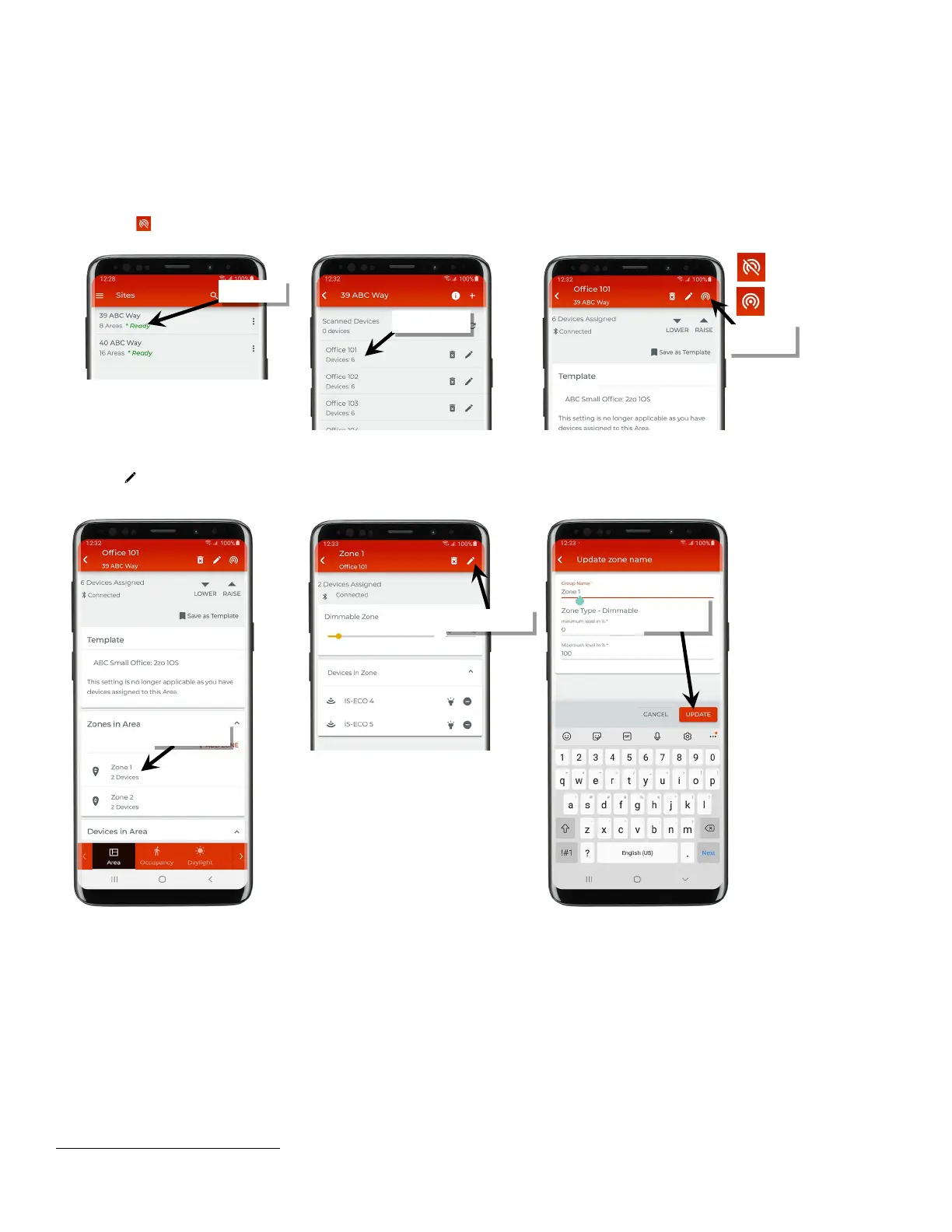
To change the parameters,
1: Bring the mobile device within range (within 60 feet) of any line voltage powered provisioned WaveLinx Lite device in the desired area.
2: Ensure that the mobile device Bluetooth is turned on, and then open the WaveLinx Lite Mobile Application.
3: In the site list, select a site.
4: In the area list, select the desired area. After a short delay, verify that the area shows that the mobile application is connected to the network.
Tap on the icon if it is necessary to refresh the connection.
5: In the zone list, select the zone.
6: Tap edit ‘ ’ to open the zone name and parameters.
7: Change the zone name, update the parameters, and then tap ‘Update’.
67
Add Zones
For steps on adding zones to an area, see “Step 3: Add Zones (Networked Areas Only)” on page 59.
67
It is not possible to update the zone type after a zone is created. To change a zone type, delete the zone and then set up the zone as a new zone with the desired zone type.
Verify network
connection
and update



 To Next Page