User Manual: WaveLinx Lite (4.0)
167
This procedure can be used to replace a device or to delete a device that is no longer communicating.
e a Device in a Networked Area
Before replacing a device that is malfunctioning make note of the zone that the device is currently assigned to, and any special programming
assigned to it in the device details page as the settings will need to be manually assigned to the new device.
First delete, the device from the site by following the steps below:
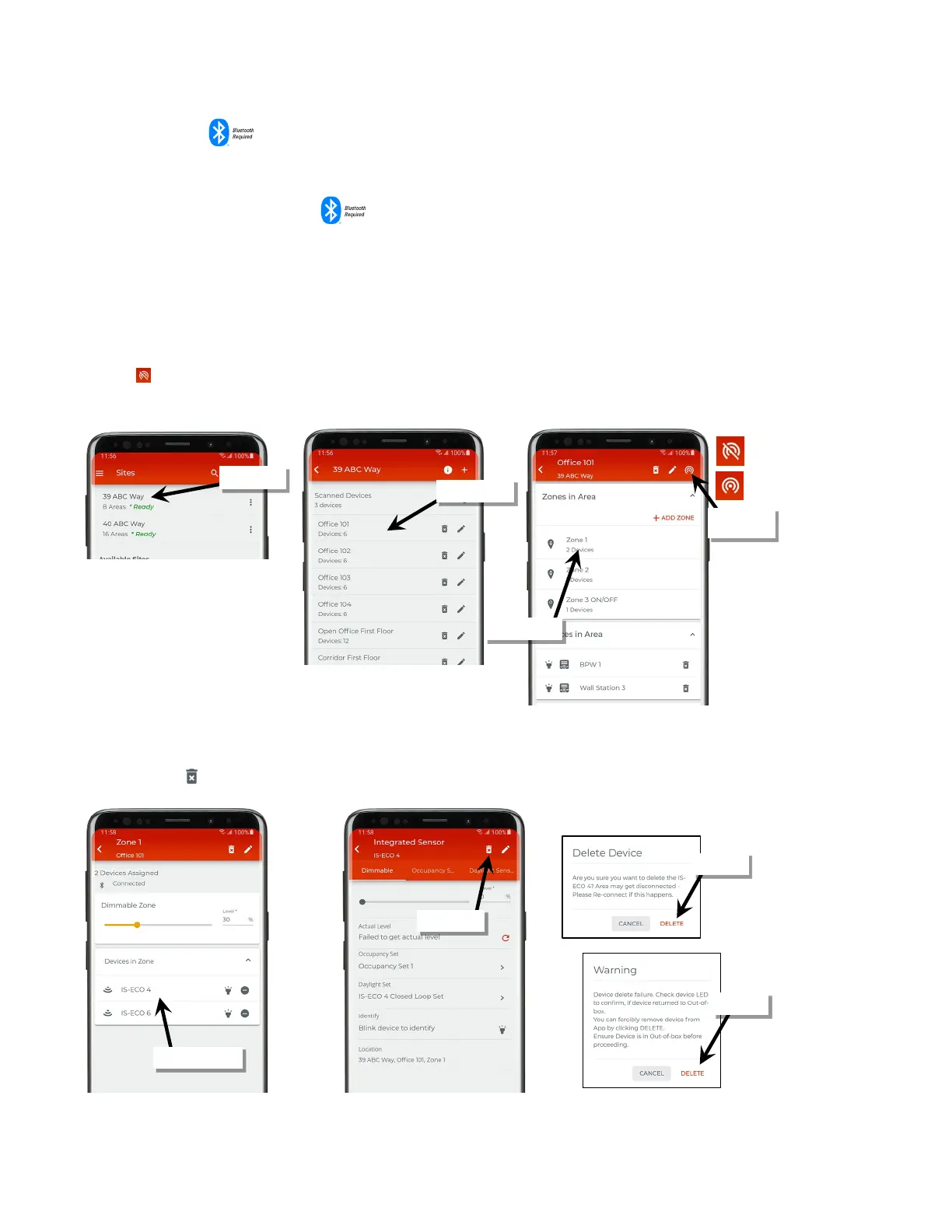
1: Bring the mobile device within range (within 60 feet) of any line voltage powered provisioned WaveLinx Lite device in the desired area.
2: Ensure that the mobile device Bluetooth is turned on, and then open the WaveLinx Lite Mobile Application.
3: In the site list, select a site.
4: In the area list, select the desired area. After a short delay, verify that the area shows that the mobile application is connected to the network.
Tap on the icon if it is necessary to refresh the connection.
5: In the zone list, select the zone.
6: In the list of devices in the zone, locate the malfunctioning device.
7: Tap the device to open the device details. The device may display ‘failure to communicate’ on the page.
8 Tap the delete icon ‘ ’ and then confirm the deletion with both messages that appear.
9: Once the old device is deleted, provision the new device and assign it to the same zone as the old device. Make sure to match any special
settings found in the device details pages. Refer to page 63 for information on provisioning devices.
Verify network
connection



 To Next Page