User Manual: WaveLinx Lite (4.0)
166
Communication Issue Possible Causes Resolution Steps
No error messages occurred
when an occupancy set or
scene level was adjusted but a
device was offline or powered
off when the settings were
sent. Now the device is
working differently from other
•
Group settings (Occupancy set and
Scene Level Adjustments) do not
require acknowledgement from
individual devices and do not know
if individual devices did not receive
the commands.
Ensure that all devices are powered and online and then
use the mobile application to change a setting in the
occupancy set or scene level. Save the change and then
change the setting back to the desired selection and
save it again. This will refresh the setting to all
communicating devices.
e Device Scan
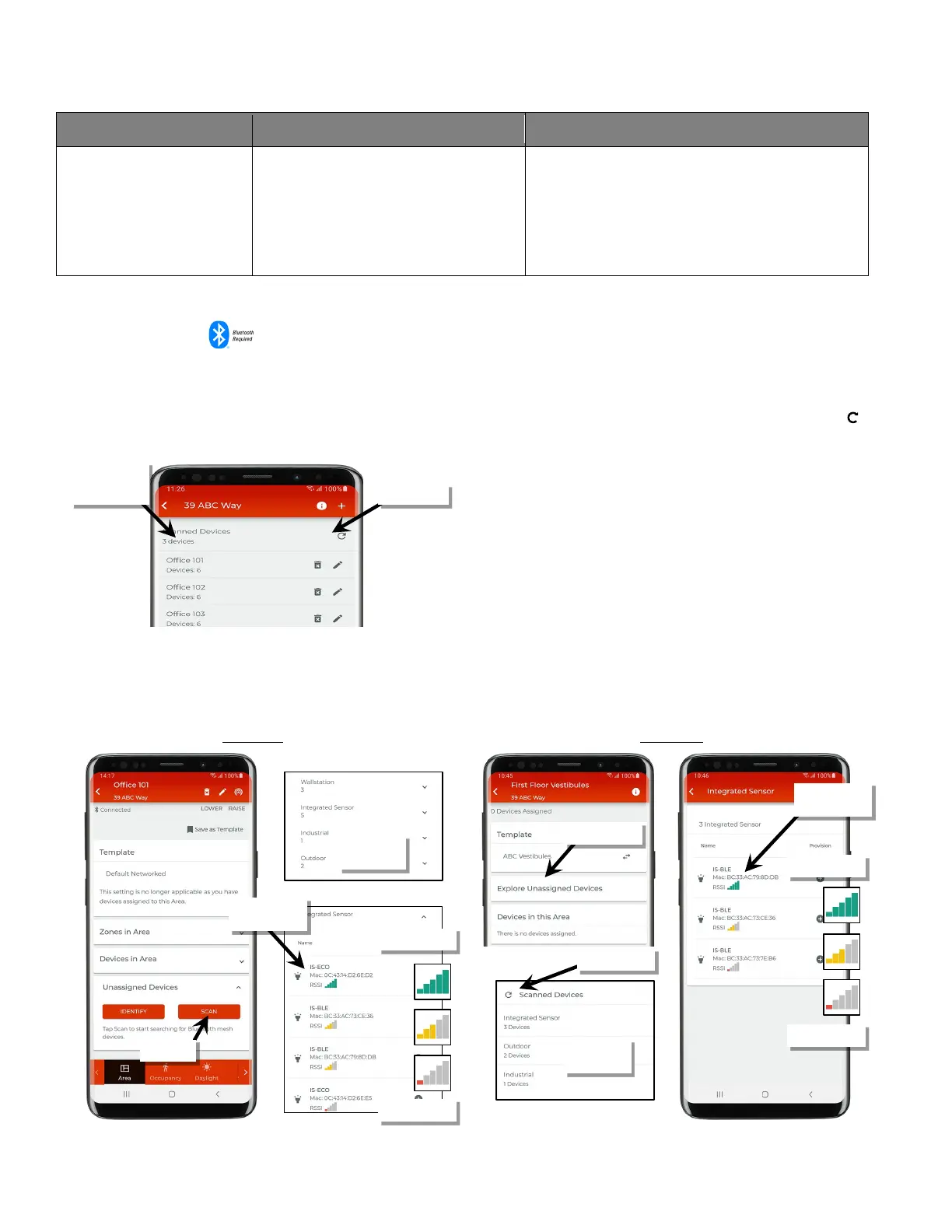
The WaveLinx Lite Mobile Application allows devices that are still in the out-of-the-box mode to be scanned from various locations in the mobile
application. This can be helpful to see what unprovisioned WaveLinx Lite devices are in range of the mobile device.
For a quick scan of the quantity of unprovisioned devices in the range of the mobile device, open the site, and then tap the refresh icon ‘ ’ in
the ‘Scanned Devices’ section at the top of the area list. The quantity of unprovisioned devices found will be displayed.
For more detailed scans, open an area and run the scan. In a networked area, scan in the ‘Unassigned Devices’ section. In a standalone area,
run the scan under ‘Explore Unassigned Devices’. Found devices will be categorized by type. In each section, devices will be organized in order
by the strongest signal strength (closest devices) to the weakest signal strength (devices further away). Signal strength is color coded. This
detailed scan will show the device type as well as the device MAC address.
unprovisioned
breakdown
breakdown
signal strength
signal strength



 To Next Page