User Manual: WaveLinx Lite (4.0)
165
Communication Issue Possible Causes Resolution Steps
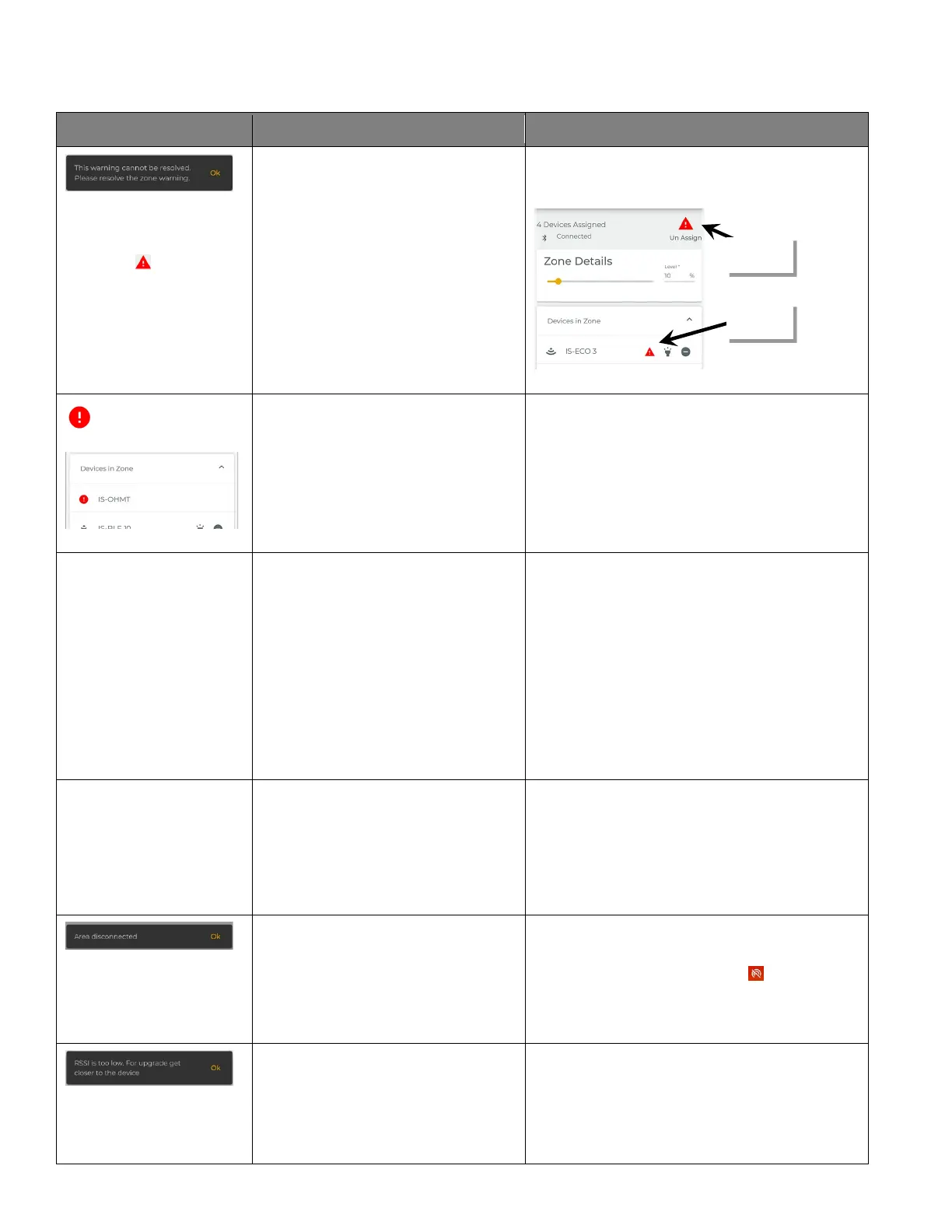
The message ‘This warning
cannot be resolved. Please
resolve the zone warning.’ is
displayed after tapping on a
device alert icon.
• The zone alert needs to be cleared
before the device alert.
When clearing alerts, always clear an alert at the zone
level before attempting to clear an alert at the device
level.
There is an alert icon next
to a device.
• The device did not configure
properly during provisioning.
Tap the icon and when prompted, delete the device.
Perform a factory reset on the device if the device
shows provisioned behavior. Refer to the “WaveLinx Lite
Device Reference Sheets” on page 9 for details on
performing a factory reset.
Once the device is deleted and factory reset, try to
provision the device again.
The device appears to be
offline. Repeated attempts to
send settings continue to fail.
• Device has no power.
• Device is offline.
Verify that there is power to the effected device.
If possible,
try to power cycle the device (turn power OFF
for 30 seconds and then back ON).
If LEDs are visible on the device, try to see if the LED
shows normal reaction to motion activity.
Bring the mobile device close to the WaveLinx Lite
device. In the mobile application, try to process a ‘blink
to identify’ command. If the device responds, attempt to
communicate again. If communications still fail, the
device may need to be deleted from the area and then
provisioned again.
If the device does not respond, contact technical
support for further guidance or to replace the device.
The light connected to the
device is ON but the device’s
LED indicator is not
functioning. The device is not
communicating with the
mobile app/is not controllable.
• Device has become physically
disconnected
• Device is defective
Power down the controlled circuit and ensure that the
internal device wiring is properly connected to the
controlled lighting. Once connections are correct,
reapply power and ensure the device is operating
properly and responsive.
If the connections are correct and the device is still
unresponsive, contact technical support for further
guidance or to replace the device.
An ‘Area Disconnected’
message is displayed
• A communication command may
have completed which may reset
the device that the mobile
application is connected through
• The mobile device may have
moved out of range of the network
This message is a normal message after completing
communication. The network connection should
attempt to refresh automatically. If the network
connection does not refresh, tap the icon.
Make sure that Bluetooth is on and then try moving
closer to one of the devices and try again if the network
fails to connect.
A RSSI is too low message is
displayed.
• The Bluetooth signal is too low for
the command to process.
This message may occur during provisioning or
updating firmware when there is a direct Bluetooth
connection between the mobile device and a WaveLinx
Lite Device.
Move as close to the device as you can. Maximum
distance from the device should not exceed 60 feet
including the fixture height.
alert first
alert second


 To Next Page