User Manual: WaveLinx Lite (4.0)
33
Mobile Application Logout
Once logged in to the mobile application, it is not necessary to log out. If needed, the logout function can be accessed from the main menu.
WARNING: If an app logout is processed, an internet connection will be required to log back in.
WARNING: The app will automatically sync the database to the cloud on logout. If the same user account has been used to login to the app on
different mobile devices {not recommended) the cloud database may get out of sync.
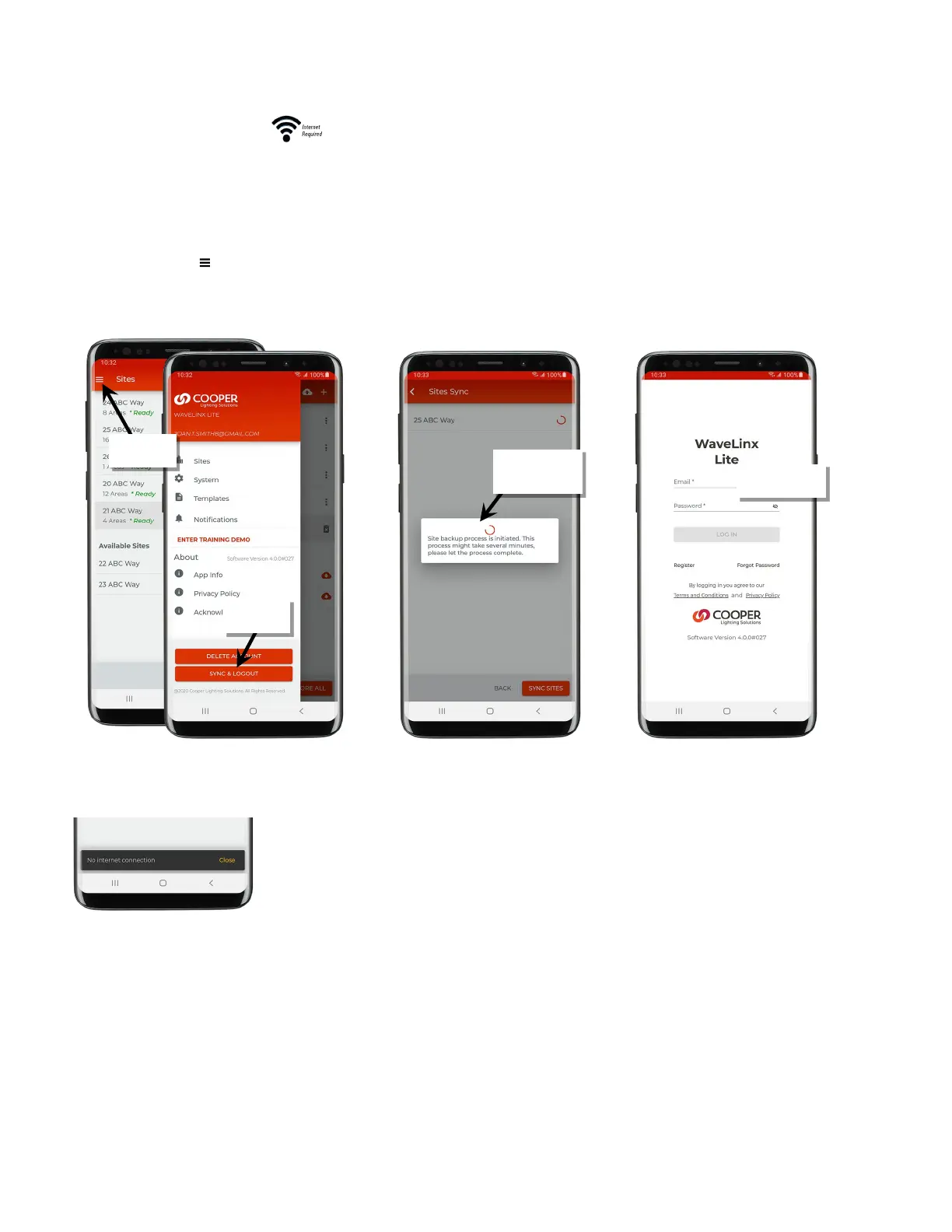
To log out of the mobile application:
1: Tap the menu button ‘ ’.
2: Select ‘Sync & Logout’.
3: The app will start the automatic site sync process. Once the sync completes, the app will logout and return to the login screen.
Note: Due to the need for the application to sync the site data to the cloud for storage, in order to logout, the mobile device MUST have an internet
connection to sync site data to the cloud portal during the logout process. If there is no internet connection, logout will be prevented, and the following
message will be displayed. Only sites that are marked as sync status ‘Submit Changes’ will be synced to the cloud.
button
Logout’
and then sync to the
cloud portal
login command



 To Next Page