User Manual: WaveLinx Lite (4.0)
76
-Commissioner(s): Transfer Completed Site Workspaces to Site Administrator
Once a co-commissioner completes their portion of the project, they must transfer the site workspace ownership back to the administrator. If
an invited co-commissioner does not assist in the project, they must still restore and then transfer the blank site workspace back to the site
administrator. If all site workspaces are not transferred back, the site administrator cannot perform the site merge. An internet connection is
required for the site transfer.
To transfer a co-co
mmissioner’s site workspace back to the administrator:
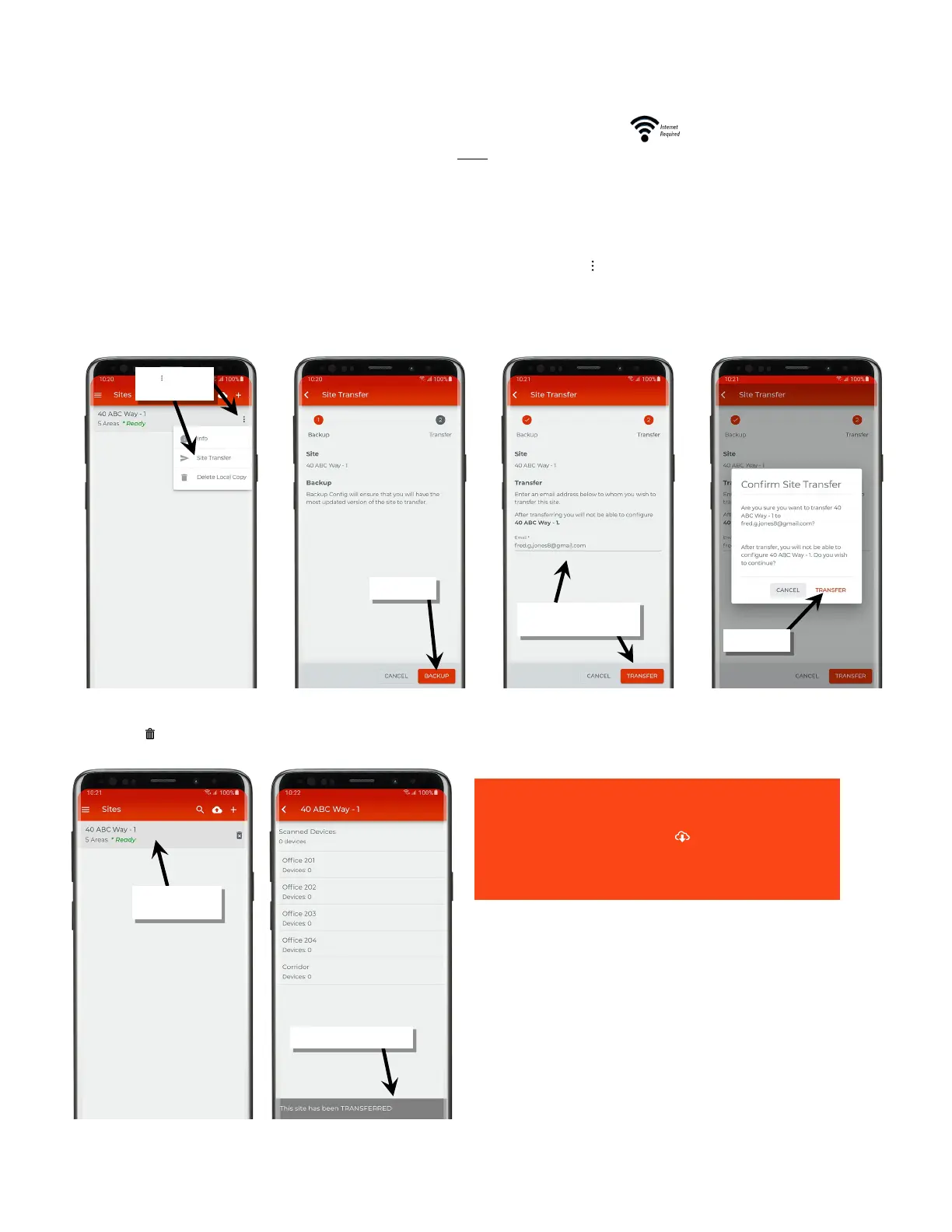
1: Open the WaveLinx Lite Mobile Application on the co-commissioner’s mobile device.
2: In the ‘Sites’ list, locate the co-commissioner’s finished site workspace and then tap the ‘ ’ icon. From the popup, select ‘Site Transfer’.
3: When prompted, tap ‘Backup’ and wait for the sync to complete.
4: Next, type in the email address of the site administrator and then tap ‘Transfer’. When prompted, confirm the transfer and wait for the
transfer to complete.
Once the site workspace is transferred, it will still appear in the site list but will not have any icons in the site row other than the option to delete
the local copy ‘ ’. If opened, the site workspace will show the last programmed settings but will not allow changes and will show a message
that the site has been transferred.
When a completed site workspace is transferred
to the site administrator, the site administrator
DOES NOT need to restore ‘ ‘ the co-
commissioner’s site workspace to perform the
site merge.
workspace
tap ‘Site Transfer’
Enter the site administrator’s
email, then tap ‘Transfer’



 To Next Page