User Manual: WaveLinx Lite (4.0)
40
Create a Template from an Existing Area
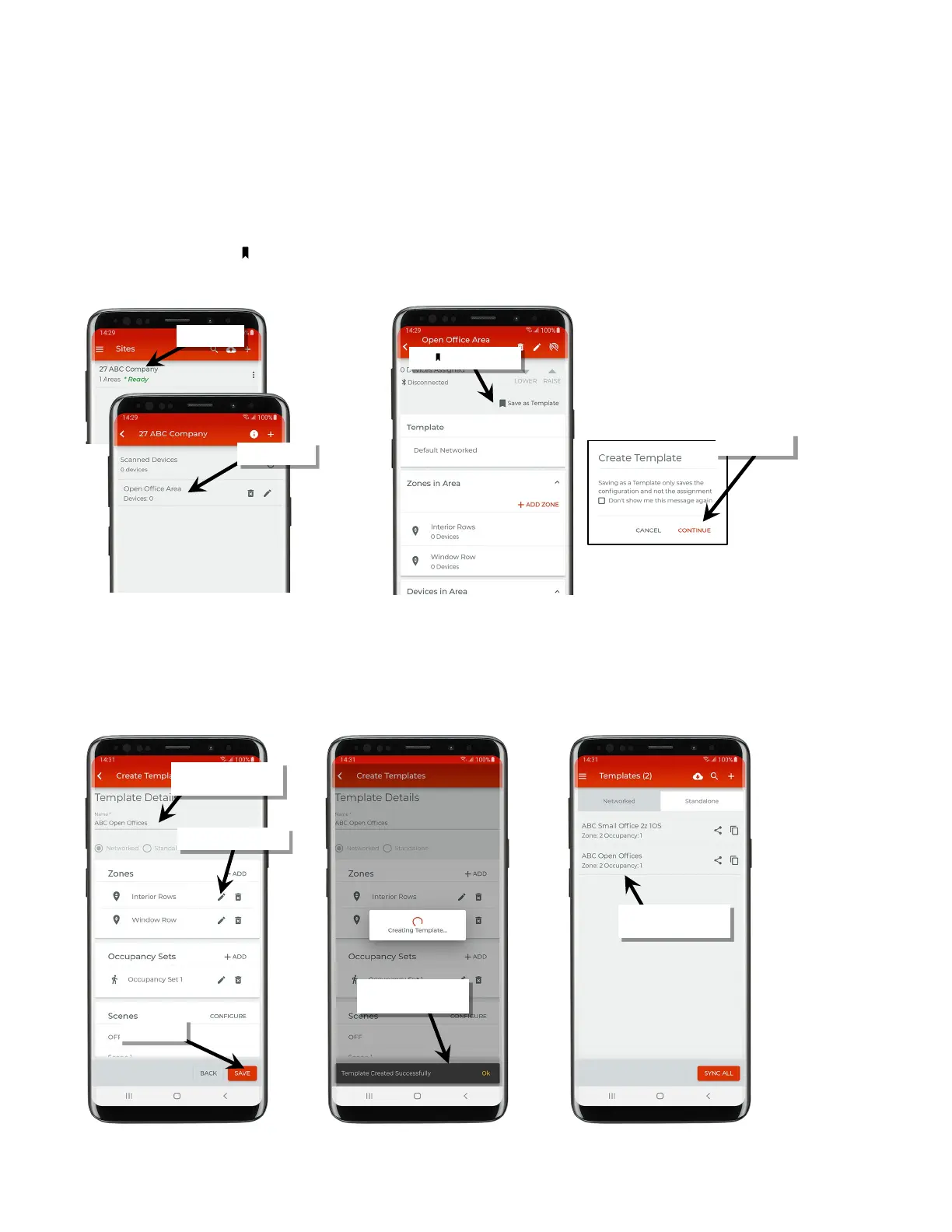
The mobile application allows creation of a template from a previously programmed area.
Before performing the steps below, make certain that the area is configured with the desired settings.
To create a template from an existing area:
1: Launch the WaveLinx Lite Mobile Application from the app icon.
2: In the site list, select the site, and then select the desired area.
3: At the top of the screen, tap ‘ Save as Template’.
4: When prompted, tap ‘Continue’ on the reminder that the command will save the configuration not assignment of the devices.
5: Type a unique descriptive name for the template that will allow for easy identification later. The template name must be different from other
template names created by that registered user.
6: If needed, adjust the template settings. Once complete, tap ‘Save’. The template will save to the mobile device. If there is an internet
connection, the template will automatically sync to the user’s cloud account and will display as an available template in the template screen.
If there is not an internet connection, manually sync the template once the connection is available. See “Sync Templates” on page 42 for
details.
template list
template
If needed, adjust settings
syncing to cloud



 To Next Page