User Manual: WaveLinx Lite (4.0)
39
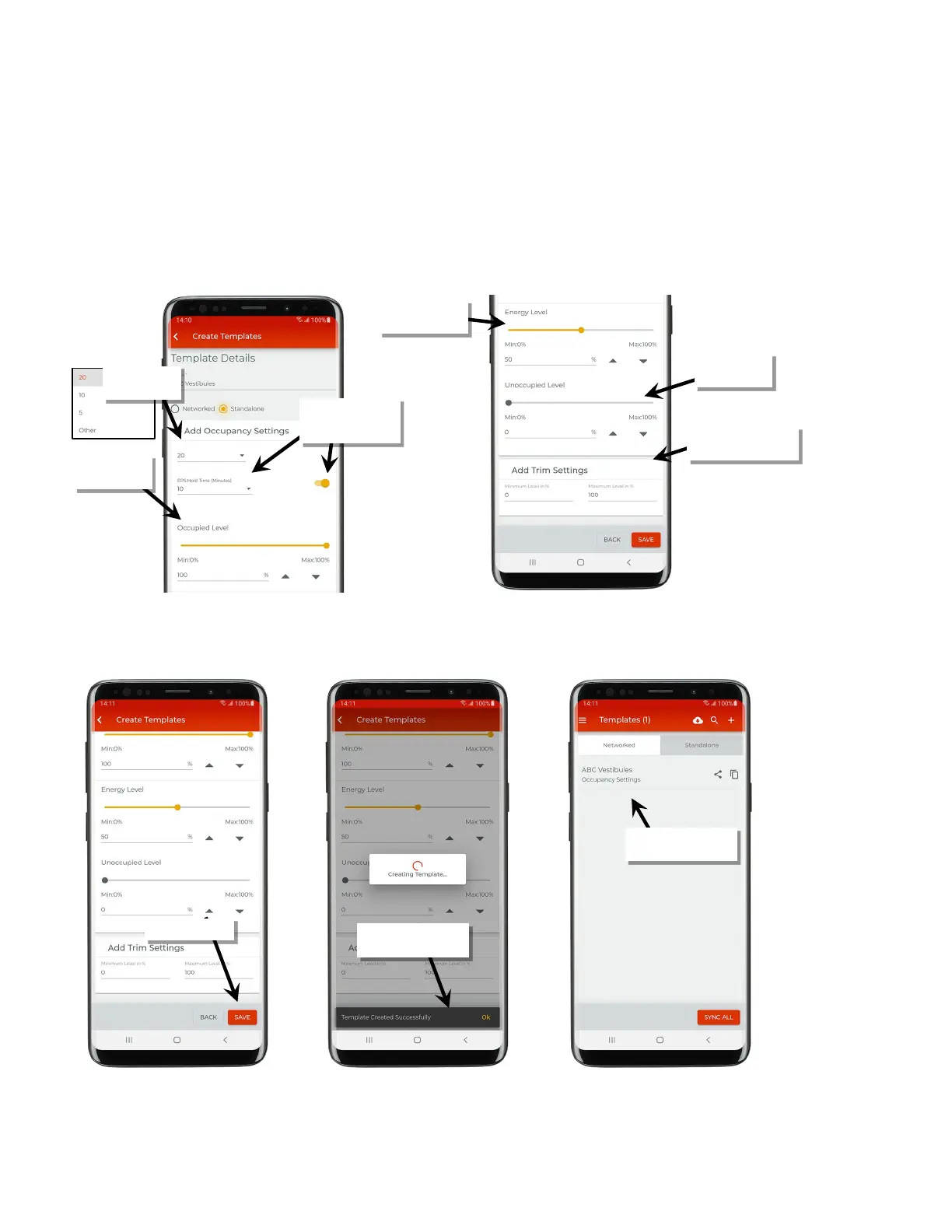
5: Next, set the default device occupancy settings. Select the desired hold time and then enable/disable and configure energy saver mode.
Define the light level commands for when the occupied, energy saver (dimmable load only), and unoccupied events occur. The occupied
level cannot be lower than the defined level for energy saver mode. The energy saver level cannot be higher than the level defined for the
occupied level. The unoccupied level cannot be higher than the level defined for the energy level.
6: Next, set the desired default trim settings for the devices that will be provisioned in this standalone area.
• Minimum level (low end trim): Sets the lowest level that dimming commands can set the dimmable light level to. Typically used to provide
a desired aesthetic. The default setting is 0%. Regardless of the minimum level set, a 0% command will turn the load OFF.
• Maximum level (high end trim): Sets the highest level that the dimming command can set the dimmable light level to. Typically used to
save energy or to provide a desired aesthetic. The default setting is 100%.
7: Review the settings, and then tap ‘Save’. The template will save to the mobile device. If there is an internet connection, the template will
automatically sync to the user’s cloud account. If there is not an internet connection, manually sync the template once the connection is
available. See “Sync Templates” on page 42 for details.
8: Repeat the steps in this section to add additional standalone area templates for any common area configurations.
Set desired level for low
end and high end trim
hold time
occupied event
unoccupied event
configure energy saver
mode.
saver level
syncing to cloud
standalone template list



 To Next Page