User Manual: WaveLinx Lite (4.0)
140
View Status and Device Details in a Networked Area
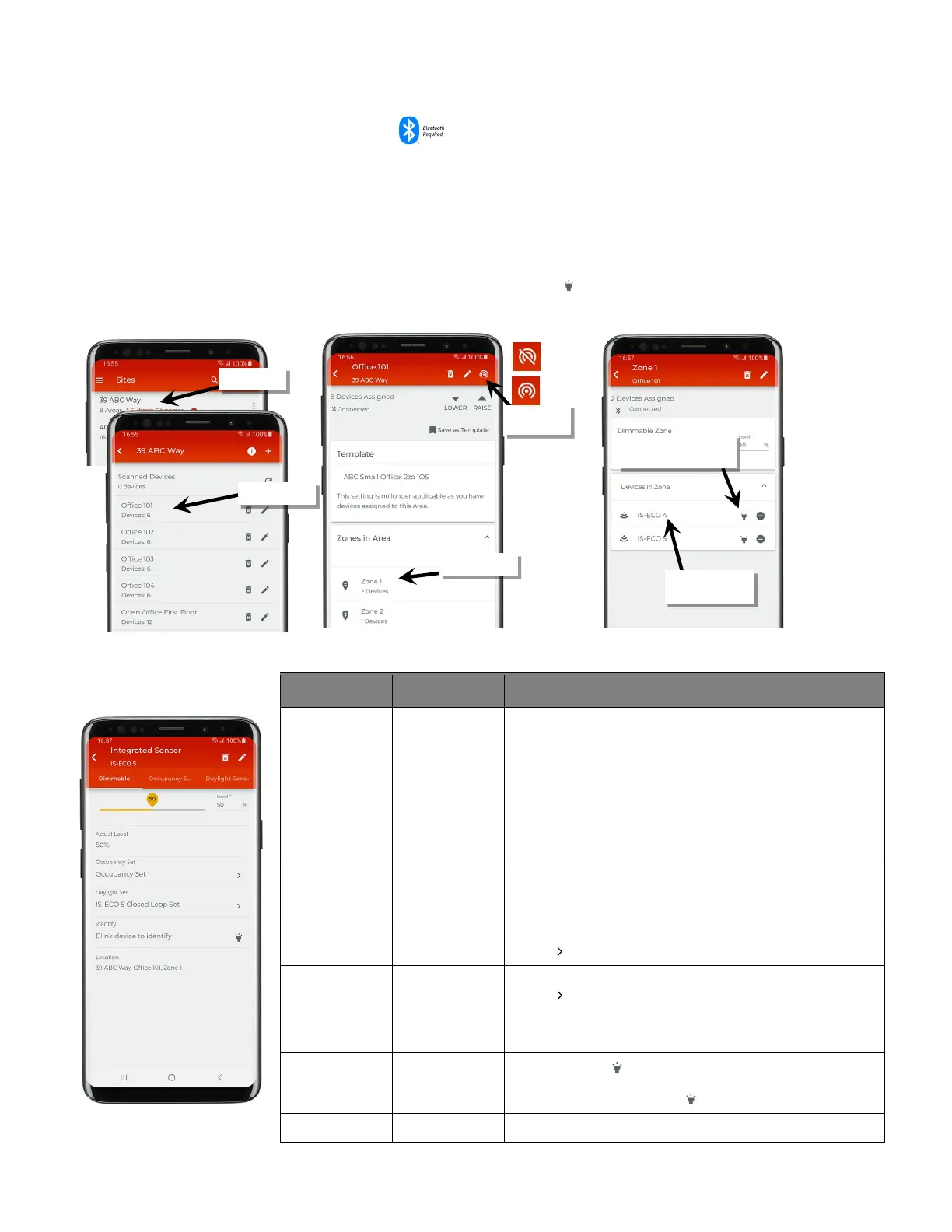
To access the device details pages:
1: Bring the mobile device within range (within 60 feet) of any line voltage powered provisioned WaveLinx Lite device in the desired area.
2: Ensure that the mobile device Bluetooth is turned on, and then open the WaveLinx Lite Mobile Application.
3: In the site list, select a site.
4: In the area list, select the desired area and verify that there is a network connection.
5: In the zone list, select the desired zone.
6: In the list of devices, locate the device to command. If needed, use the identify icon ‘ ‘ to flash the loads until the correct one is found, and
then tap the device to open the device details.
Device Details Dimmable Page
Setting Default Description
Current Status N/A Displays the current light level of the dimmable device. Use the
slider or entry field to temporarily issue a high priority override
to the light level. Light level will revert to
normal operation after
10 minutes if still in the device details page at this time or once
the screen is exited.
Note: Light level may not automatically refresh if commands have
processed after screen was entered. Devices in non-dimmable and
receptacle zones will display a slider in the device details page. If the
device is inherently a dimmable device,
it will dim with commands from
the slider within this page.
Actual Level N/A Displays the current light level of the device.
Note: Light level may not automatically refresh if commands have
processed after screen was entered.
Occupancy Set Shows the zone’s currently assigned occupancy set. Tap the
arrow ‘ ’to go to the occupancy set page.
Daylight Set Shows the zone’s currently assigned daylight set. Tap the
arrow ‘ ’to go to the closed loop daylight set page. For open
loop, always access the open loop daylight set from the
daylight set list (see “Modify Open Loop Daylight Control
” on
Blink to Identify N/A
Tap on the icon ‘ ’ to cause the connected fixture to flash on
and off for a 15 second period. To cancel ‘blink to identify’
before the timer expires, tap ‘ ‘ again.
Lists the site, area, and zone that the device is assigned to.
If needed, use ‘identify’ to
locate the correct device
the device details
Verify network
connection



 To Next Page